User guide

How to use Sifu AI

Step by step, with a picture for every step. Find what you want to do and follow along.

What Sifu AI is, and which course to pick

What it is

Sifu AI teaches you to use AI in your own language, in short lessons with your teacher's voice. There are three courses. Each one ends in a certificate an employer can check.

Where to find it

  1. sifuai.app
  2. Home page
  3. See the courses

How to do it

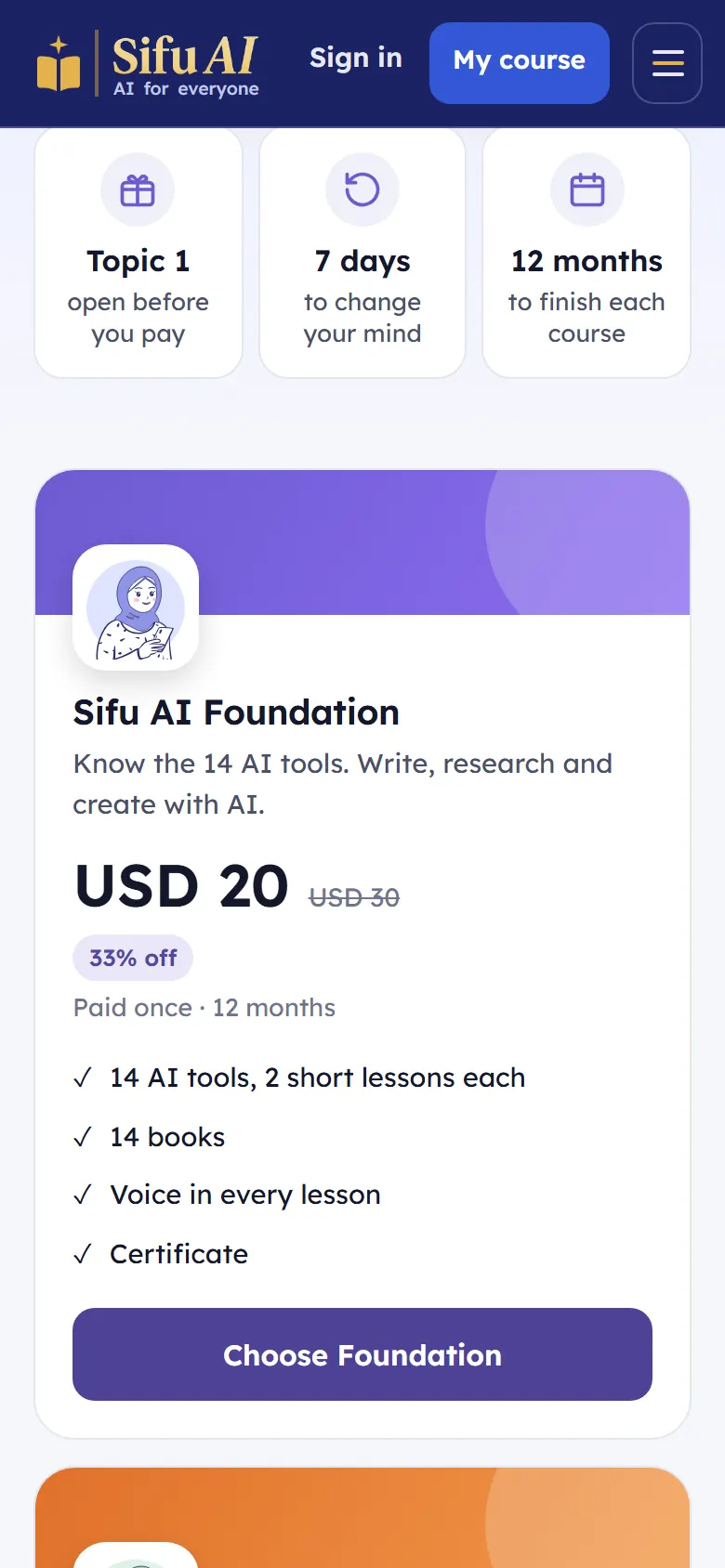
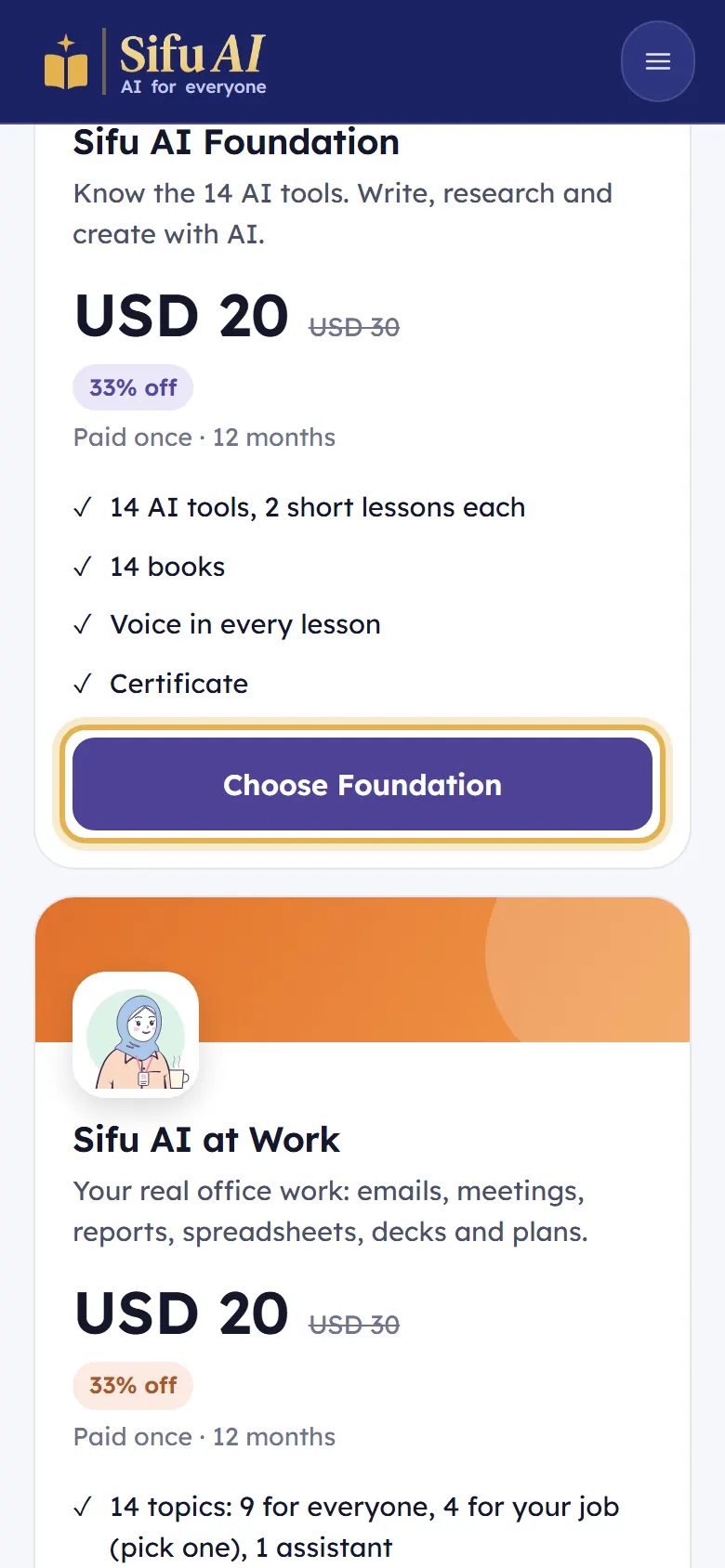
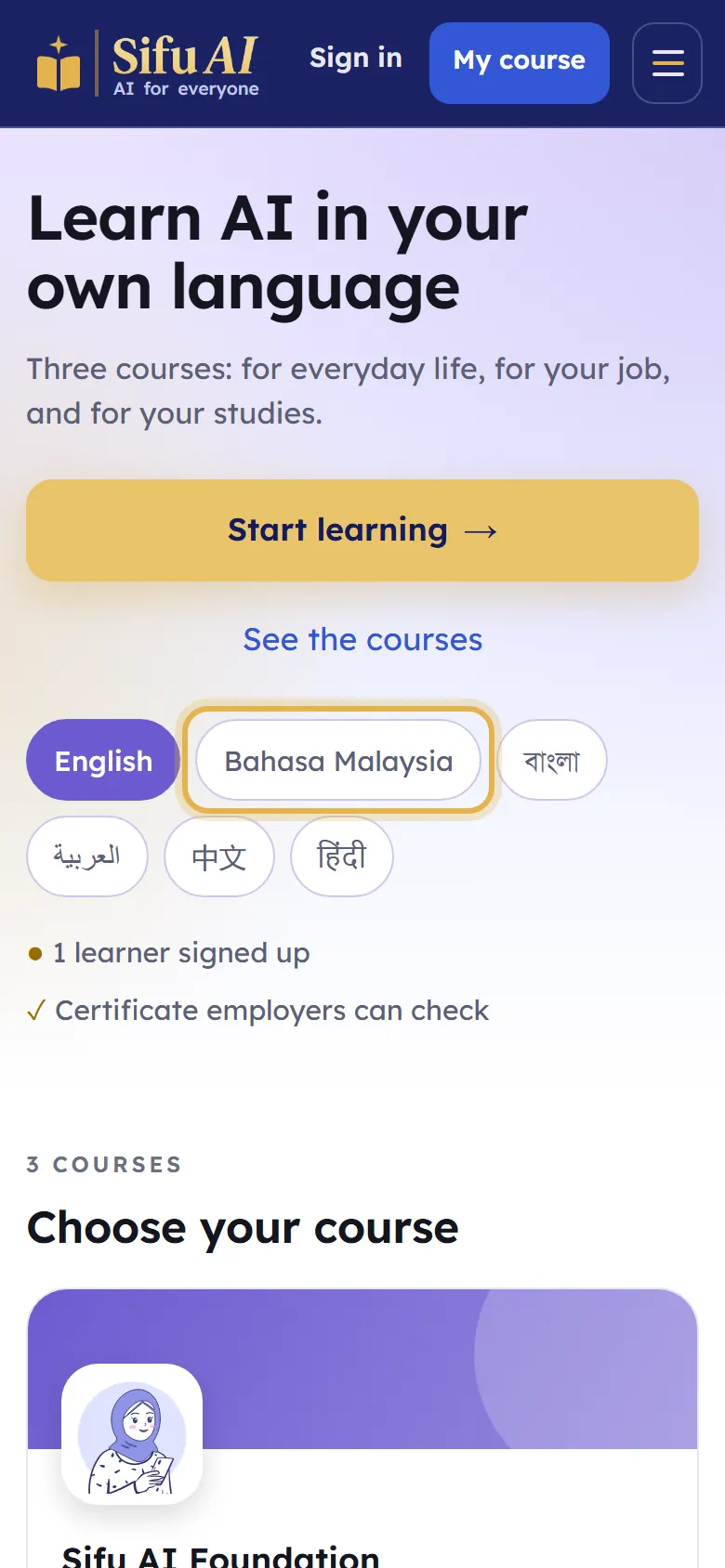
  1. Open sifuai.app on your phone. Tap See the courses to see all three.
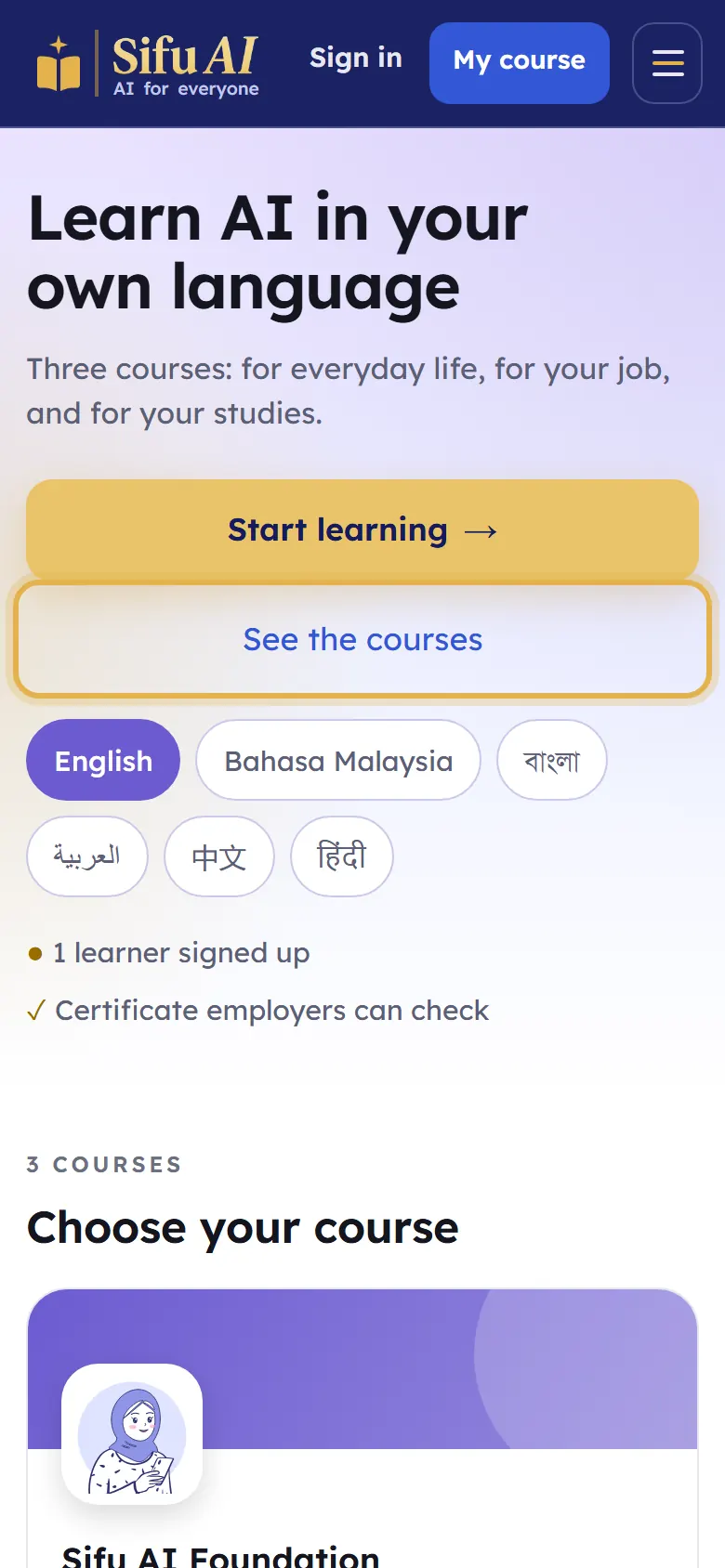
    Step 1
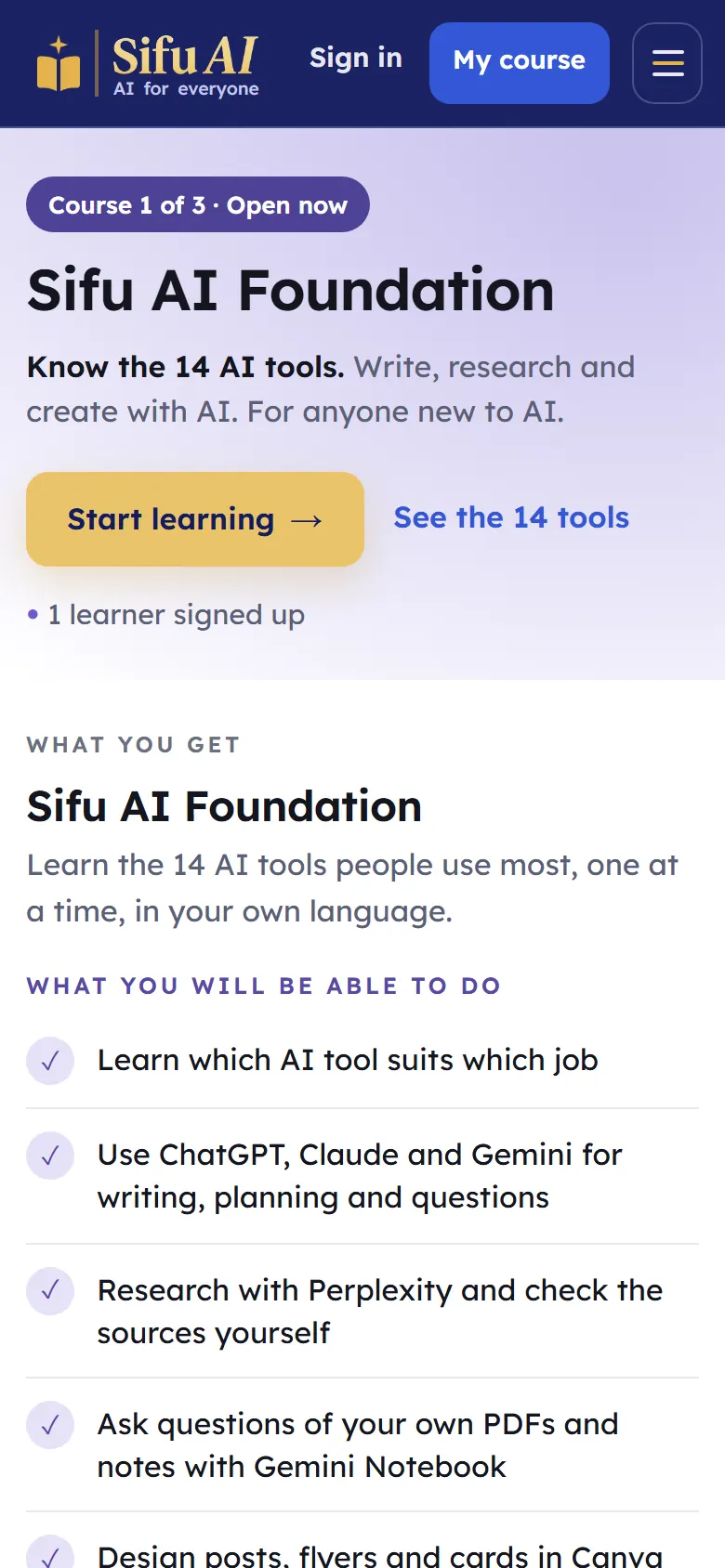
  2. Sifu AI Foundation is for everyday life: 14 AI tools such as ChatGPT, Gemini and Canva, two short lessons each.
    Step 2
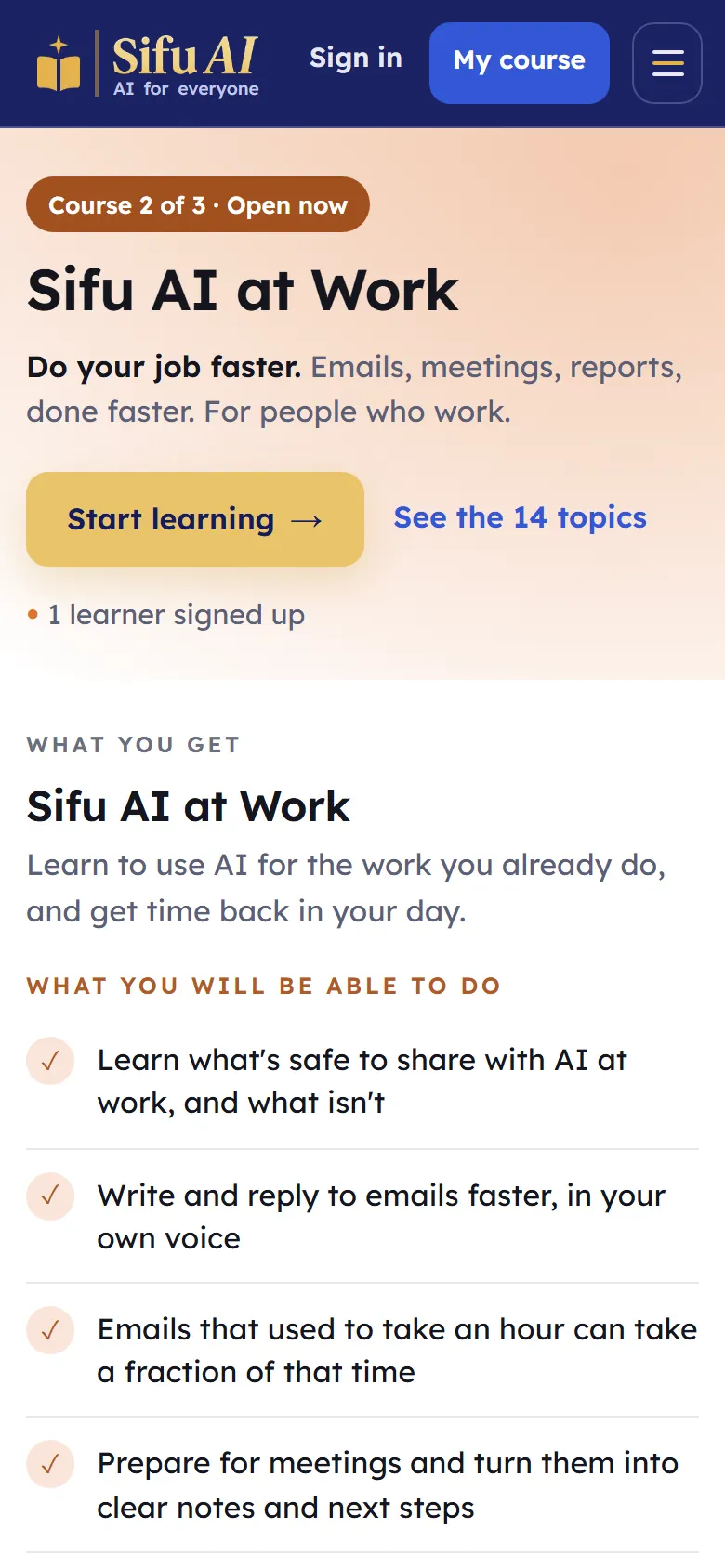
  3. Sifu AI at Work is for your job: emails, meetings, reports and more, plus four topics for your kind of work.
    Step 3
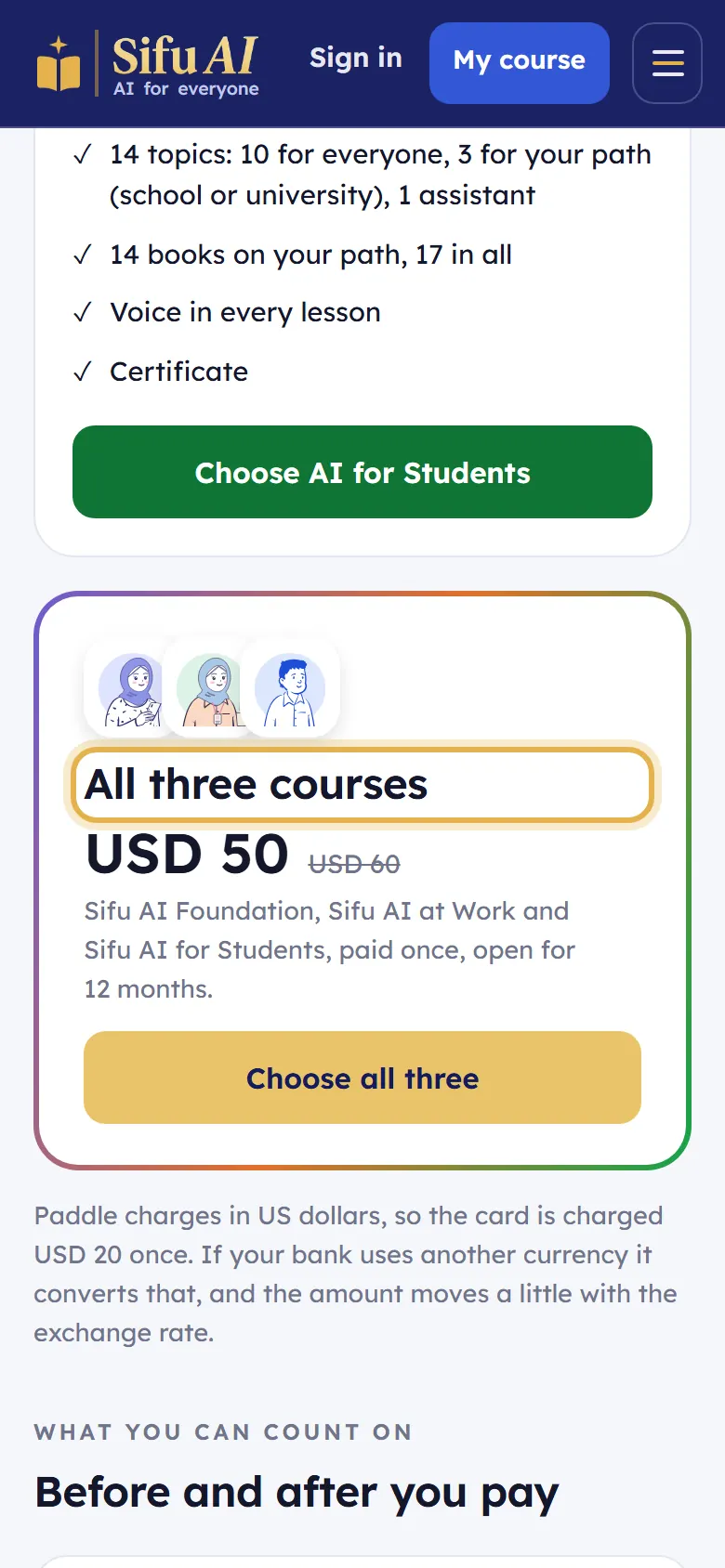
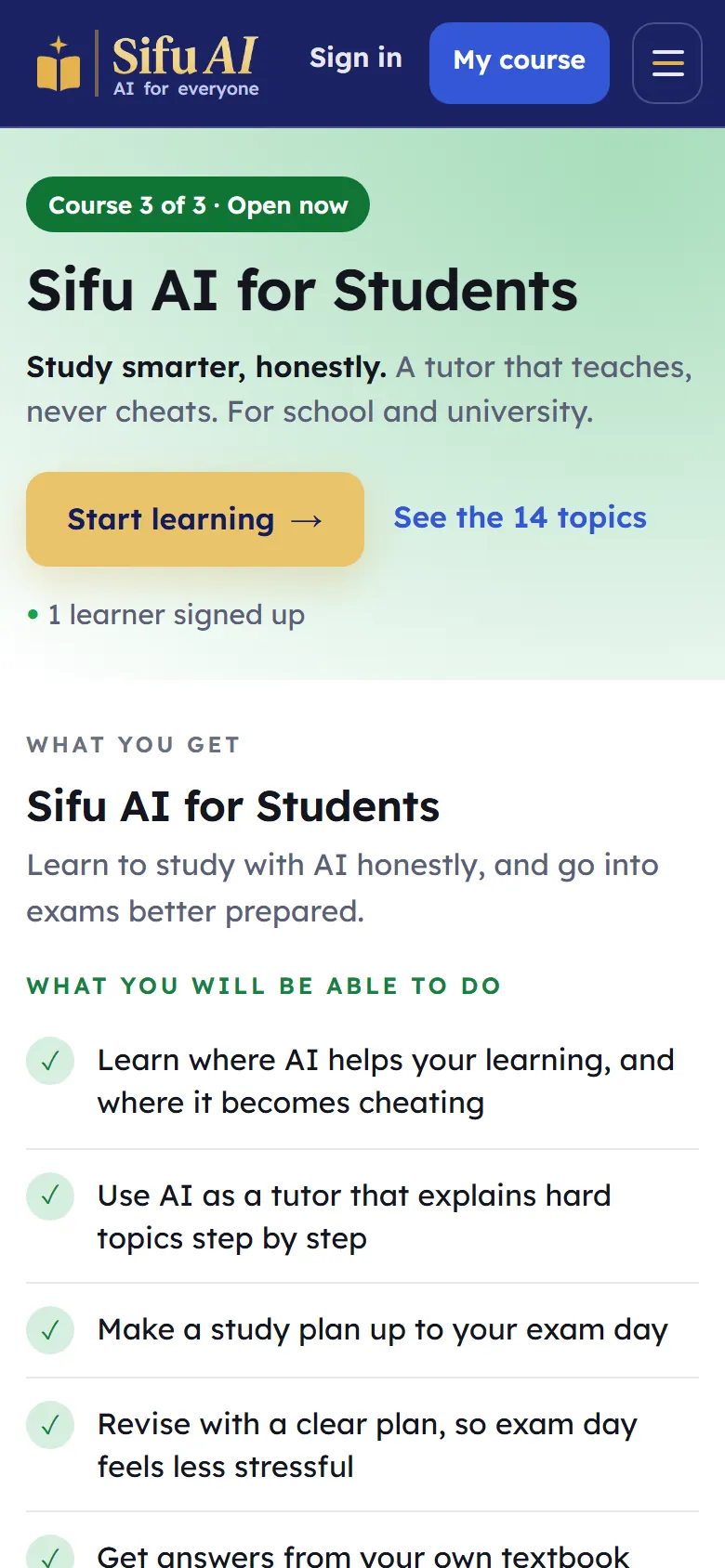
  4. Sifu AI for Students is for your studies: honest help with homework, exams and notes, for school or university.
    Step 4

If you are stuck

I cannot decide which course is for me.
Start with the free first topic of any course. You can try all three before you pay. See Try a course for free.
Choose your language

What it is

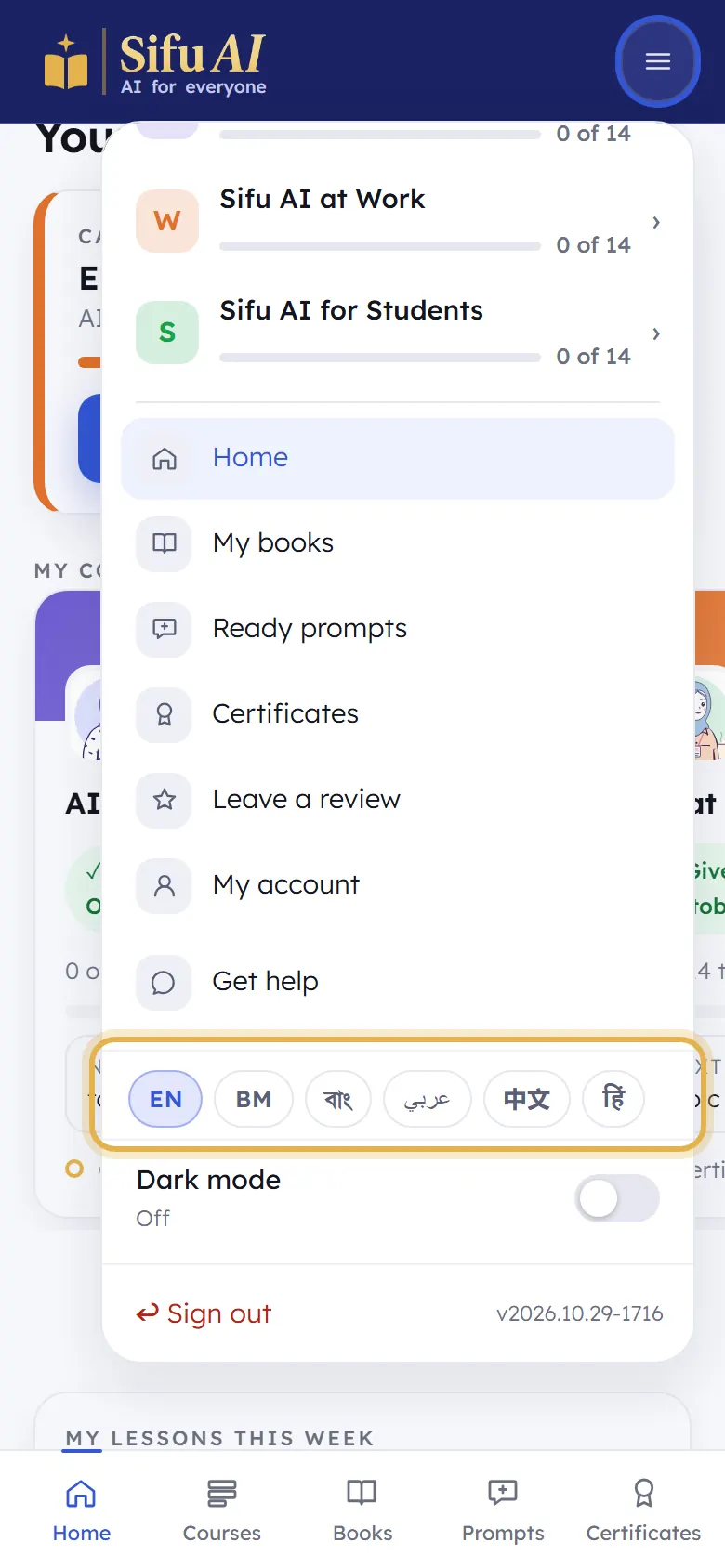
Sifu AI works in English, Bahasa Malaysia, Bangla, Arabic, Chinese and Hindi. The lessons, the books and the teacher's voice follow the language you choose.

Where to find it

  1. Home page
  2. The language buttons

How to do it

  1. On the home page, tap your language. The whole site changes at once.

    Step 1
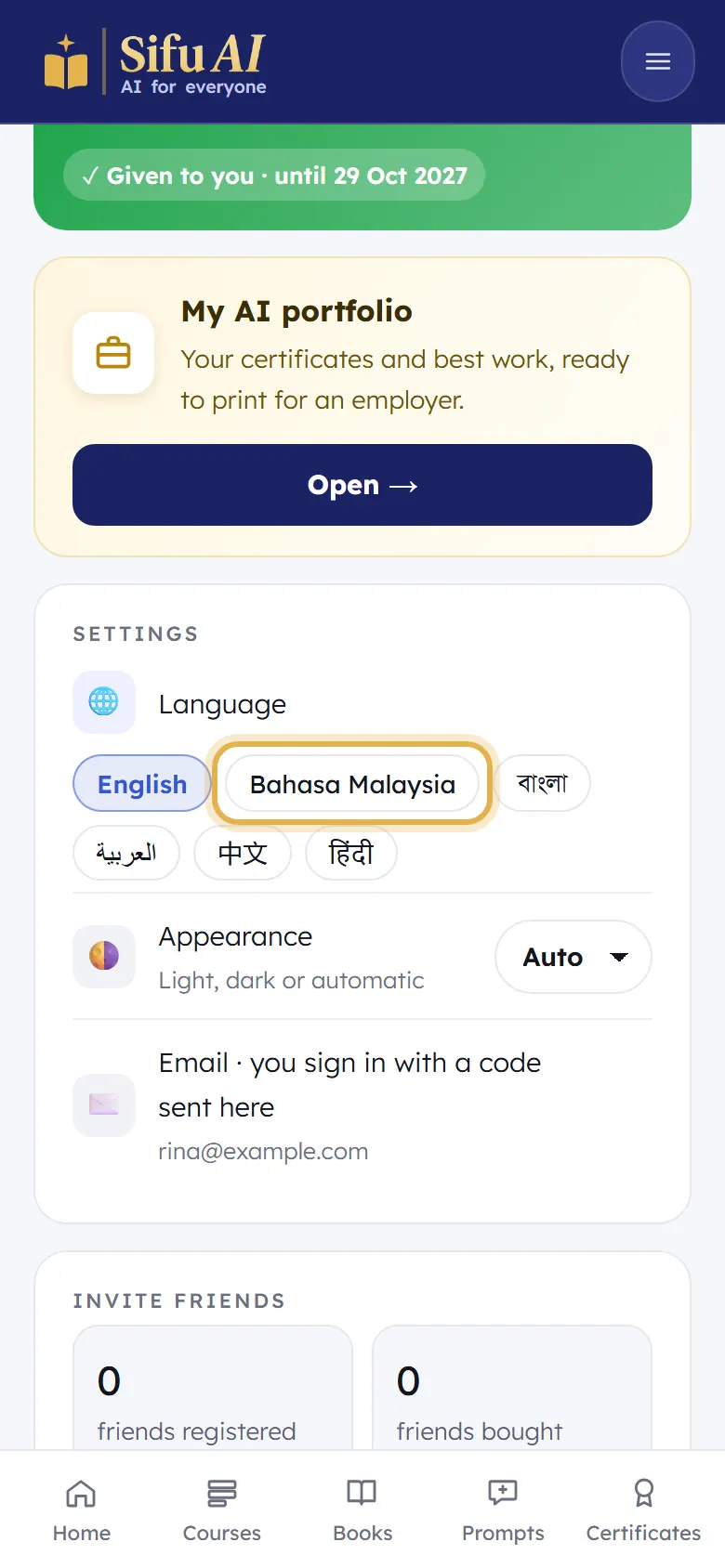
  2. After you sign in, you can change it any time: tap the menu button at the top right, then pick your language near the bottom.

    Step 2
  3. You can also change it in My account, under Settings, then Language.

    Step 3

Sign in (and make your account)

What it is

You sign in with your email. We email you a 6-digit code, you type it in, and you are in. There is no password, and no separate sign up: the first time you sign in, your account is made.

Where to find it

  1. Any page
  2. Sign in (top right)

How to do it

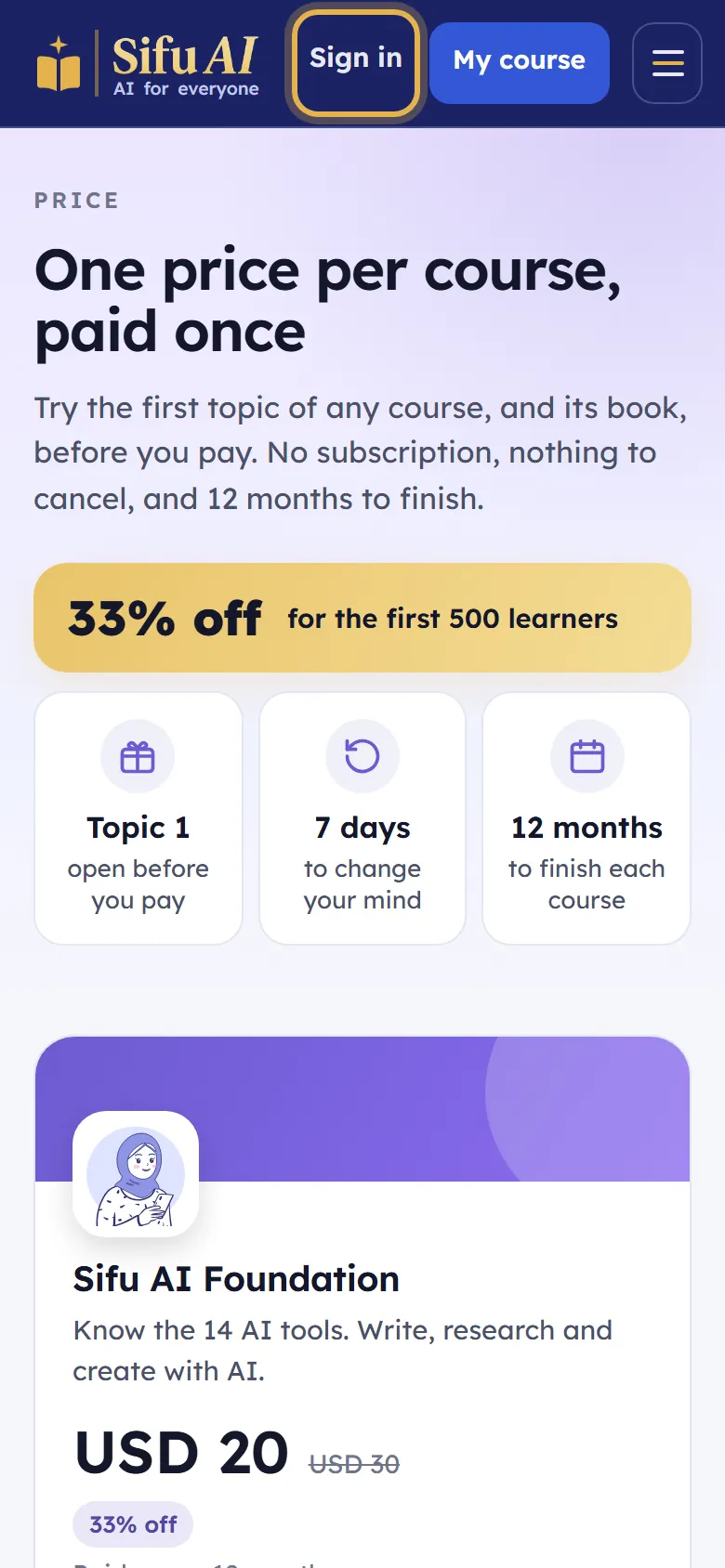
  1. Tap Sign in at the top of any page.

    Step 1
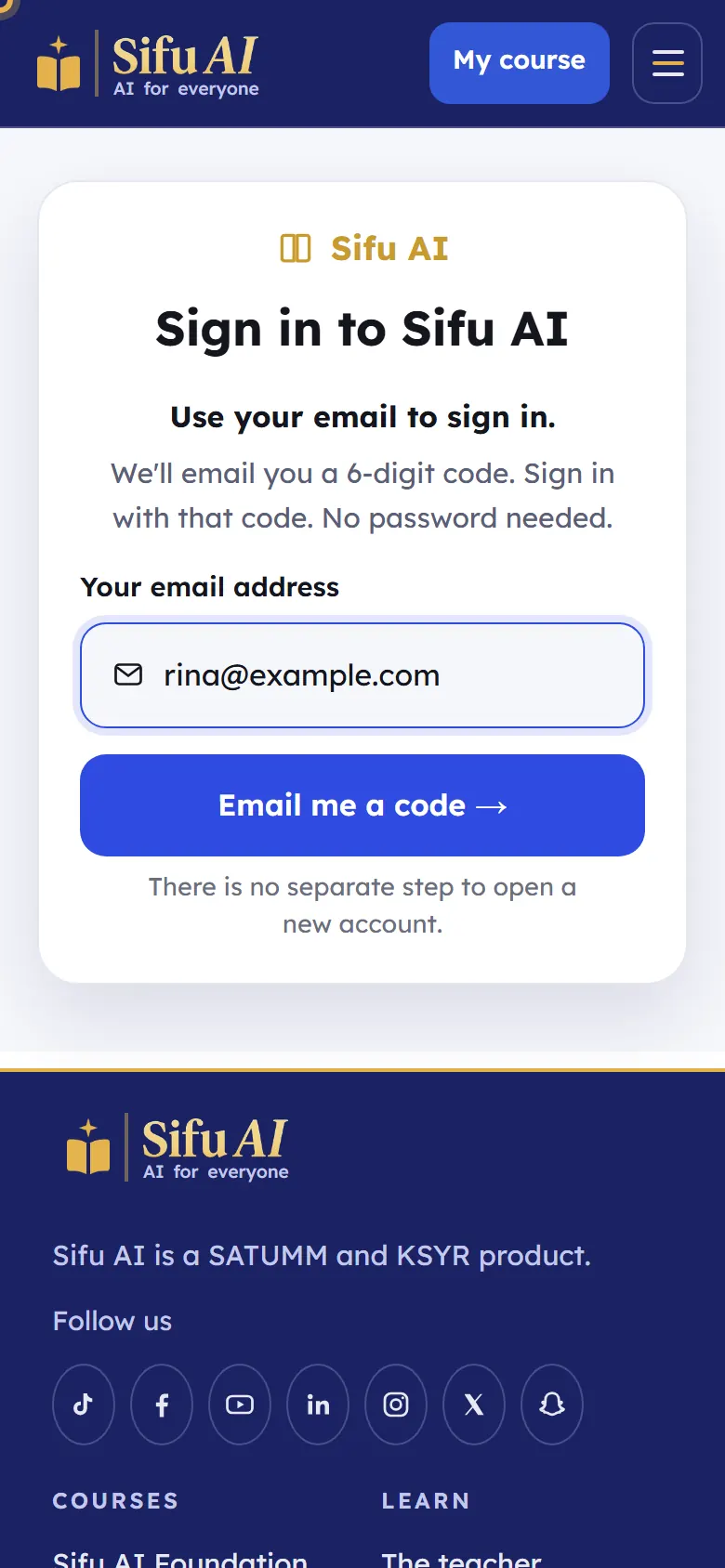
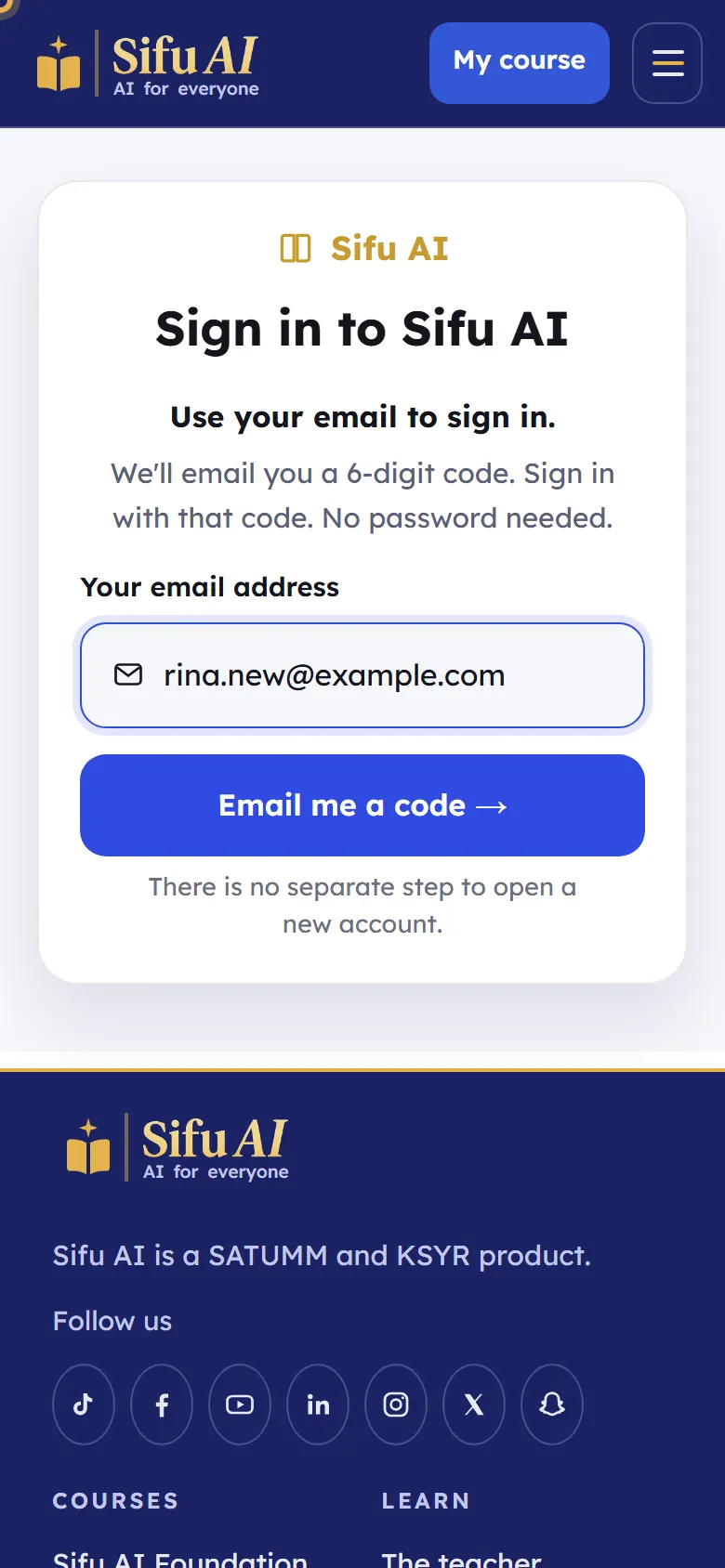
  2. Type your email address and tap Email me a code. (You can also tap Log in with Google if you use Gmail.)

    Step 2
  3. Open your email. You will find a message from Sifu AI with a 6-digit code.

  4. Type the 6 numbers in the boxes, then tap Check the code and sign in.

    Step 4
  5. You are in. The first time, Sifu asks a few short questions. Then you see your home screen.

    Step 5

If you are stuck

The code did not arrive.
Wait one minute and look in your Spam or Promotions folder. Check the email address you typed: tap Change to fix it. Then tap Didn't get the code? Send it again.
The code says it is wrong.
Use the newest code only. Each new code stops the one before it working.
Can I sign in on two phones?
Yes. Sign in with the same email on each one. Your progress is the same everywhere.

The start questions

What it is

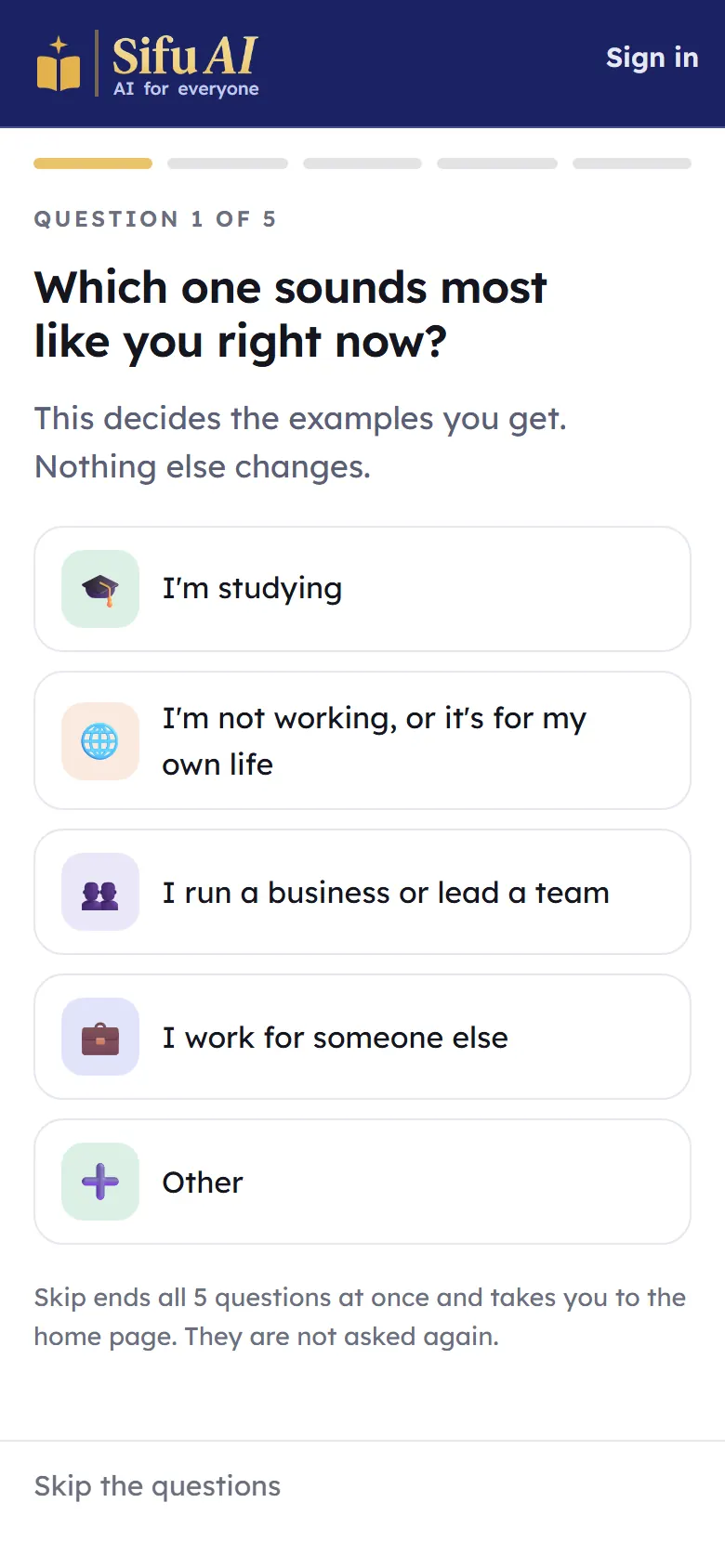
The first time you open sifuai.app, Sifu asks five short questions. Your answers choose the examples you see in the lessons, so they fit your life. Nothing else changes.

Where to find it

  1. sifuai.app
  2. Your first visit

How to do it

  1. Tap the answer that fits you best. There are 5 questions.

    Step 1
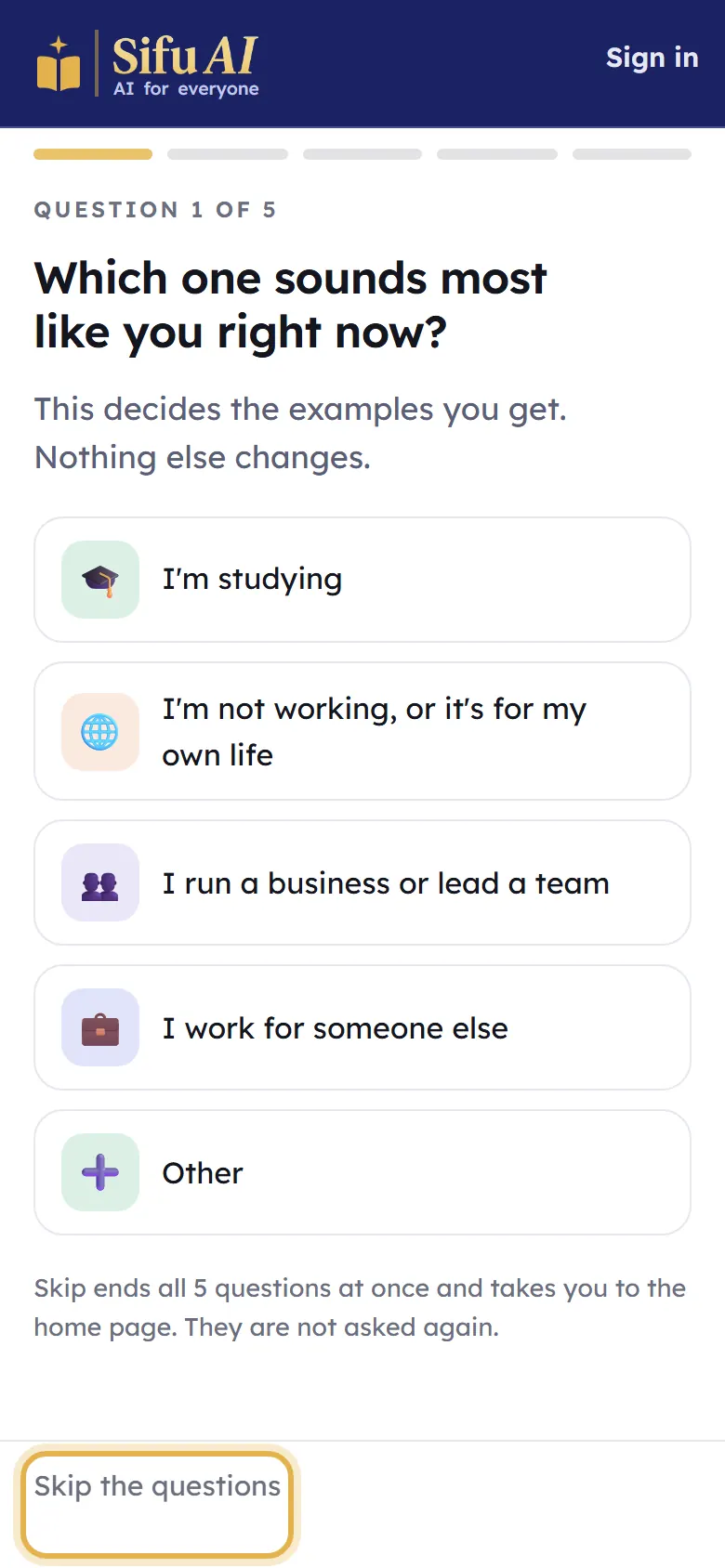
  2. Do not want to answer? Tap Skip the questions at the bottom. You can still learn everything.

    Step 2
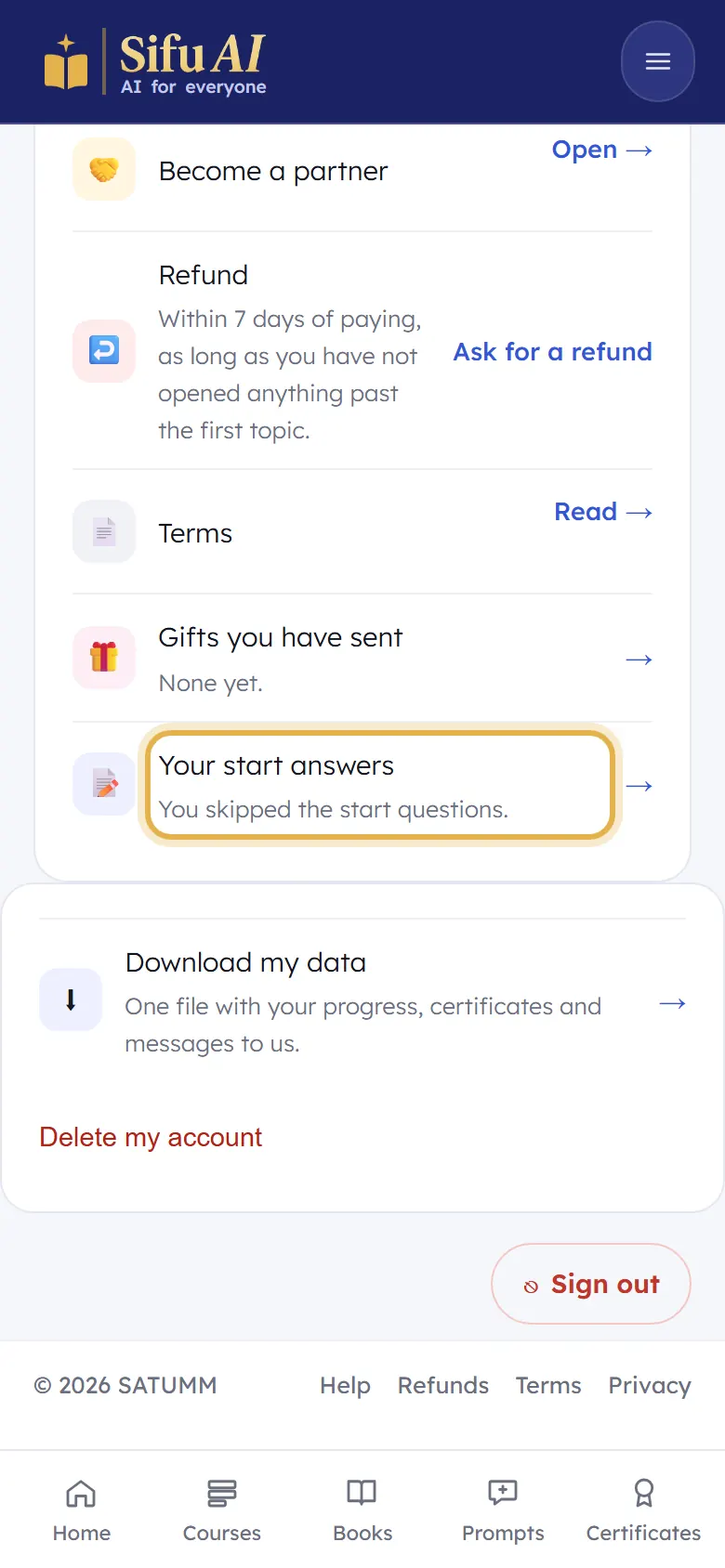
  3. To see your answers later, open My account and tap Your start answers.

    Step 3

Use Sifu AI on your phone or computer

What it is

Sifu AI works in any web browser on a phone or a computer. On an Android phone you can also install the Sifu AI app. Your progress is the same on every device.

Where to find it

  1. Footer
  2. Android app

How to do it

  1. On a computer or iPhone: open sifuai.app in your browser and sign in. That is all.

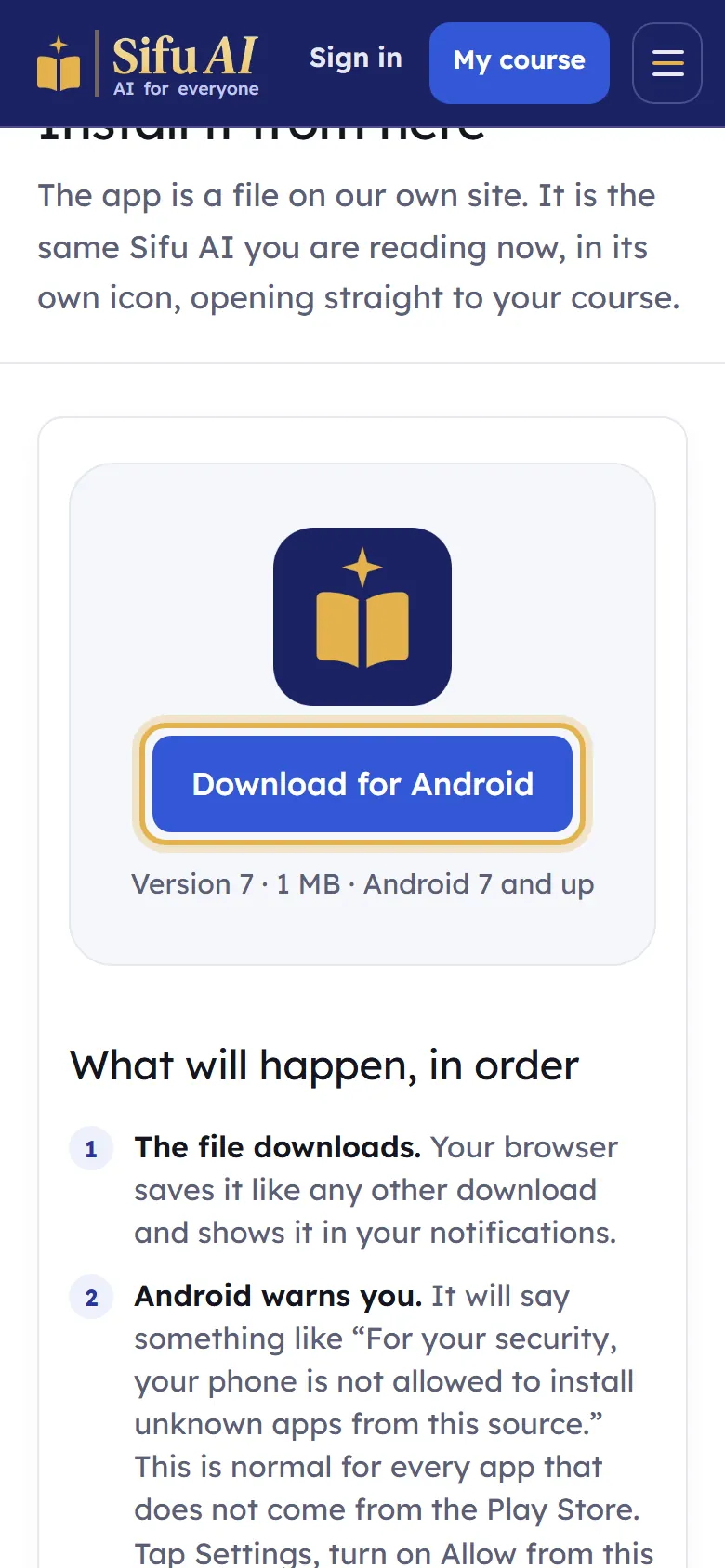
  2. Android app: scroll to the bottom of any page and tap Android app. Then tap Download for Android.

    Step 2
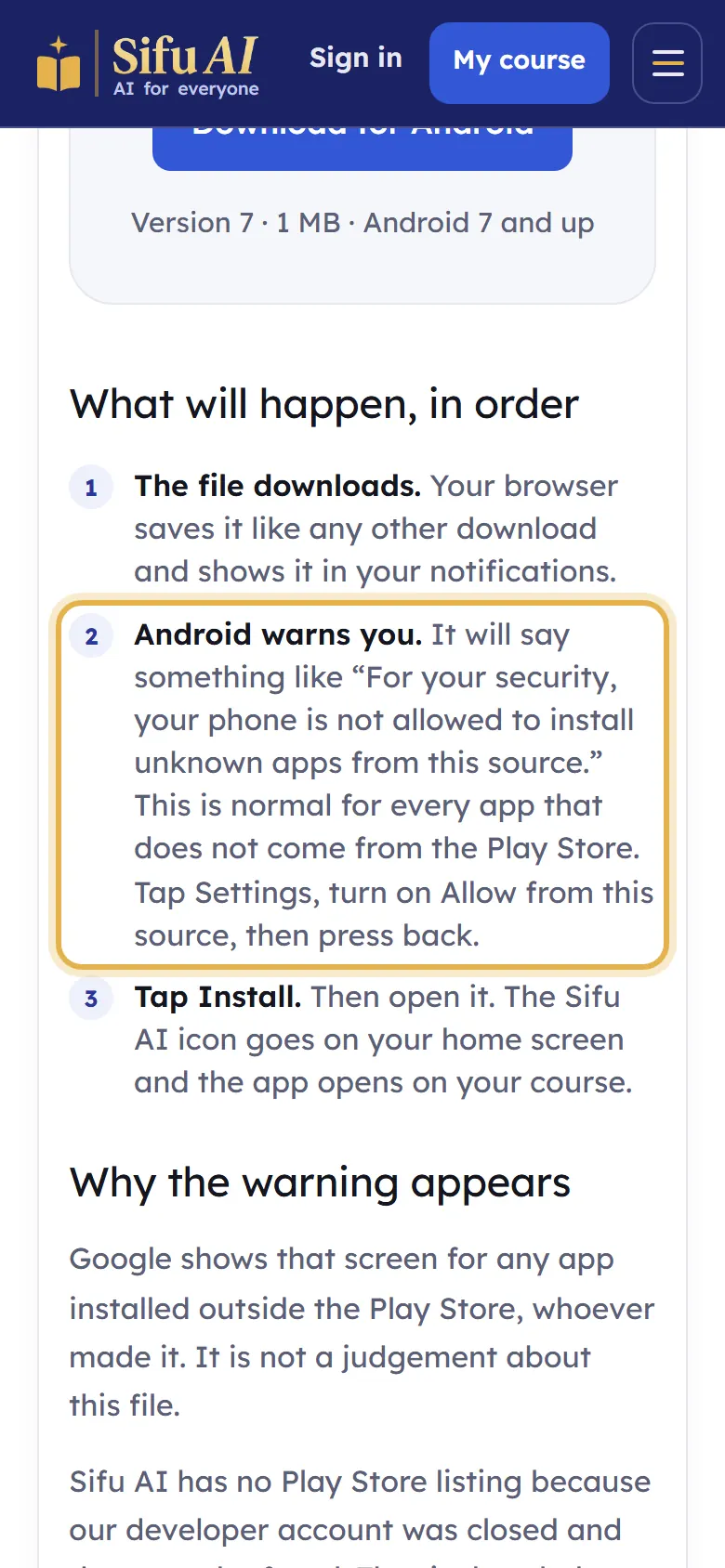
  3. Your phone may warn you that the app is not from the Play Store. This is normal. Tap Settings, turn on Allow from this source, then go back.

    Step 3
  4. Tap Install, then Open. The Sifu AI icon is now on your home screen.

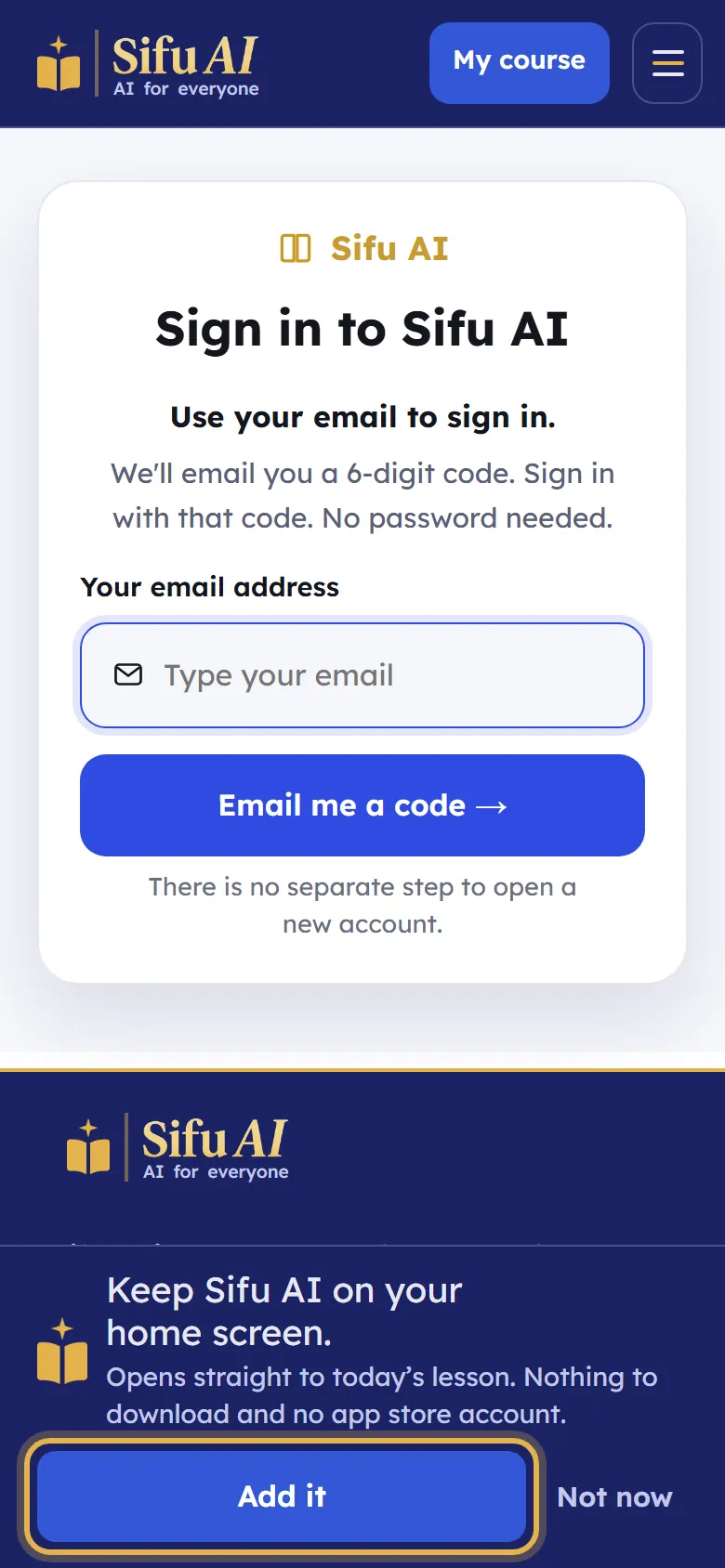
  5. Or keep it on your home screen without installing: when Sifu AI offers Keep Sifu AI on your home screen, tap Add it.

    Step 5

If you are stuck

I have an iPhone.
Apple does not allow app files from websites. Open sifuai.app in Safari, tap the Share button, then Add to Home Screen.

The three courses, and all three together

What it is

Each course is one payment, with 12 months to finish it. You can buy one, two, or all three together for less.

Where to find it

  1. Footer
  2. Price

How to do it

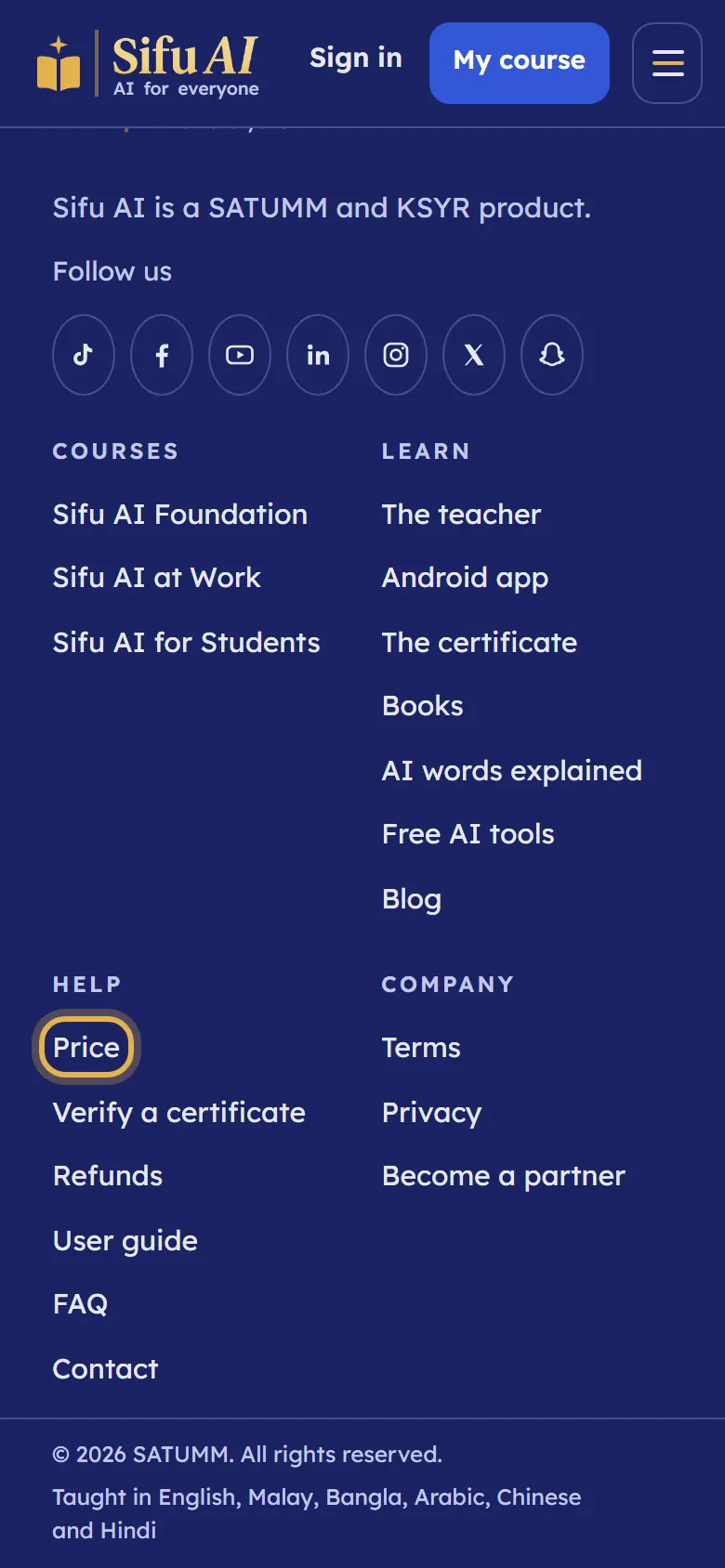
  1. Scroll to the bottom of any page and tap Price.

    Step 1
  2. You see each course, what is in it, and its price in your money.

    Step 2
  3. All three courses together costs less than three separate courses.

    Step 3

Try a course for free

What it is

The first topic of every course, and its book, are free. You need only to sign in. No card.
Where to find it

  1. Home
  2. My courses
  3. Start

How to do it

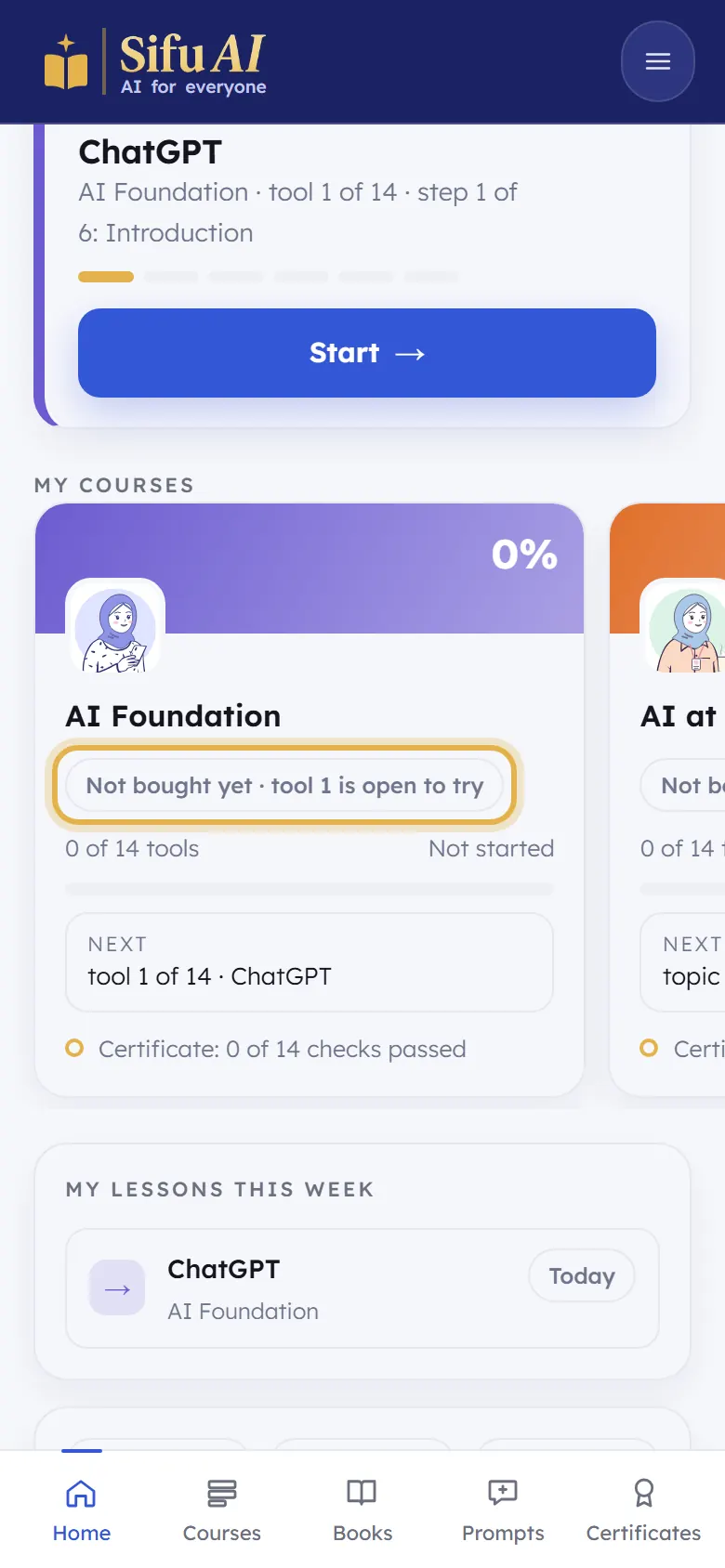
  1. Sign in. On your home screen, under My courses, each course says tool 1 is open to try or topic 1 is open to try.

    Step 1
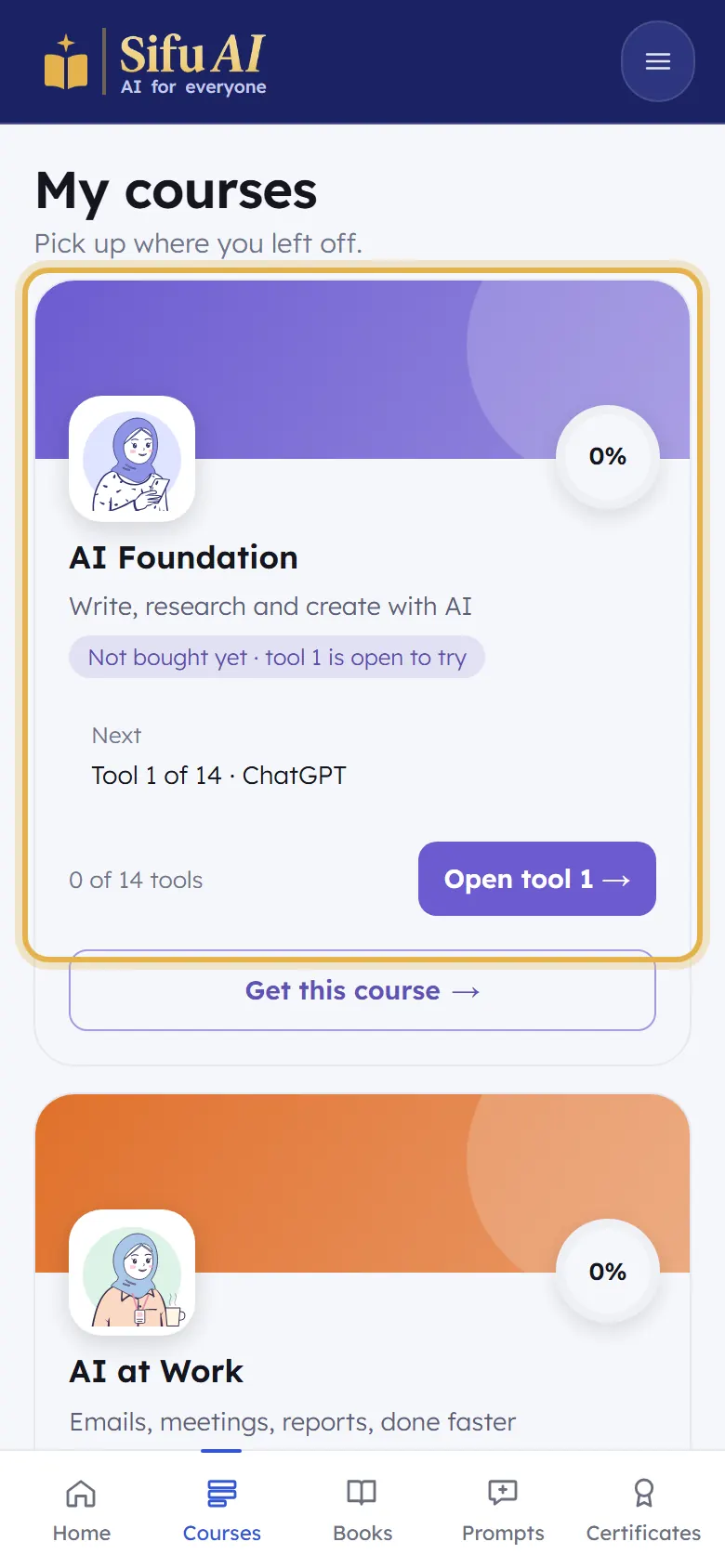
  2. Tap Courses at the bottom, then Open tool 1 (or Start) on any course.

    Step 2
  3. Learn the whole first topic and read its book. When you go on to topic 2, Sifu shows you how to buy the course.

    Step 3

Buy a course

What it is

Pay once, by card or bKash. The course opens straight away, on the email you signed in with.

Where to find it

  1. Price
  2. Choose
  3. Continue

How to do it

  1. On the Price page, tap Choose on the course you want, for example Choose Foundation.

    Step 1
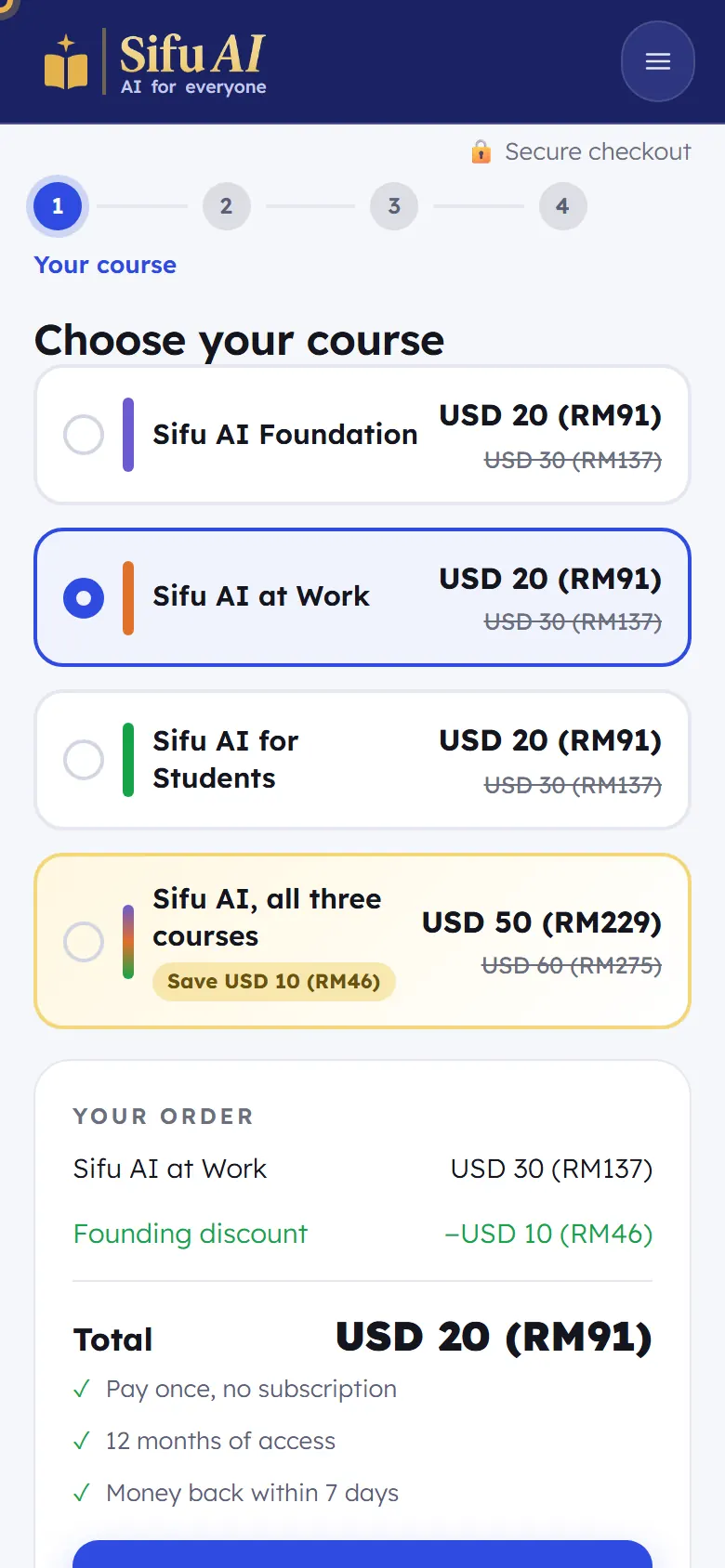
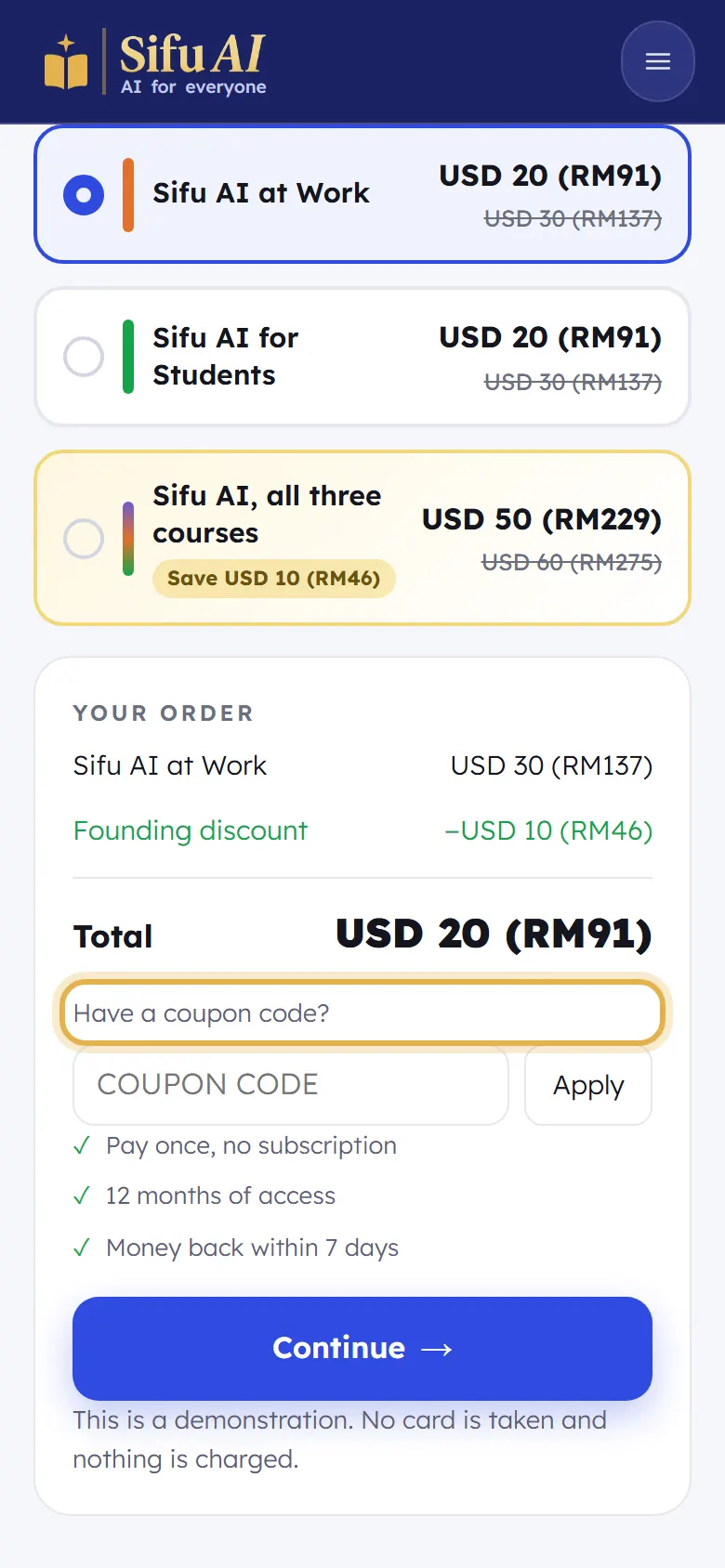
  2. Step 1, Choose your course: check the right course is ticked, look at Your order, then tap Continue.

    Step 2
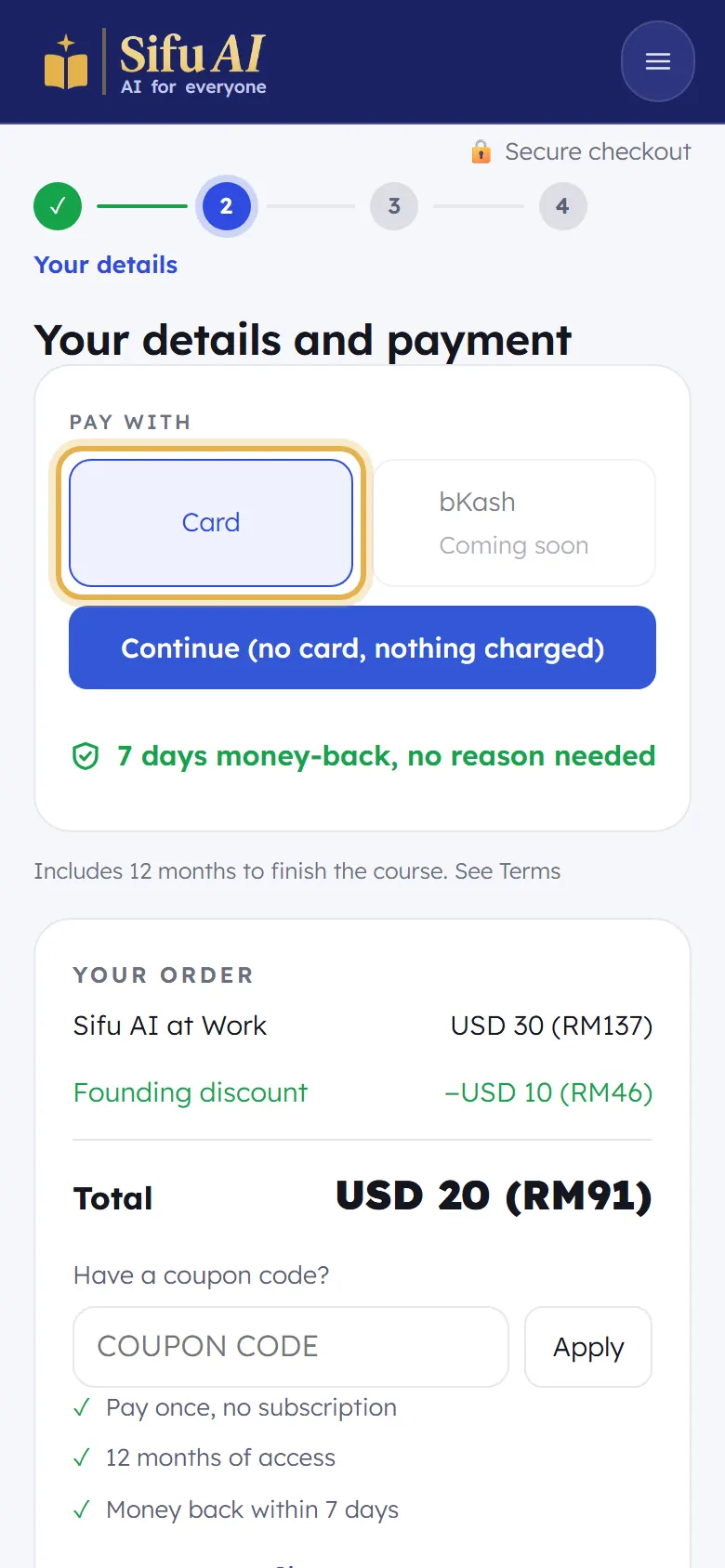
  3. Step 2, Your details and payment: choose how to pay, then fill in the secure card form. Sifu AI never sees your card number.

    Step 3
  4. When the payment is done, you come back to Sifu AI and the course is open. A receipt comes to your email.

If you are stuck

I paid but the course is still locked.
Sign out and sign in again with the same email you paid with. If it is still locked after 10 minutes, send us your receipt on WhatsApp.
The price is in dollars, not my money.
Cards are charged in US dollars. The amount in brackets is about what your bank takes in your money.

Use a coupon code

What it is

A coupon code takes money off your course. You type it in while you pay.

Where to find it

  1. Checkout
  2. Have a coupon code?

How to do it

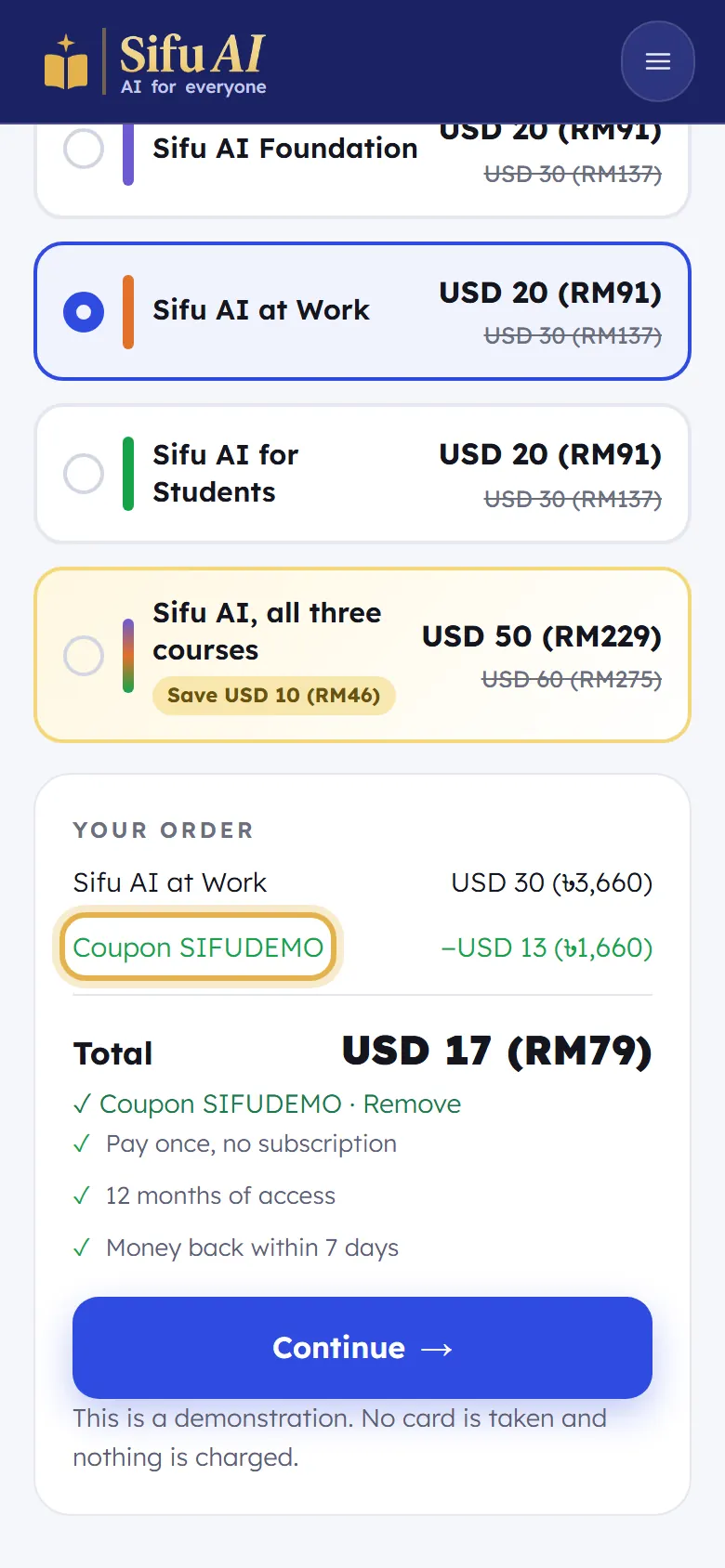
  1. Start buying the course as usual. Under Your order, find Have a coupon code?

    Step 1
  2. Type your code and tap Apply. The money off and the new Total show straight away. Then tap Continue.

    Step 2

If you are stuck

My code does not work.
Check the spelling and capital letters. Some codes work only for a time or for one course.

Give a course as a gift

What it is

Buy a course for someone you love. It opens on THEIR email, not yours. They sign in with their own email and it is ready.

Where to find it

  1. Checkout
  2. Buy it as a gift instead

How to do it

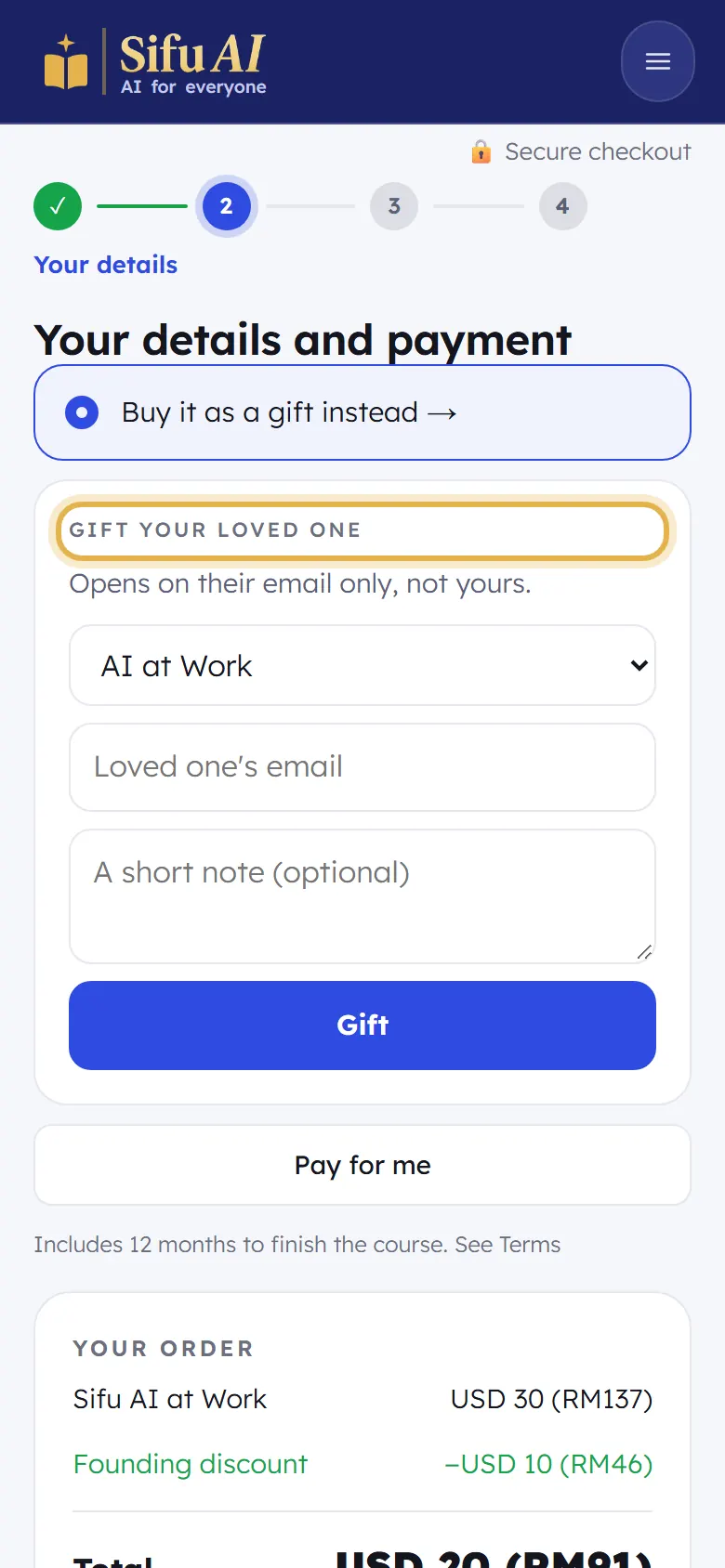
  1. Start buying the course. On Your details and payment, tap Buy it as a gift instead. The Gift your loved one box opens.

    Step 1
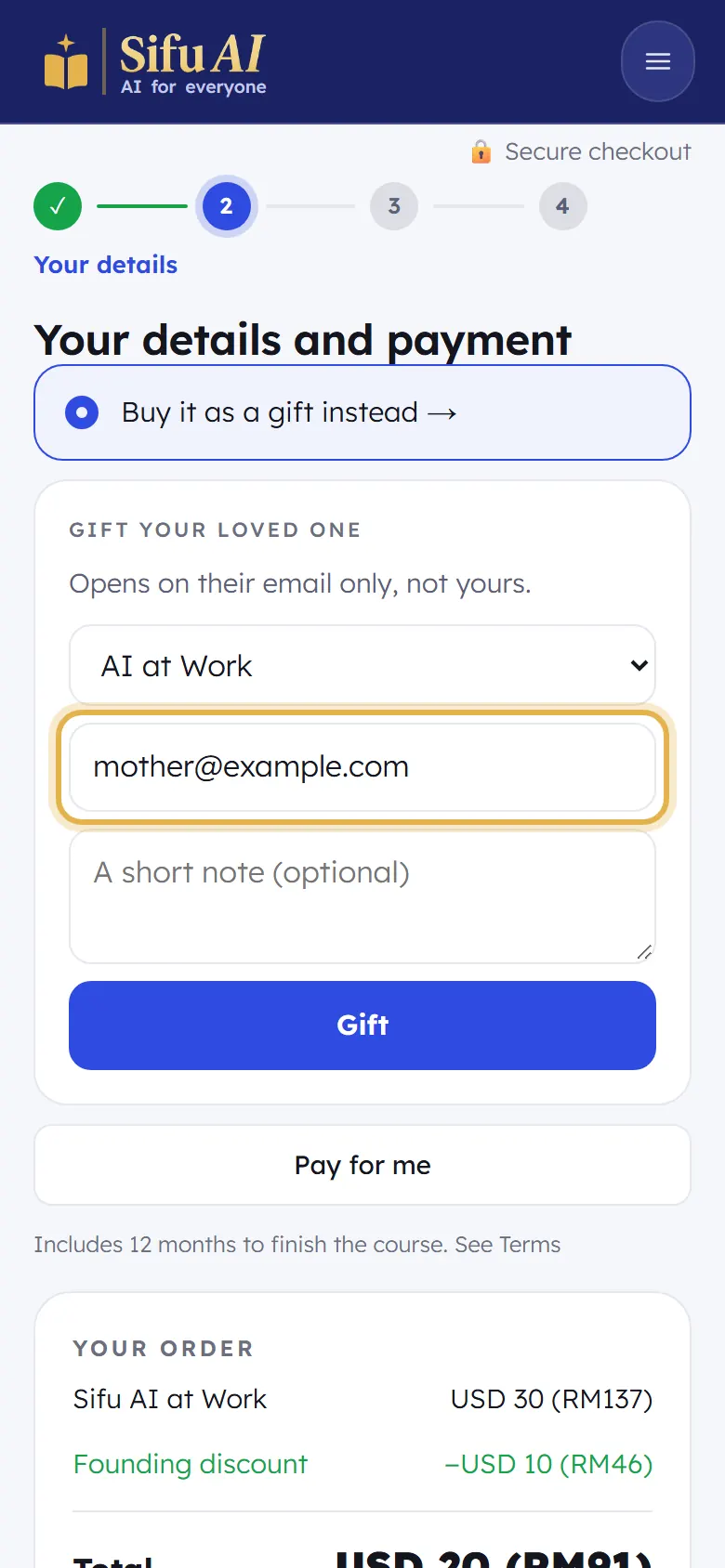
  2. Choose the course, type your loved one's email and, if you like, a short note. Tap Gift, then pay as usual.

    Step 2
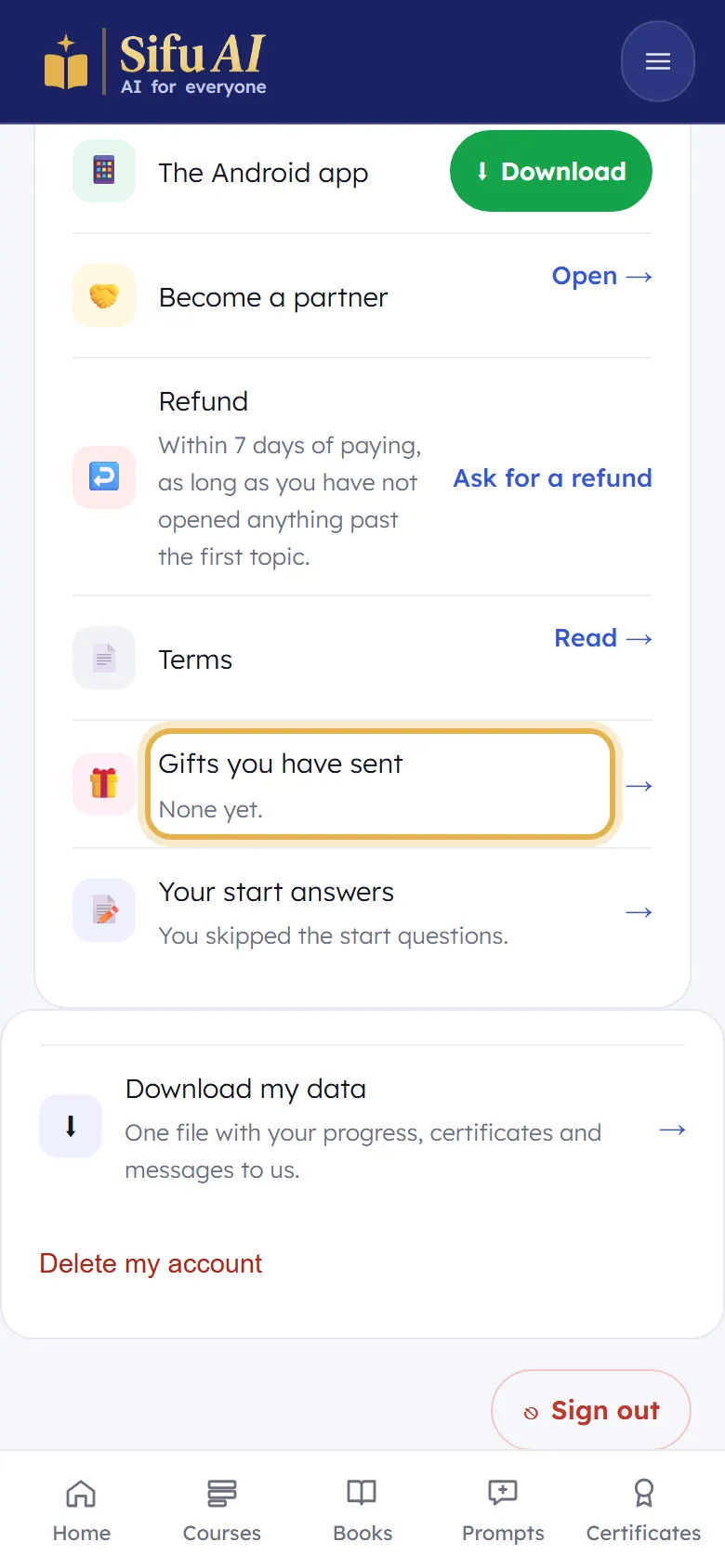
  3. They get an email from Sifu AI. To see the gifts you have sent, open My account, then Gifts you have sent.

    Step 3

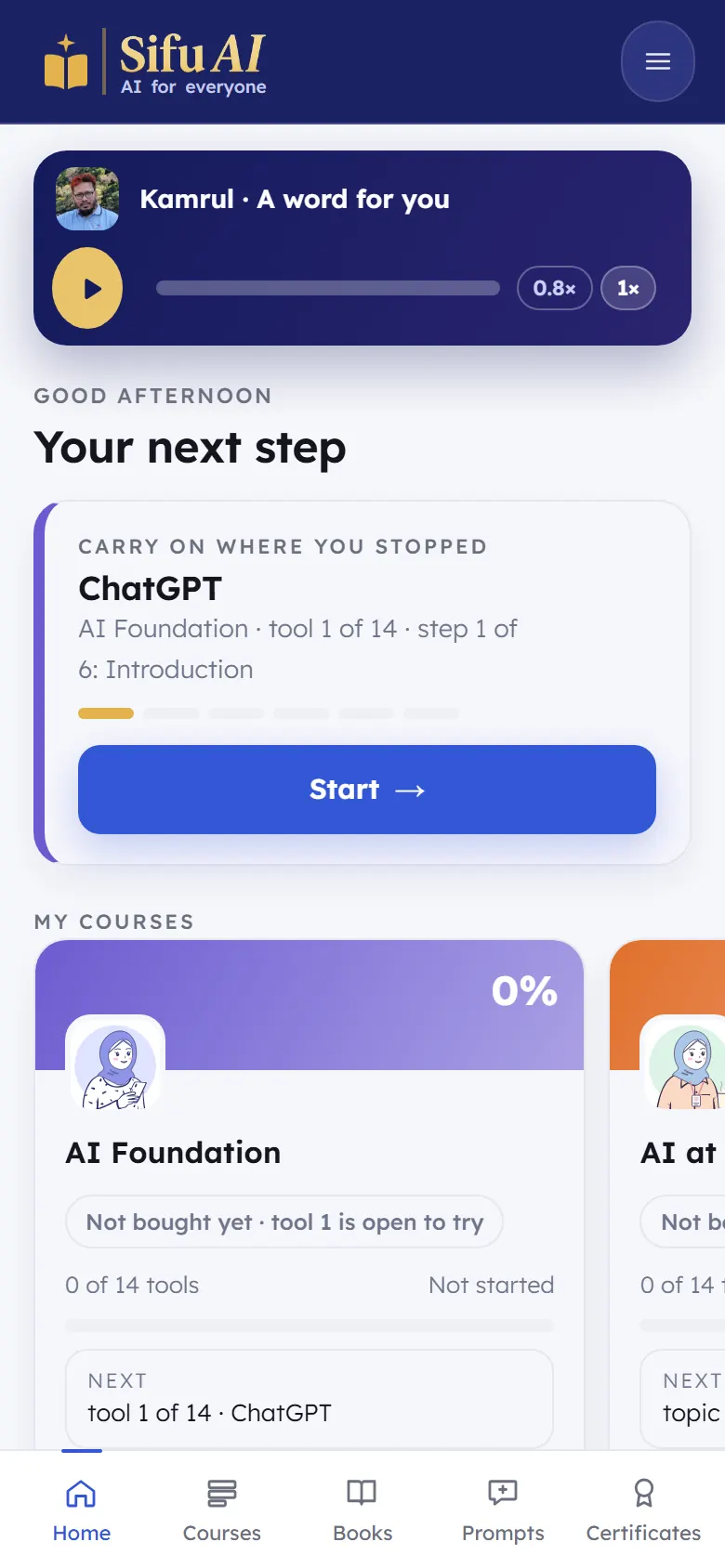
Your home screen, explained

What it is

Everything you need after you sign in: where you stopped, your courses, this week's lessons, your badges, your books and the invite box.

Where to find it

  1. Menu
  2. Home

How to do it

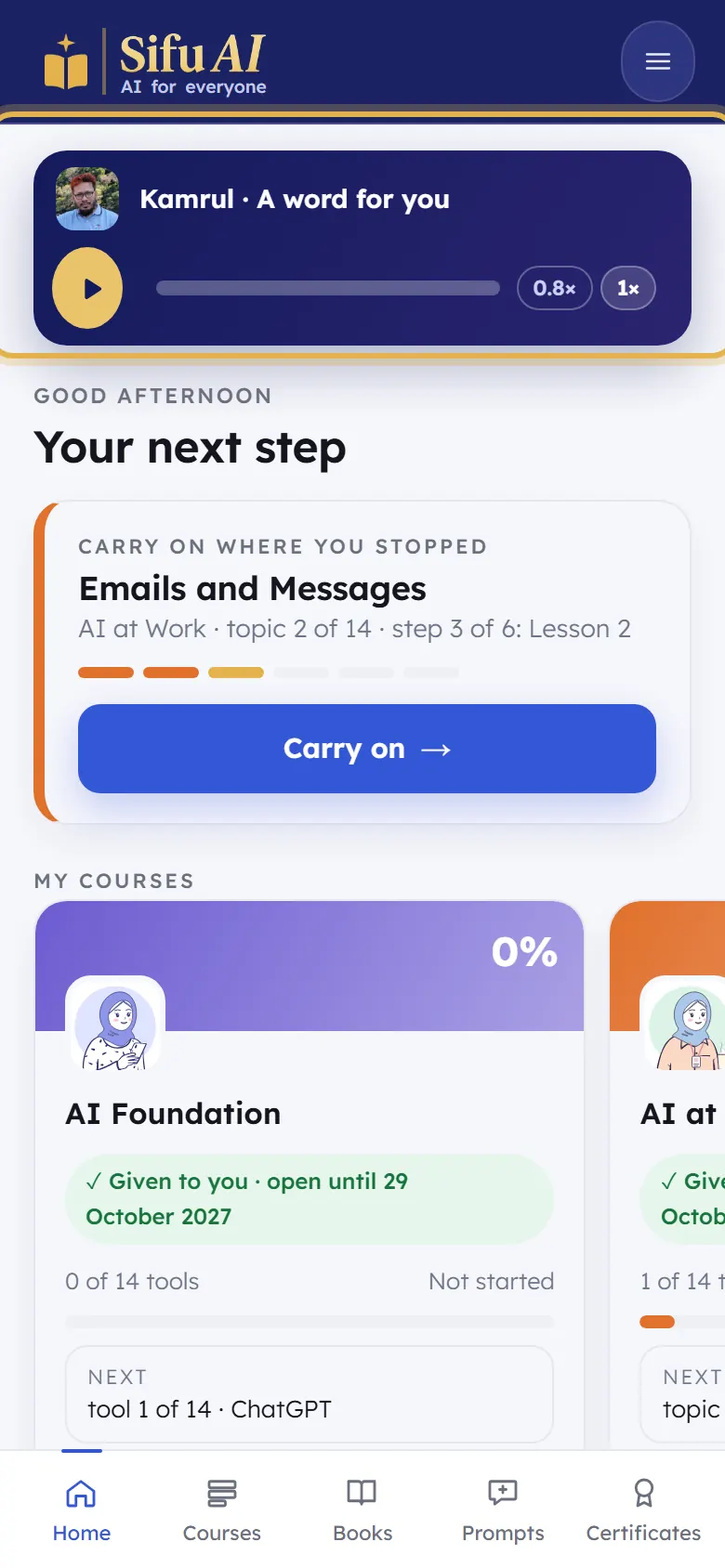
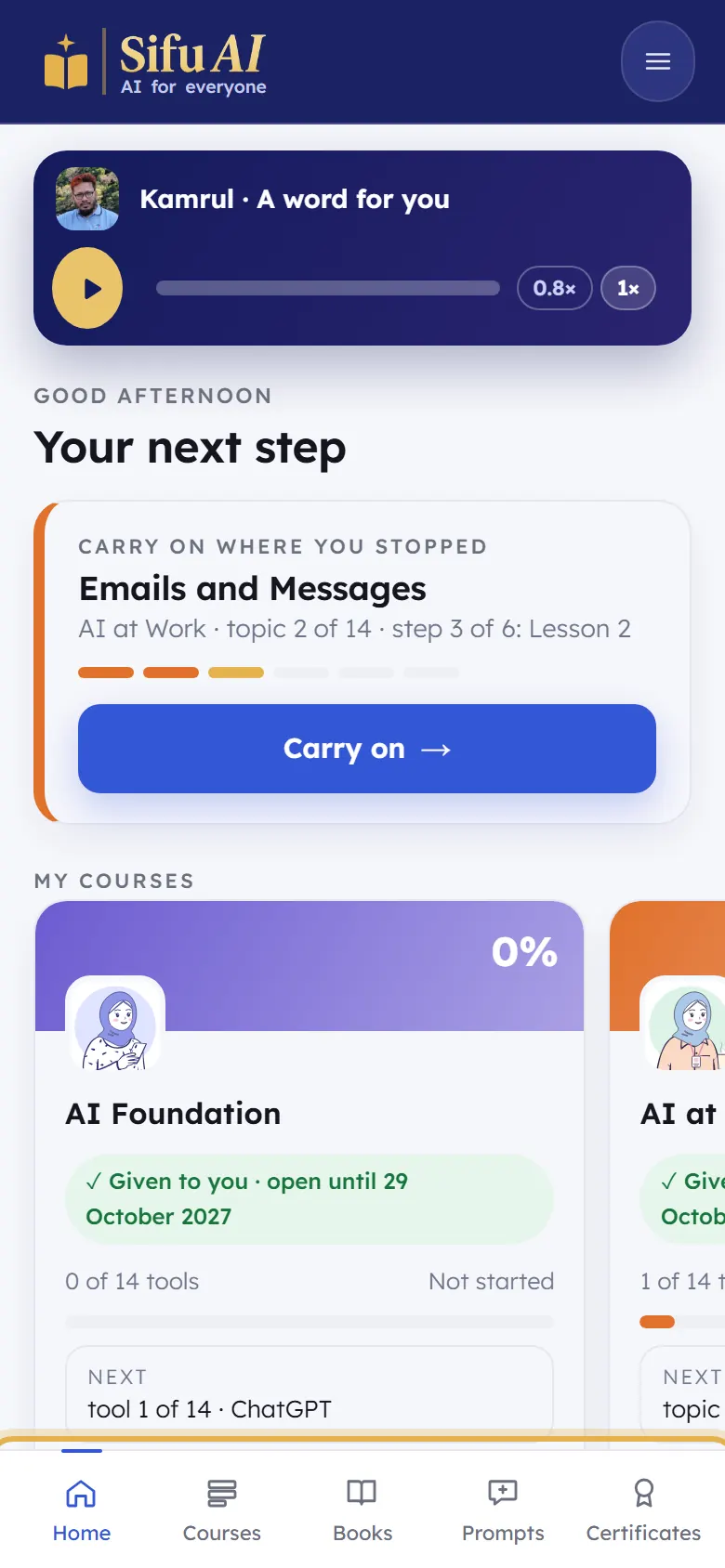
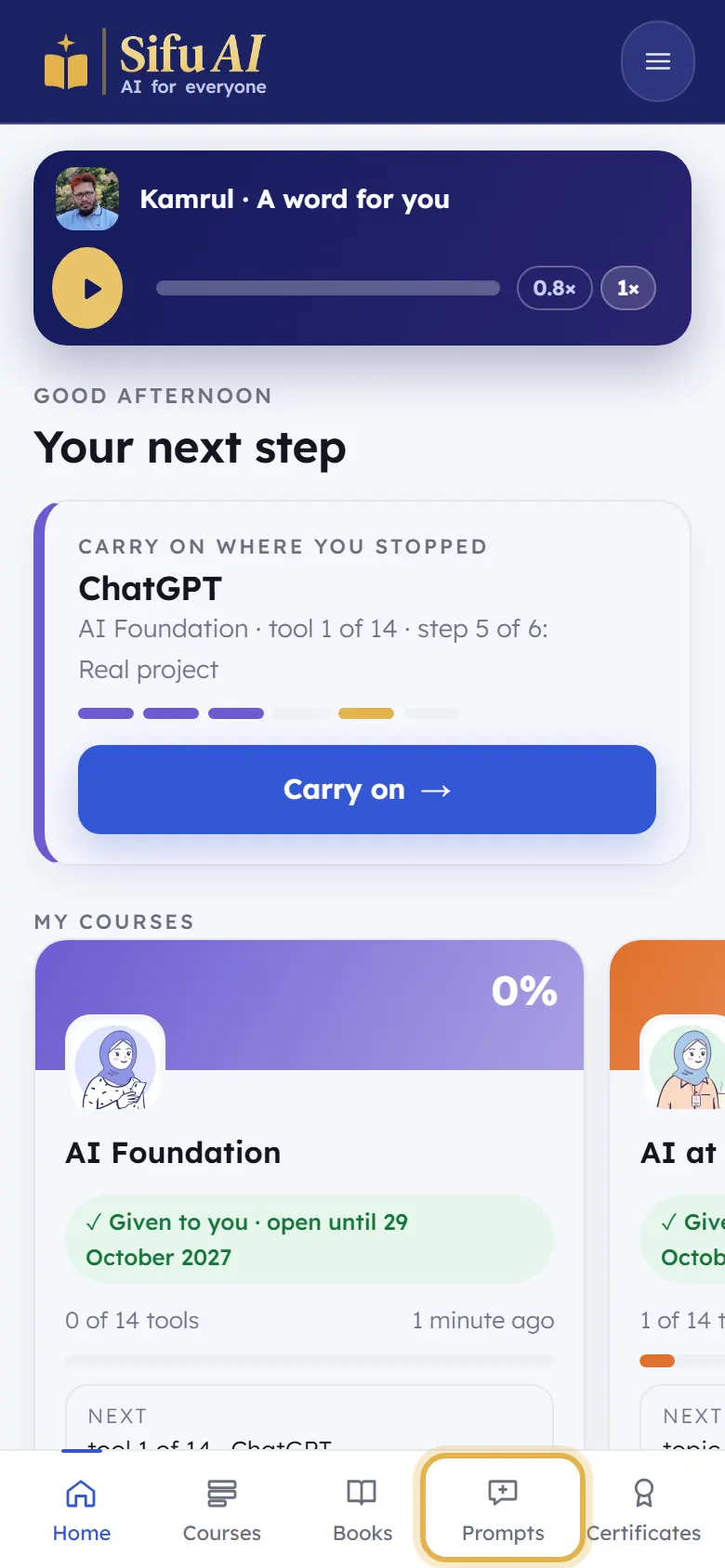
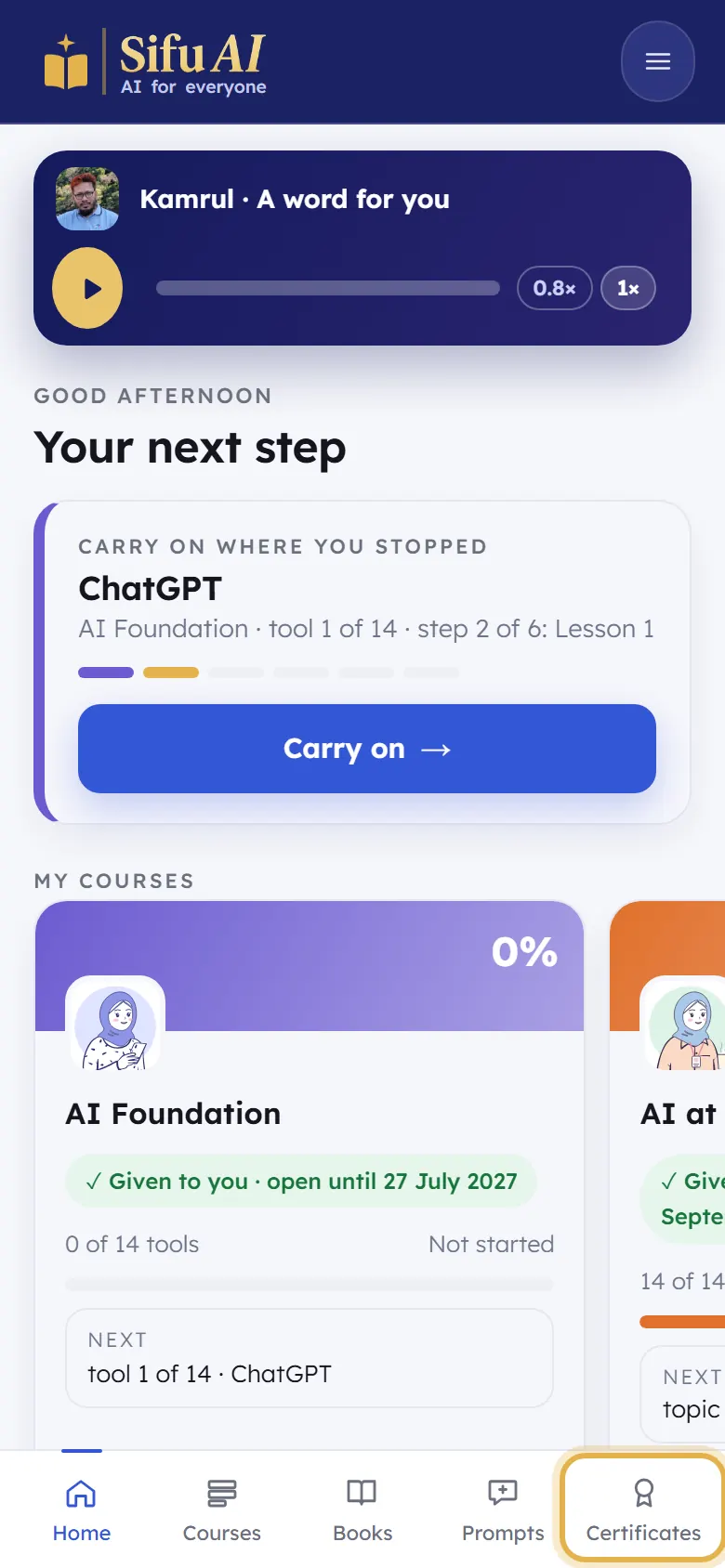
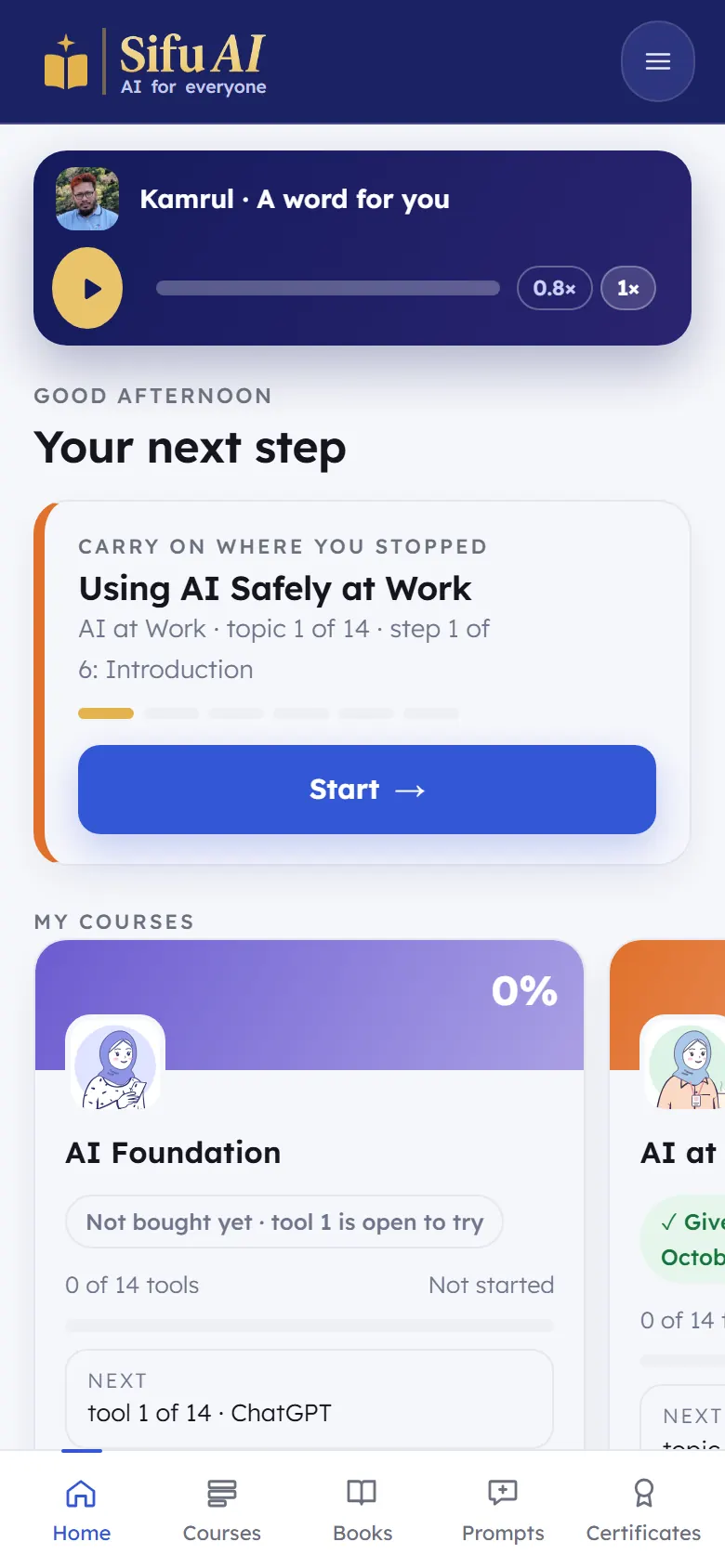
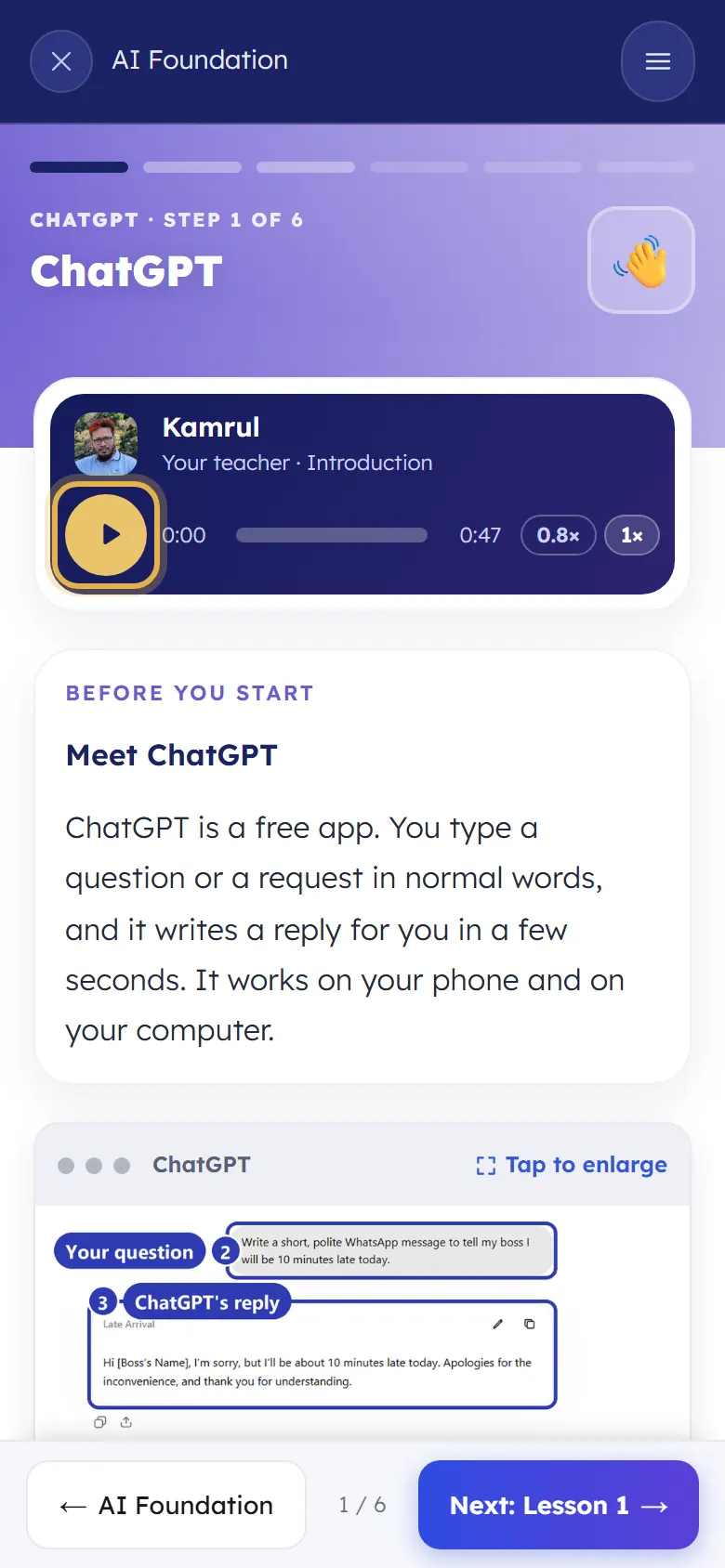
  1. A word for you is a short voice note from Kamrul, your teacher. Tap play.

    Step 1
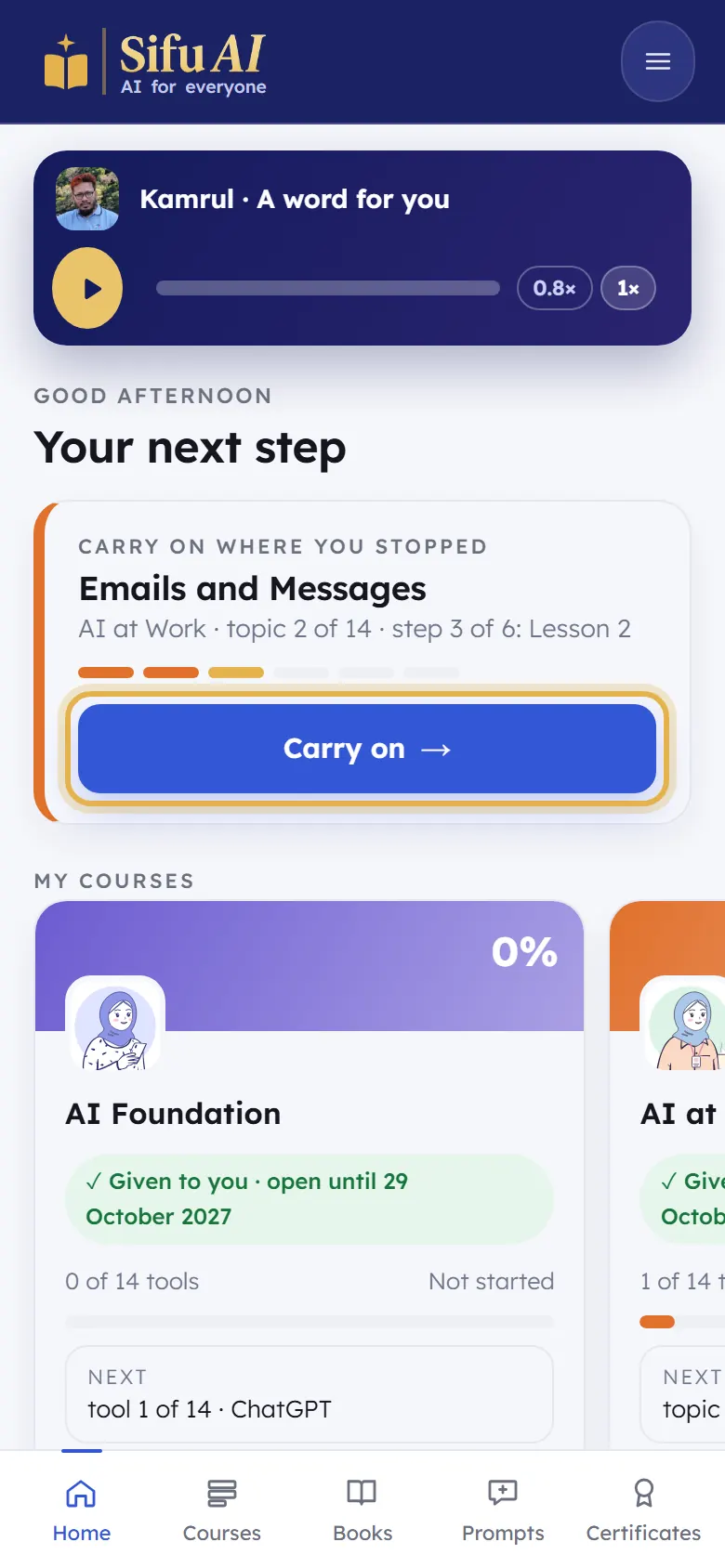
  2. Your next step takes you back to exactly where you stopped. Tap Carry on.

    Step 2
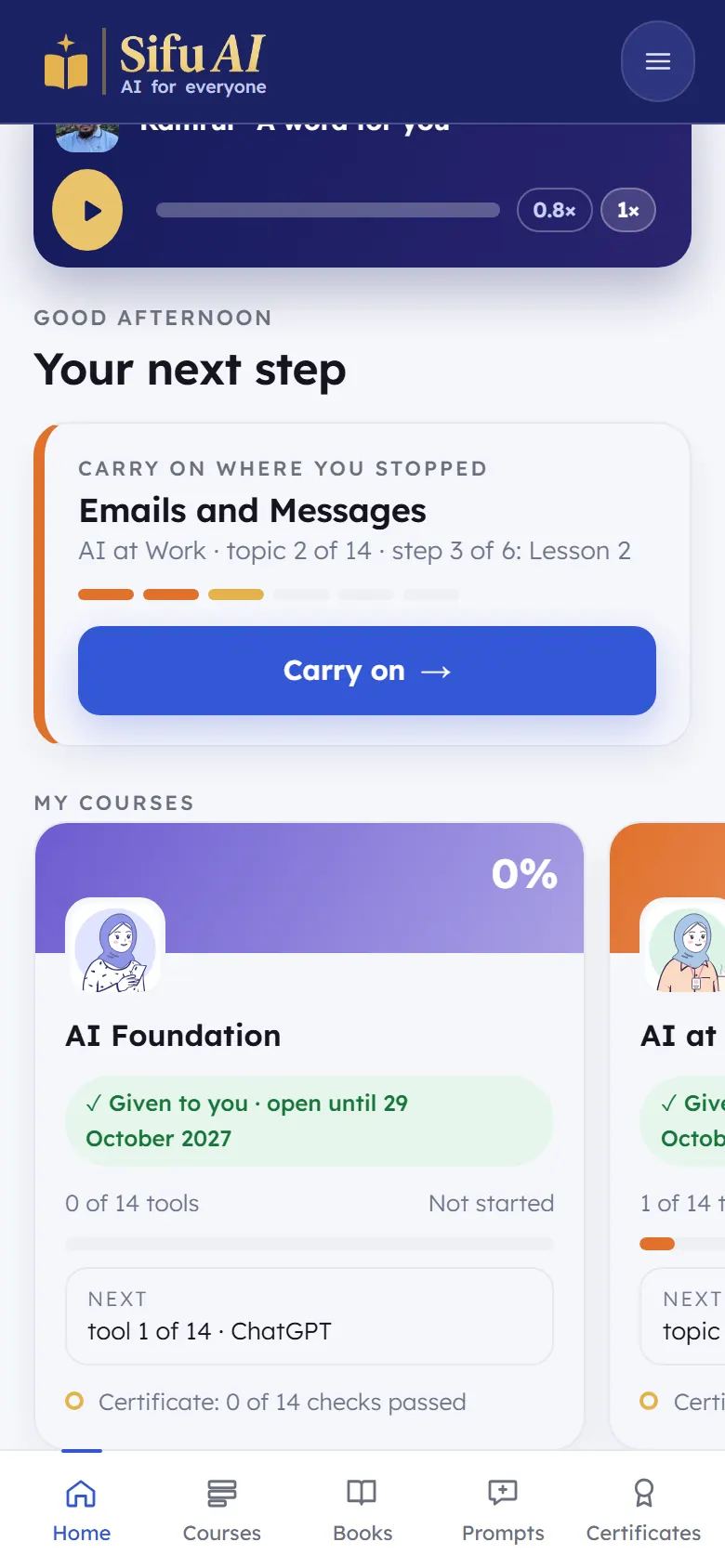
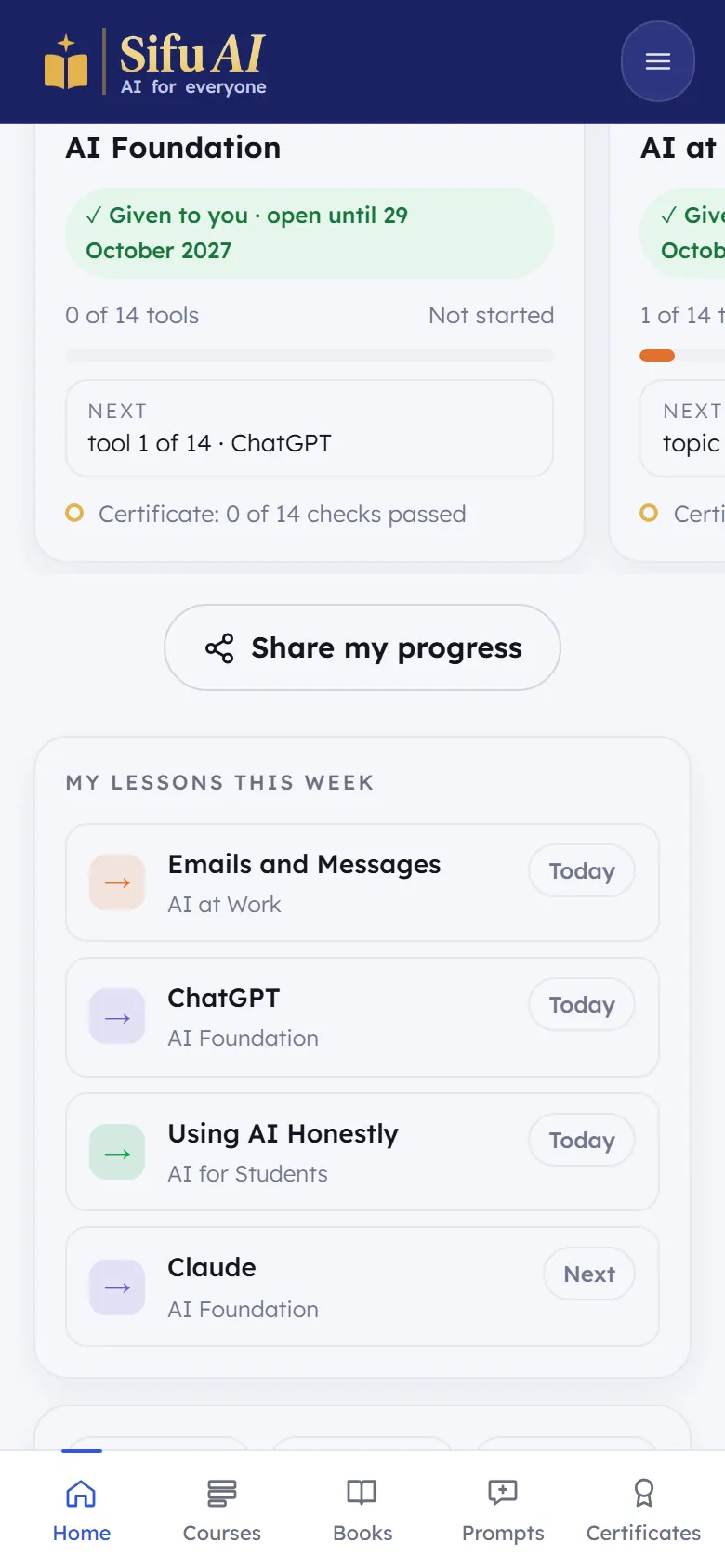
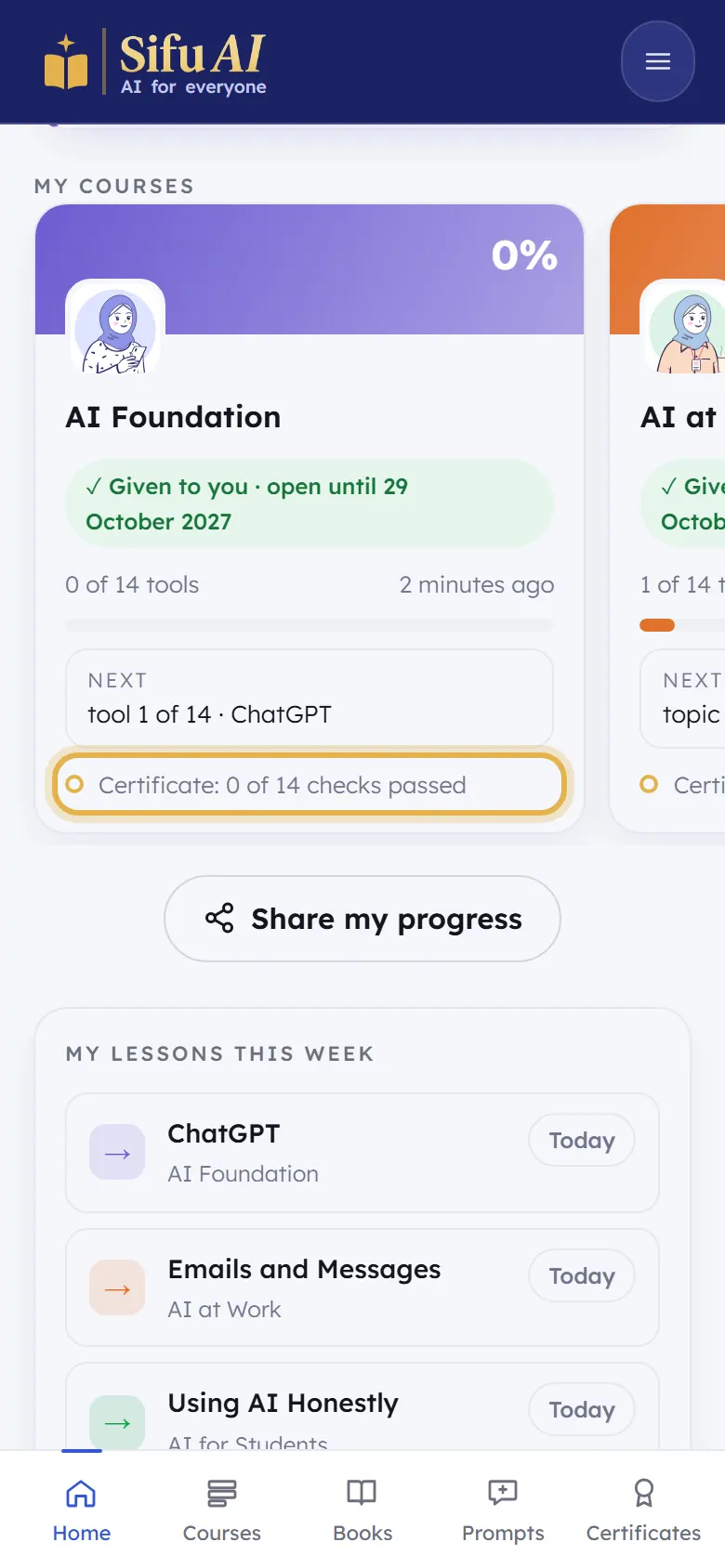
  3. My courses shows each course, how far you are, and until when it is open. Swipe sideways to see all three.

    Step 3
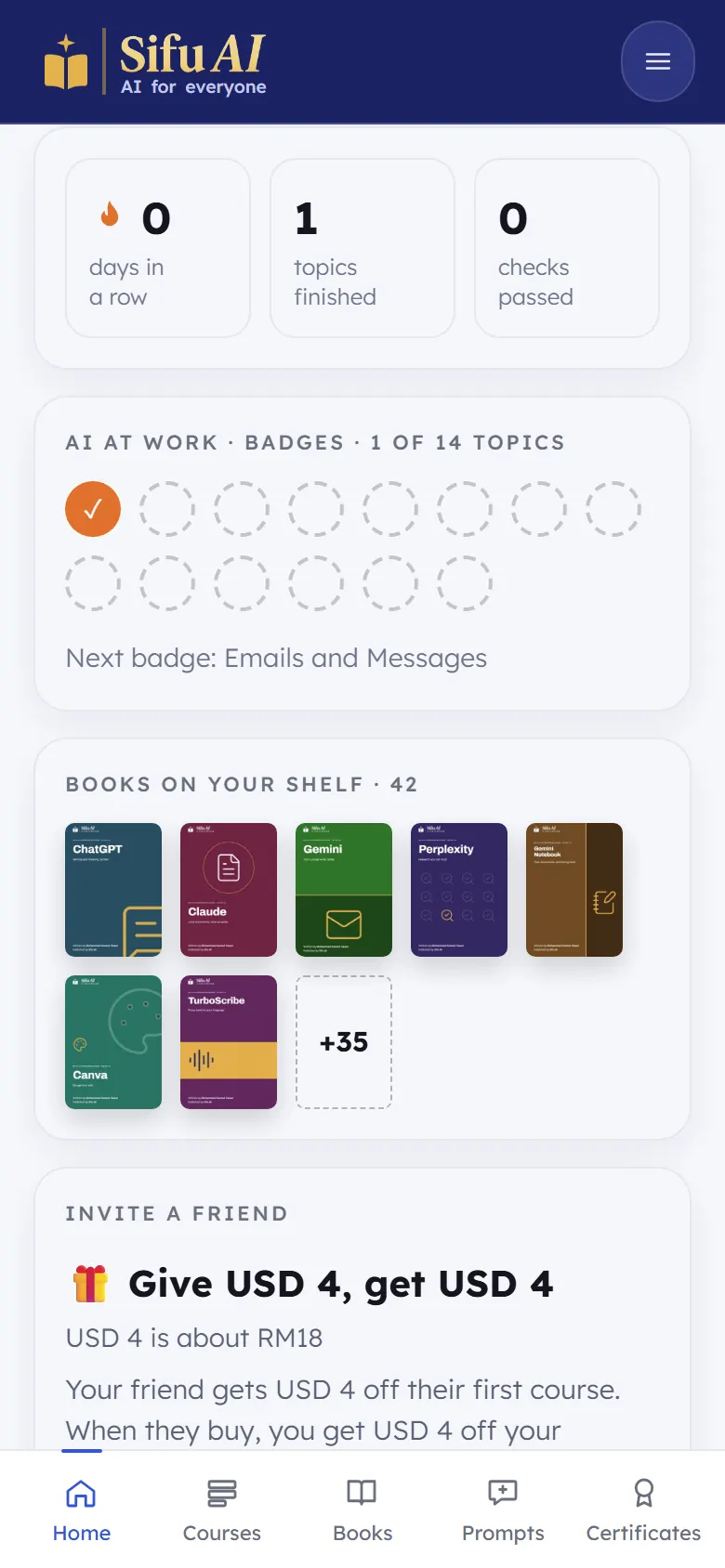
  4. My lessons this week lists what to learn next. Below it: days in a row, topics finished and checks passed.

    Step 4
  5. Badges fill in as you finish topics. Books on your shelf opens your books.

    Step 5
  6. The bar at the bottom is always there: Home, Courses, Books, Prompts and Certificates.

    Step 6

Do a lesson, step by step

What it is

Every tool and every topic is 6 short screens. They all work the same way, so once you have done one, you know them all.

Where to find it

  1. Home
  2. Carry on

How to do it

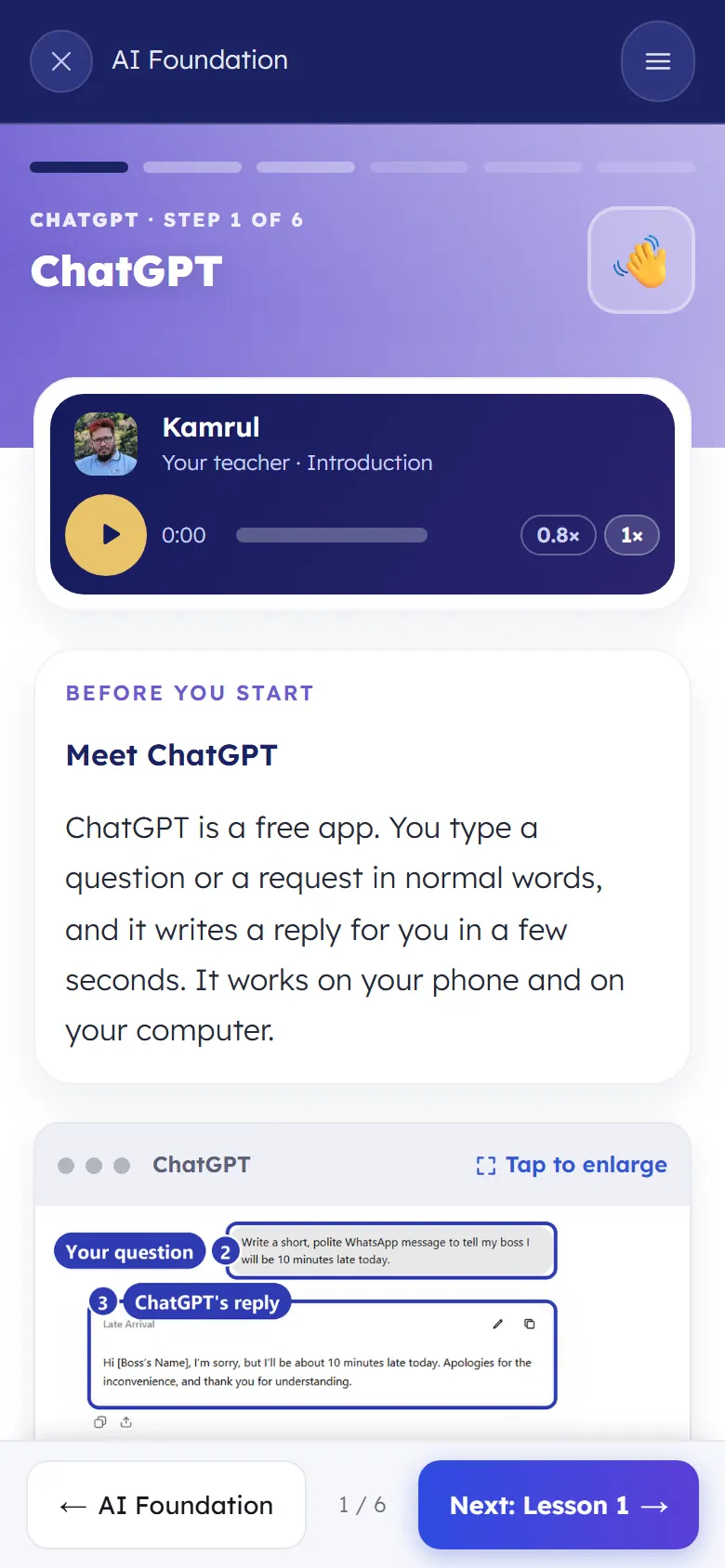
  1. Screen 1, the introduction. Press play to hear Kamrul first. Read what the tool is. Tap Tap to enlarge to see a picture bigger.

    Step 1
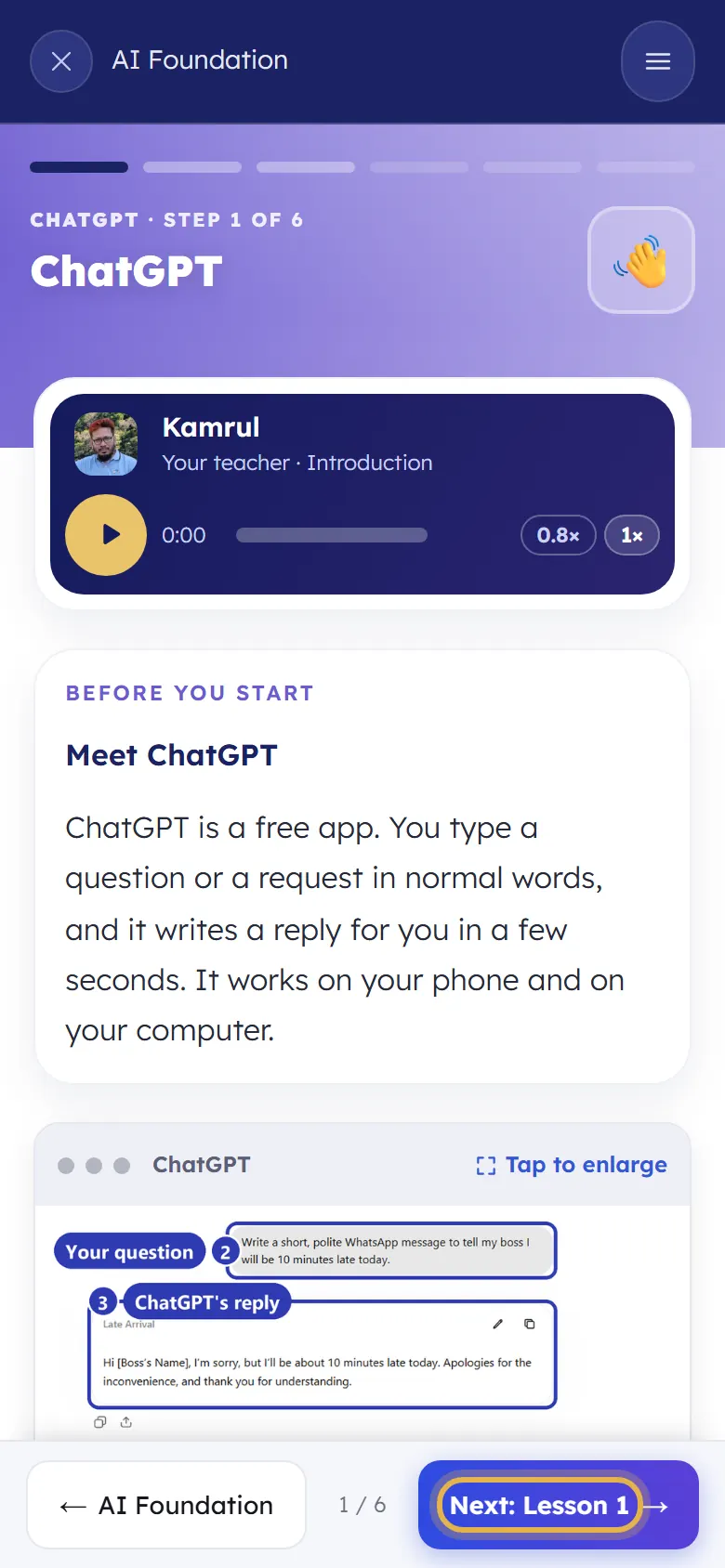
  2. When you are ready, tap the blue Next button at the bottom right. Back takes you one screen back.

    Step 2
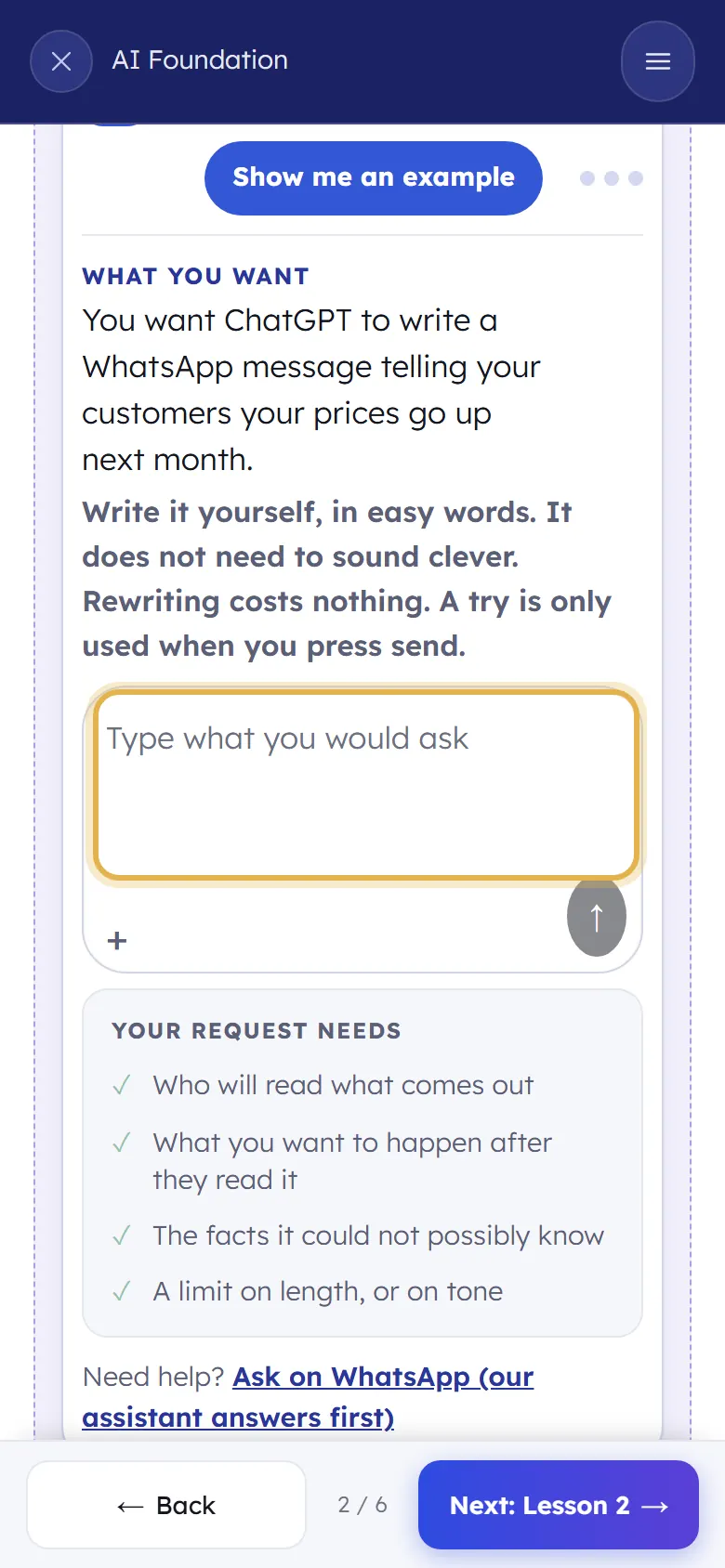
  3. Screens 2 and 3, the lessons. Listen, read, then try it yourself in the box: write your own message and send it.

    Step 3
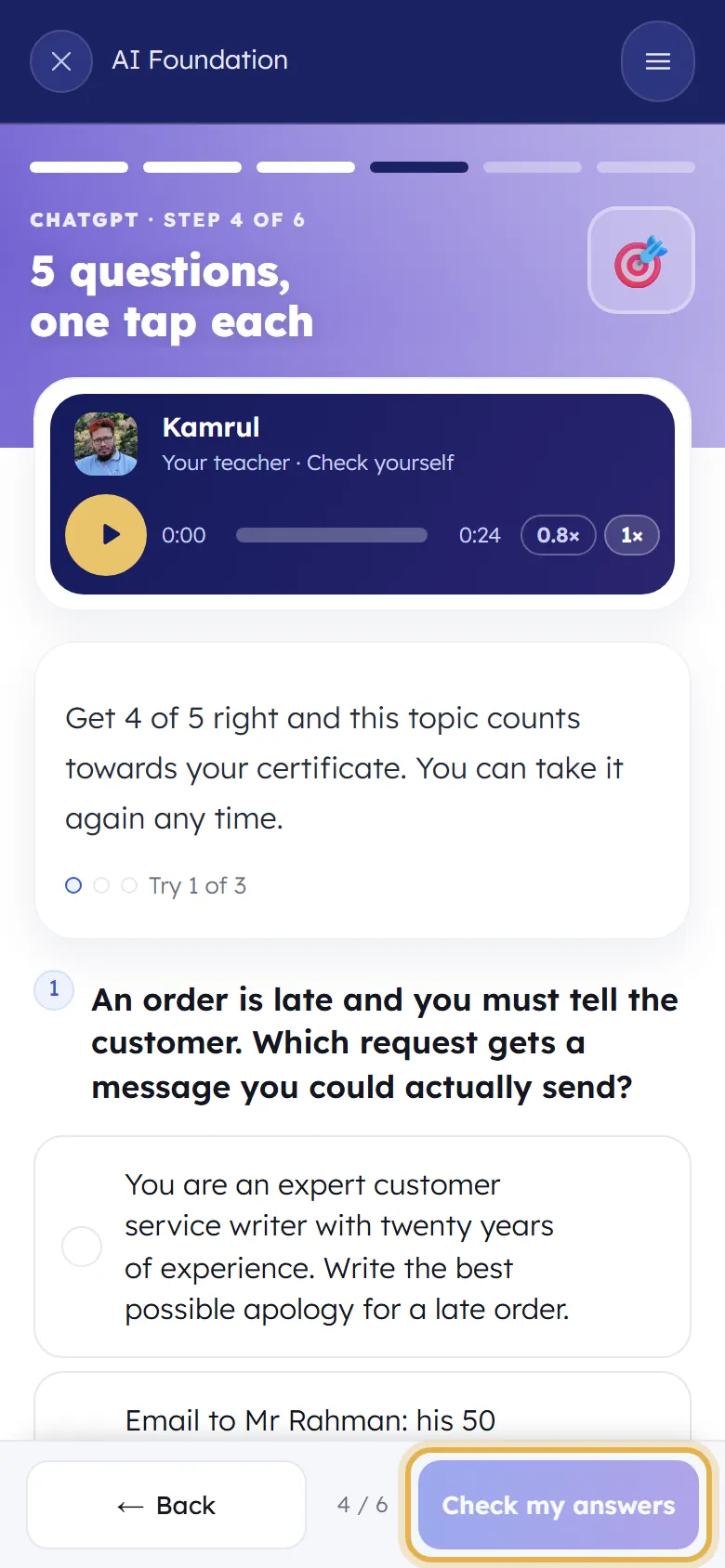
  4. Screen 4, check yourself. Five questions. Tap one answer for each, then tap Check my answers. Get 4 of 5 right and the topic counts for your certificate.

    Step 4
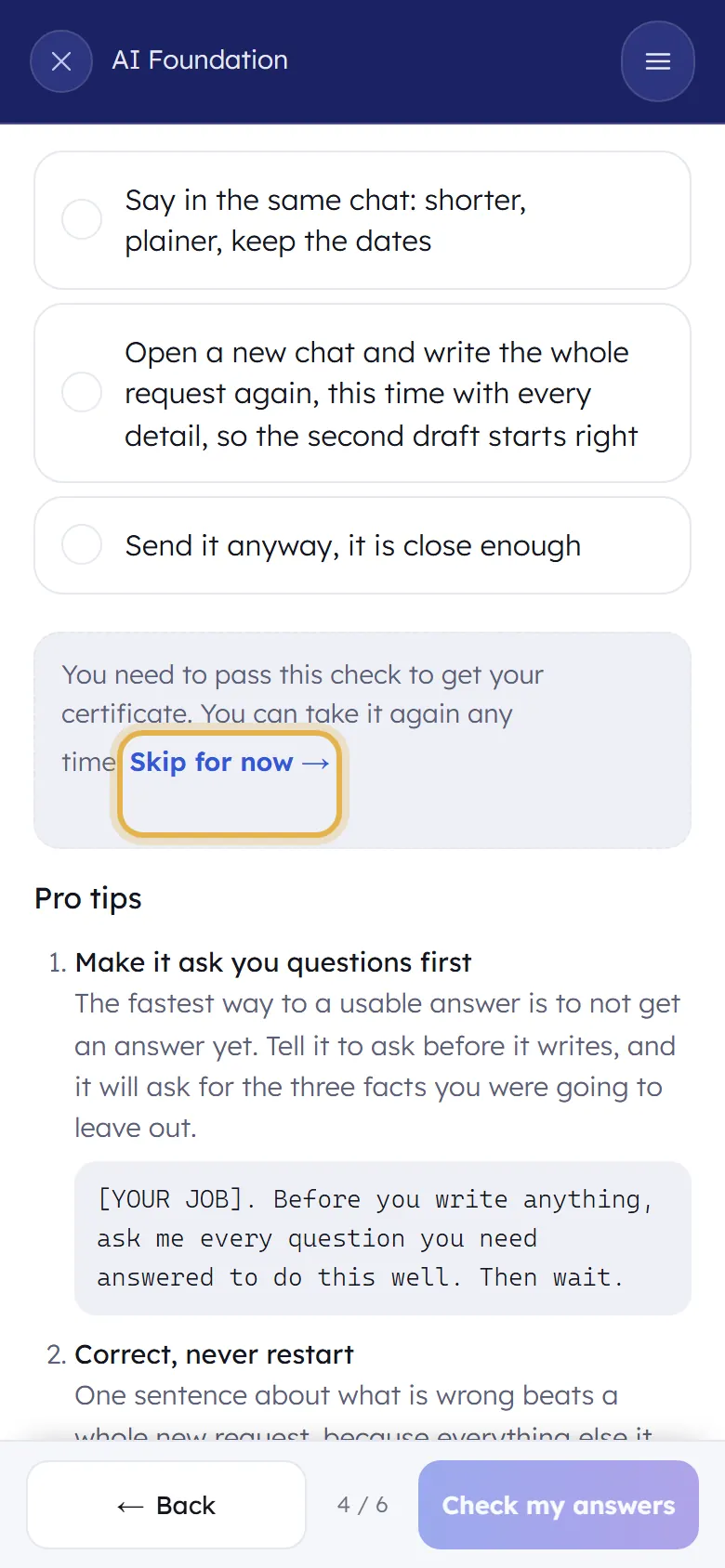
  5. Got one wrong? Sifu shows why the right answer is right. You can try again any time. You can also tap Skip for now and come back later.

    Step 5
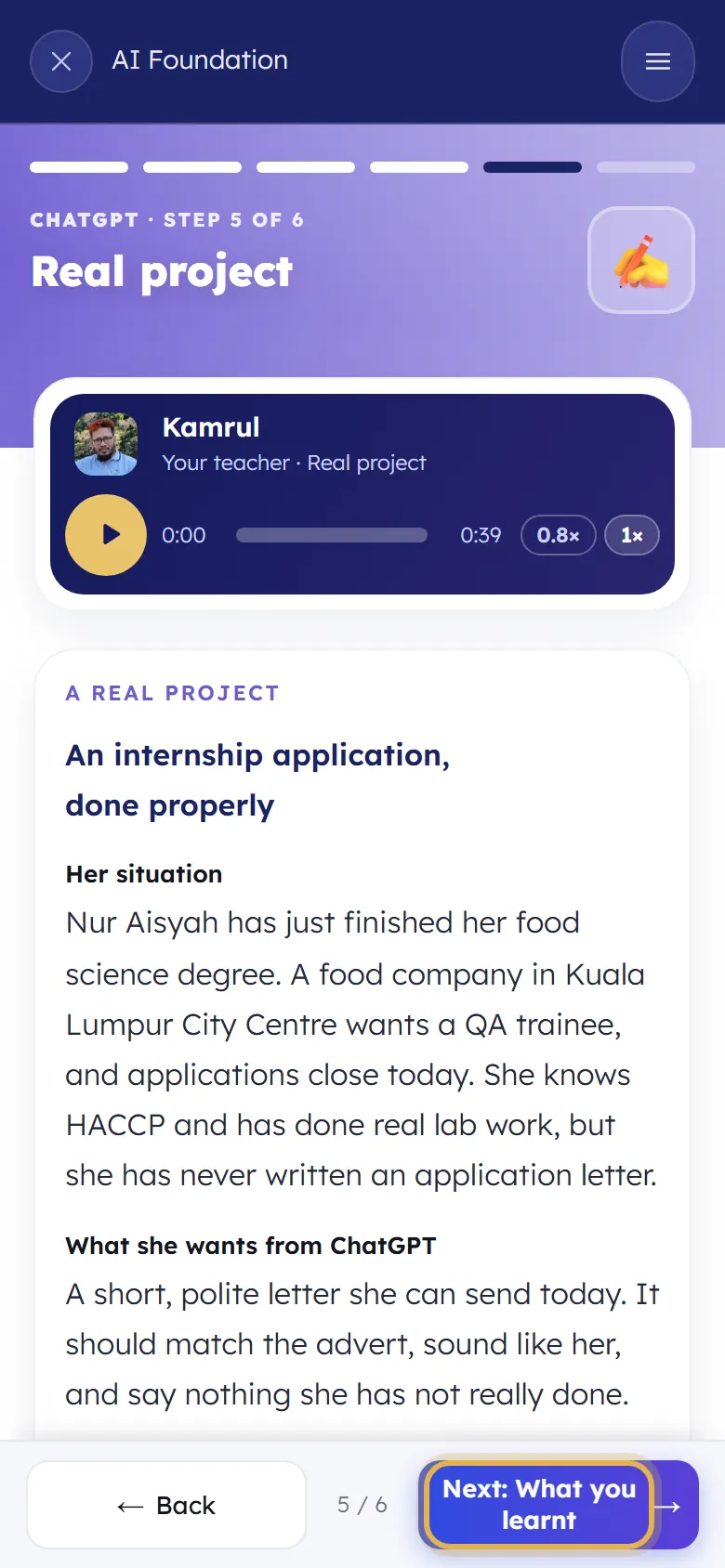
  6. Screen 5, a real project: one real piece of work, done the way you just learnt. Screen 6, what you learnt: a short recap. Then Next takes you to the next tool or topic.

    Step 6

If you are stuck

There is no sound.
Turn up your phone's volume and take it off silent. Tap play again. On slow internet, wait a few seconds for the voice to load.
I closed the lesson by mistake.
Nothing is lost. Open Home and tap Carry on: you go back to the same screen.
Do I need to pay for ChatGPT or the other tools?
No. Every lesson works with the free version of the tool.

Choose your track (AI at Work and AI for Students)

What it is

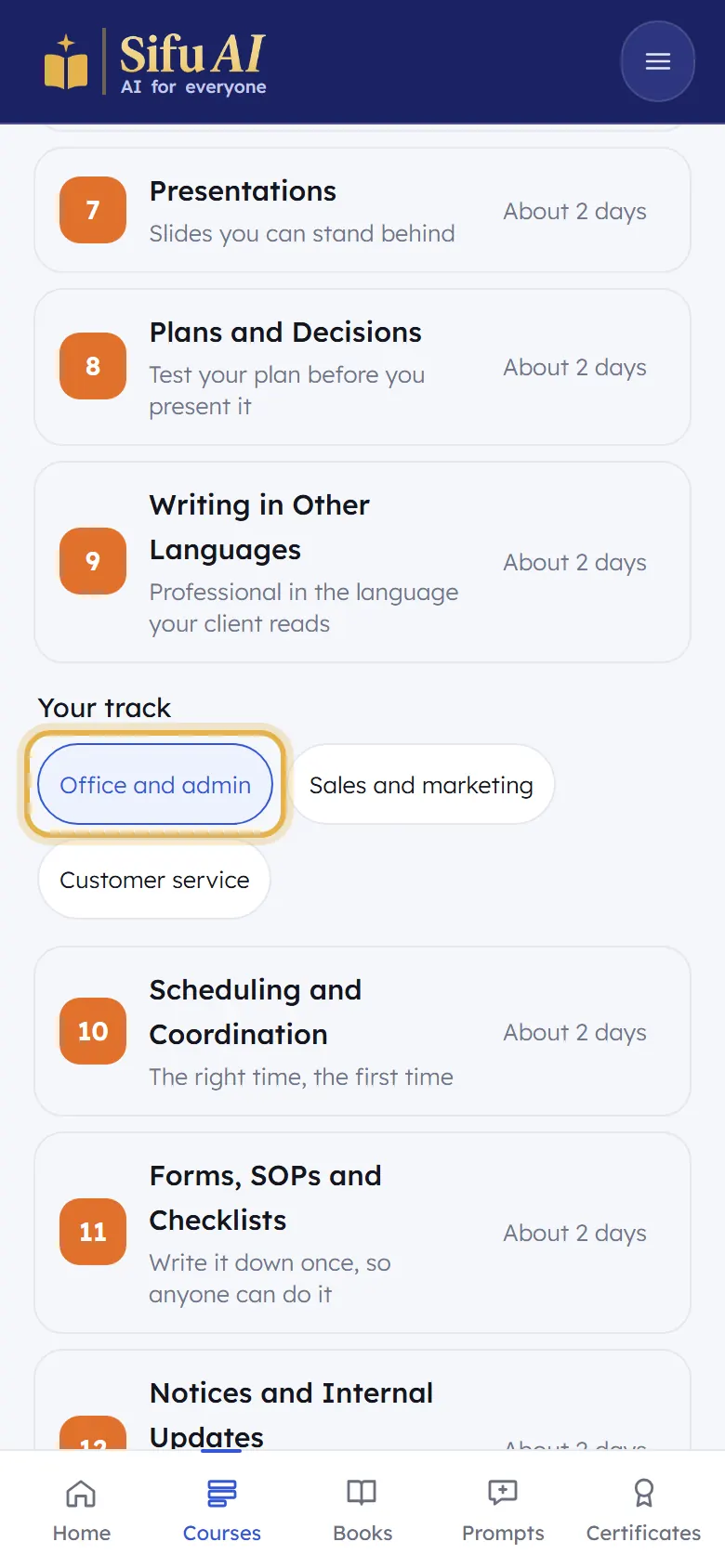
AI at Work has 4 topics for your kind of work: office and admin, sales and marketing, or customer service. AI for Students has 3 for school or for university. You pick one.

Where to find it

  1. Courses
  2. AI at Work or AI for Students
  3. Your track

How to do it

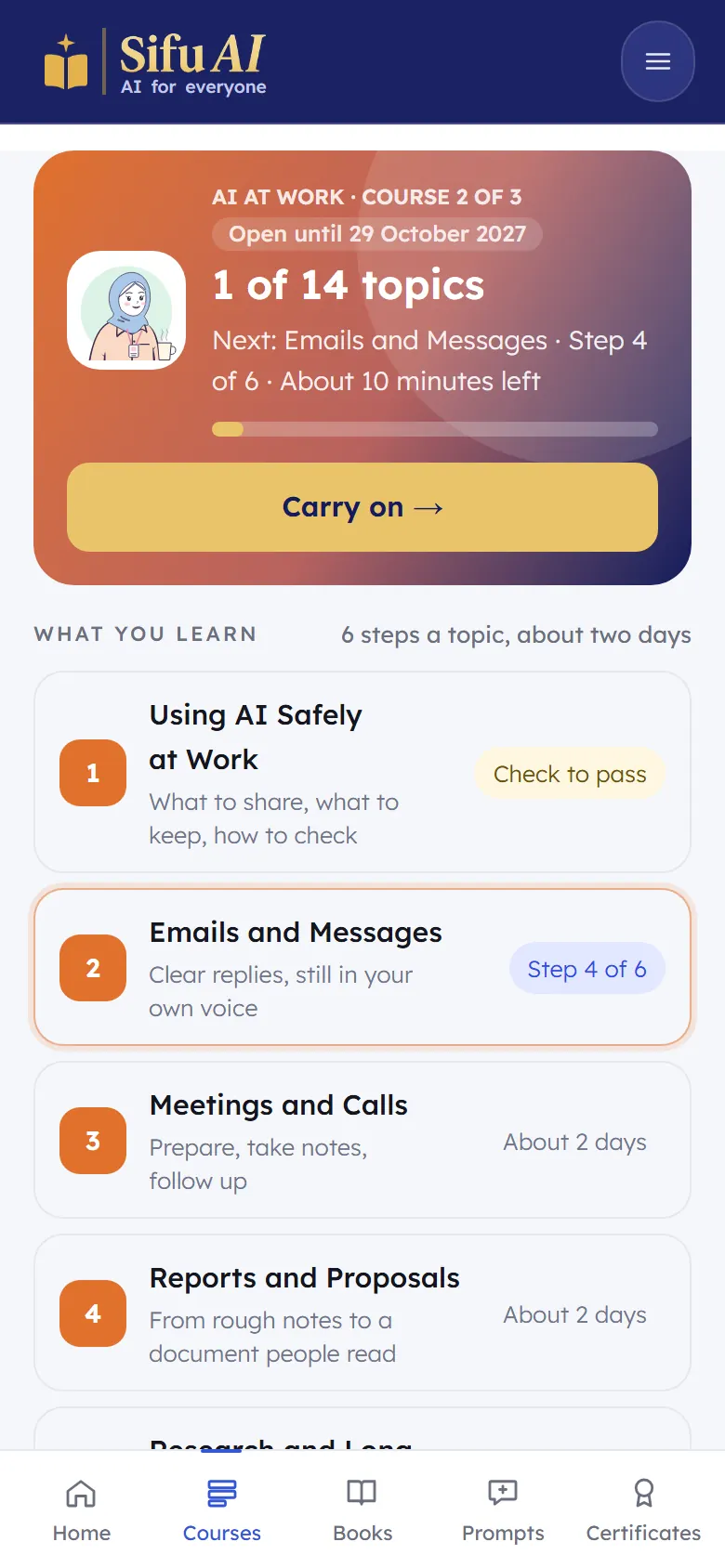
  1. Tap Courses at the bottom, then open AI at Work or AI for Students.

    Step 1
  2. Scroll down to Your track and tap the one that fits you. The track topics appear in your list.

    Step 2
  3. Changed your mind? Tap another track. You can switch any time.

Read the books

What it is

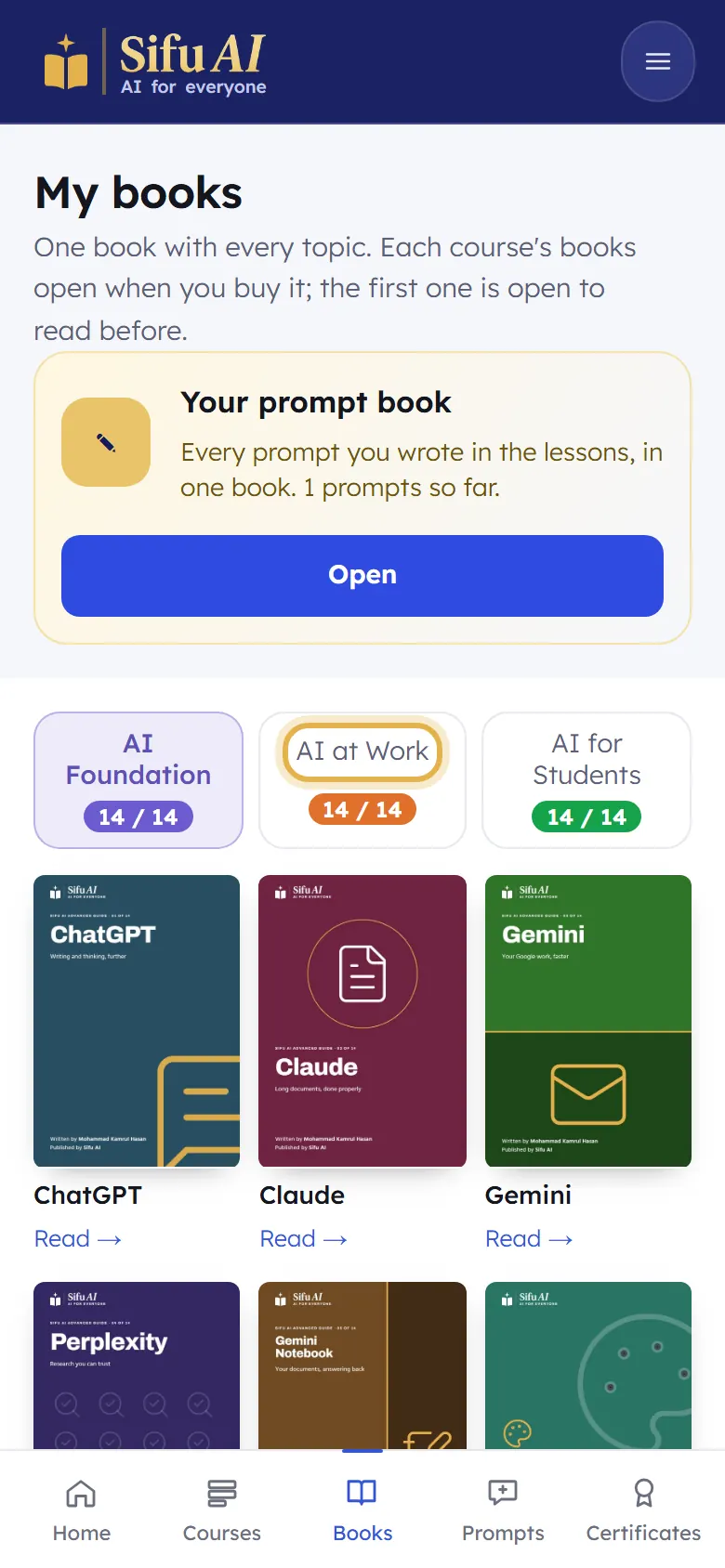
Every tool and topic has its own short book, with the steps and the prompts in it. You read them inside Sifu AI.

Where to find it

  1. Bottom bar
  2. Books

How to do it

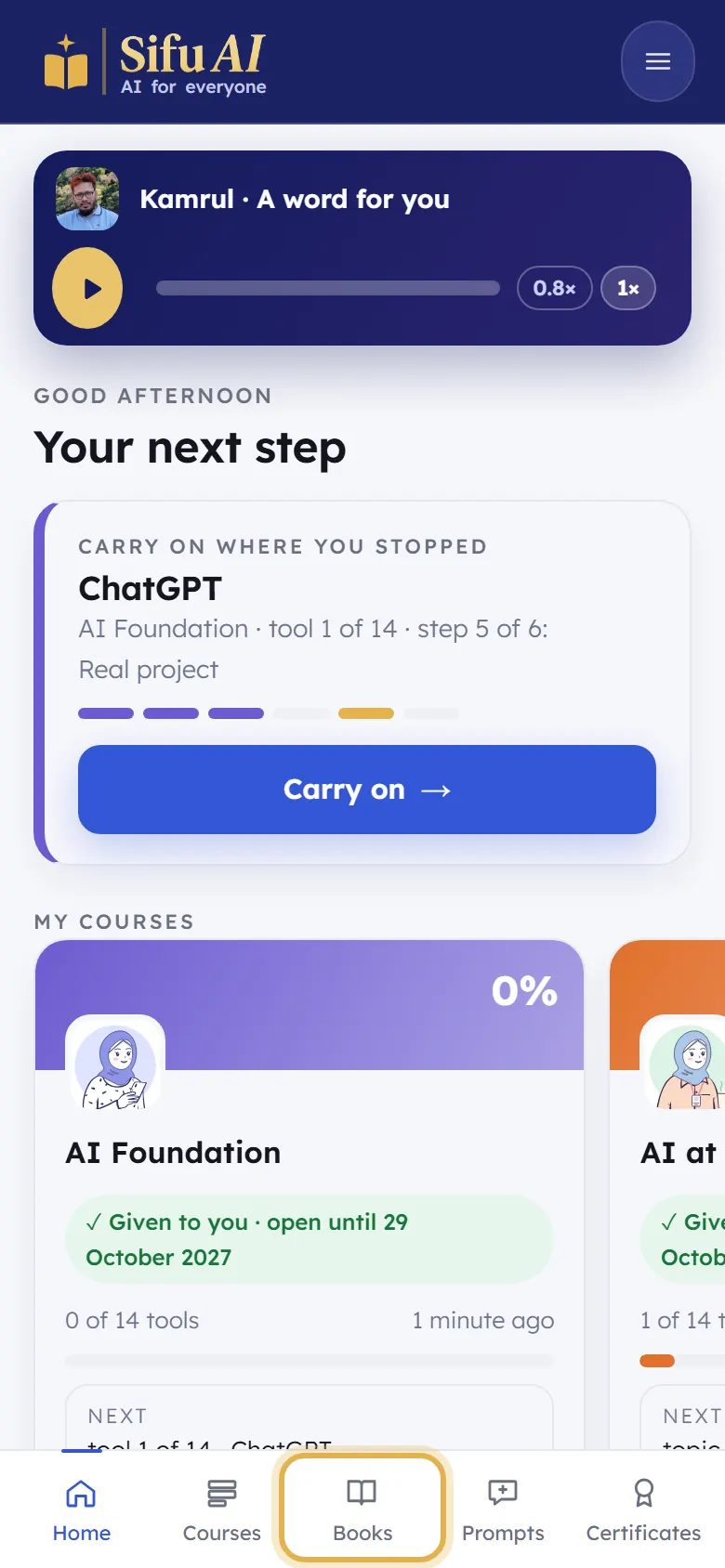
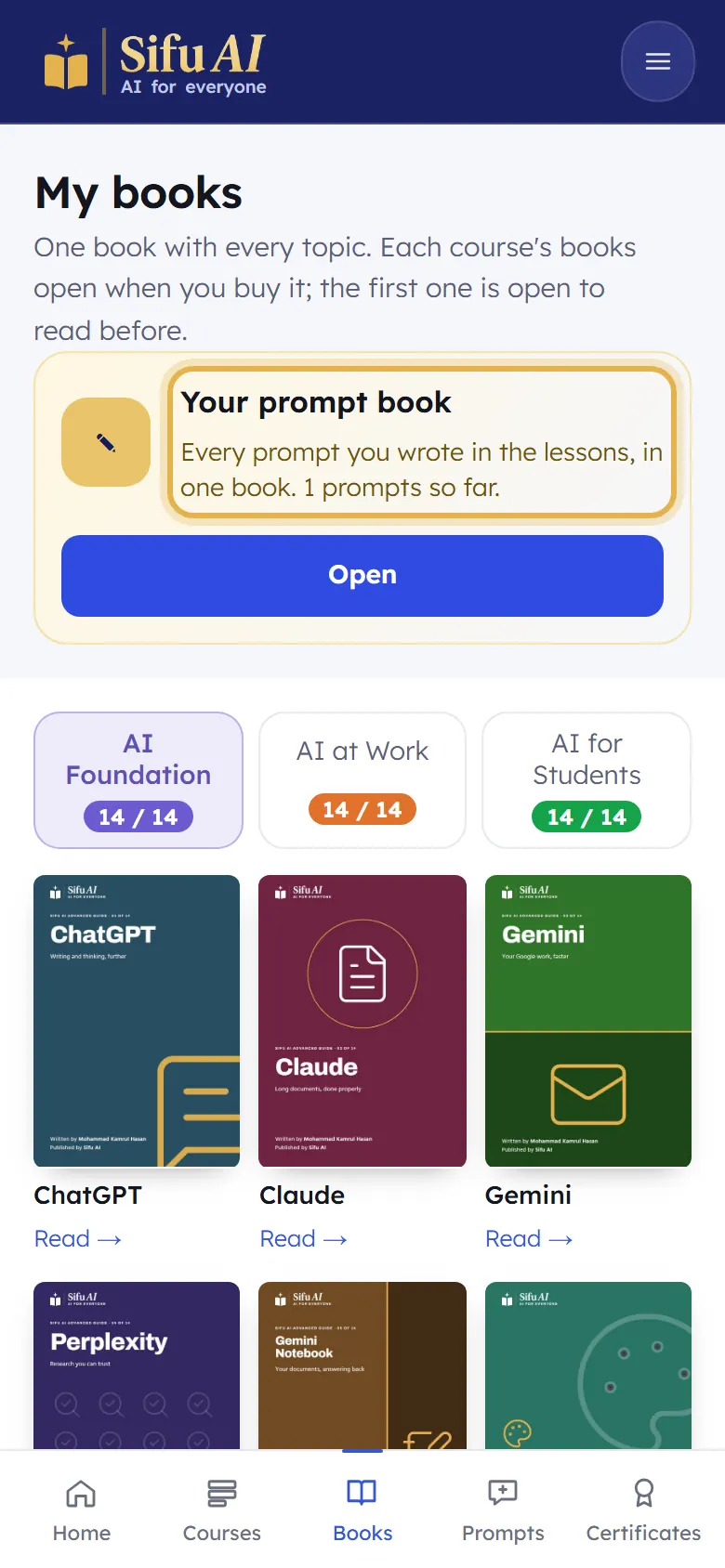
  1. Tap Books in the bar at the bottom.

    Step 1
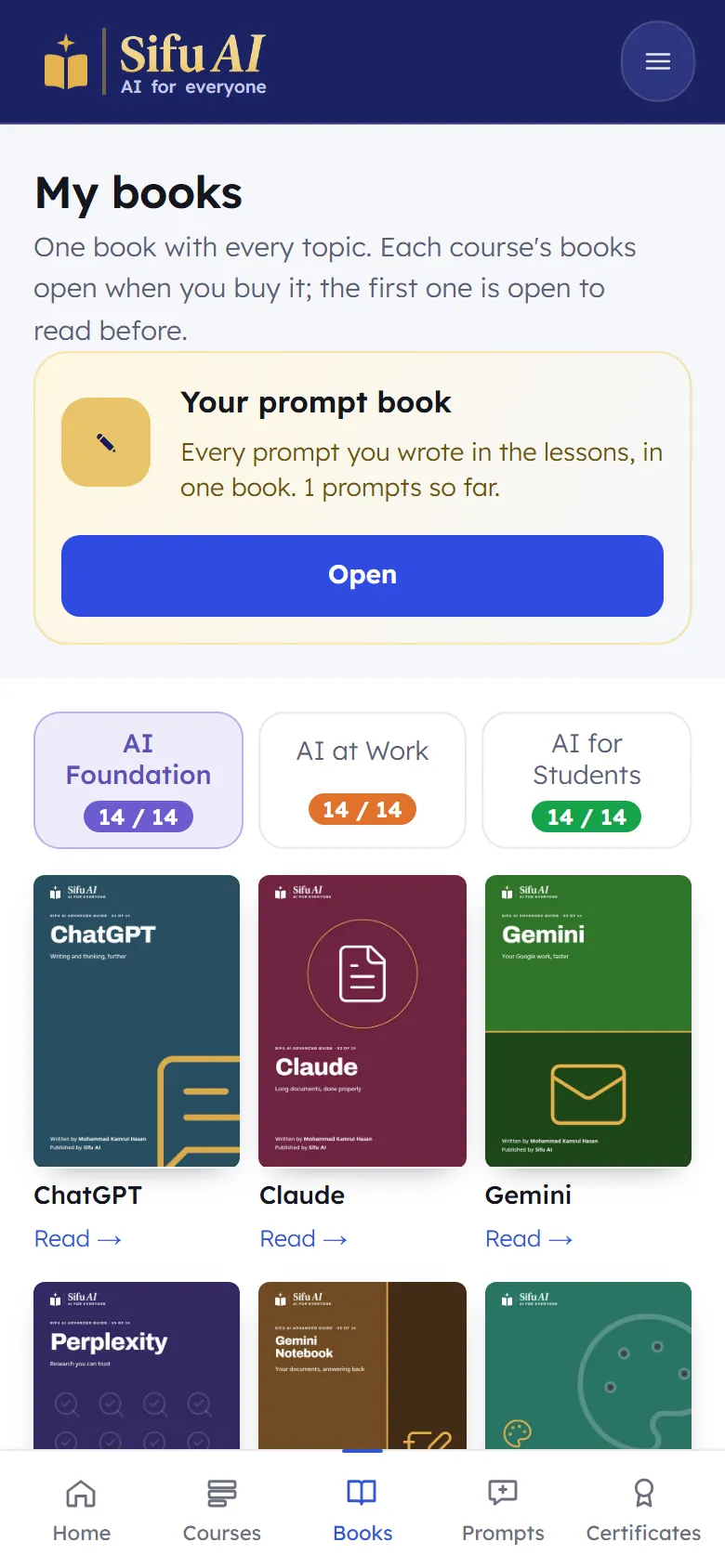
  2. Choose the course at the top: AI Foundation, AI at Work or AI for Students.

    Step 2
  3. Tap Read under a book. Swipe or use the arrows to turn the pages.

    Step 3

If you are stuck

A book says it is locked.
Each course's books open when you buy that course. The first book of every course is free.
Ready prompts and your prompt book

What it is

A prompt is the message you send to an AI. Ready prompts gives you good ones to copy. Your prompt book keeps every prompt you wrote in the lessons, in one place.
Where to find it

  1. Bottom bar
  2. Prompts

How to do it

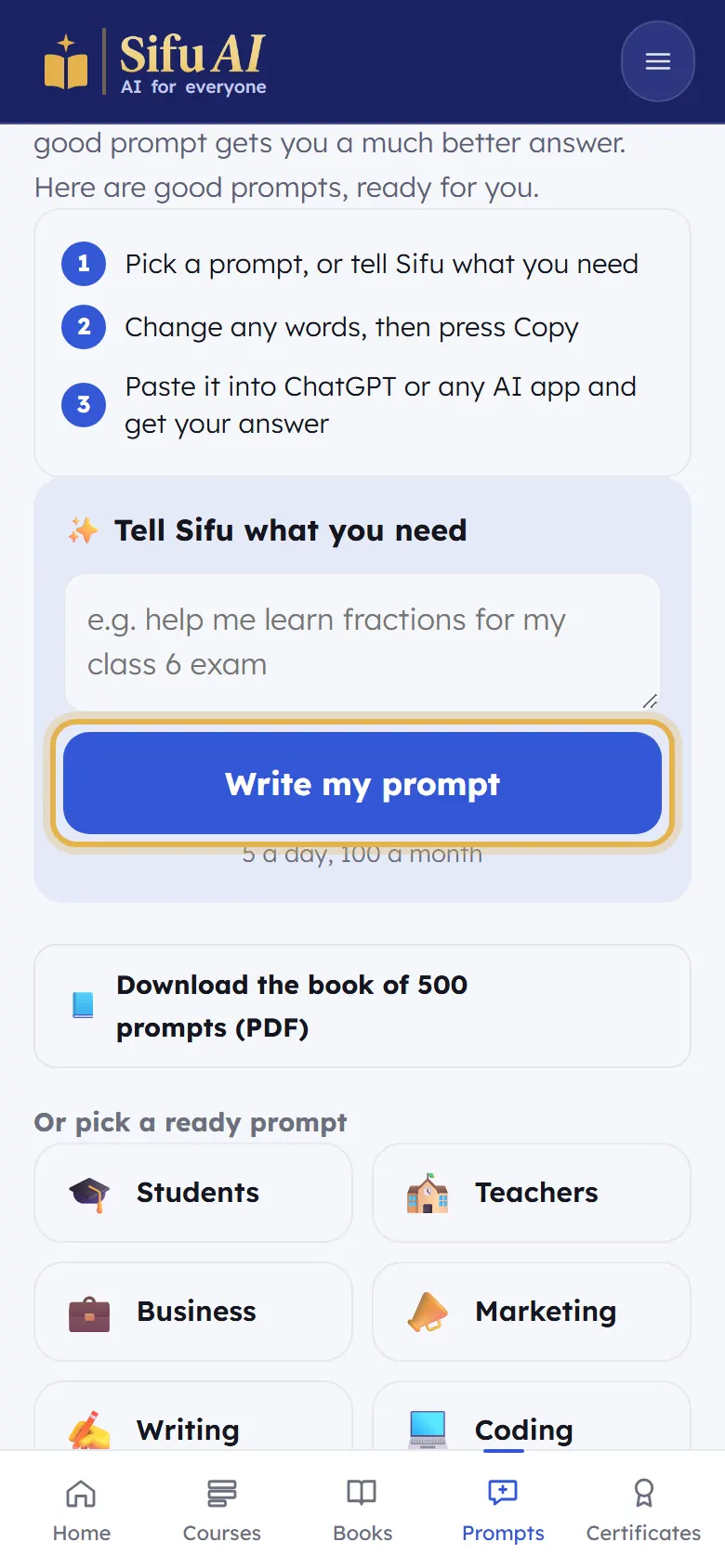
  1. Tap Prompts in the bar at the bottom.

    Step 1
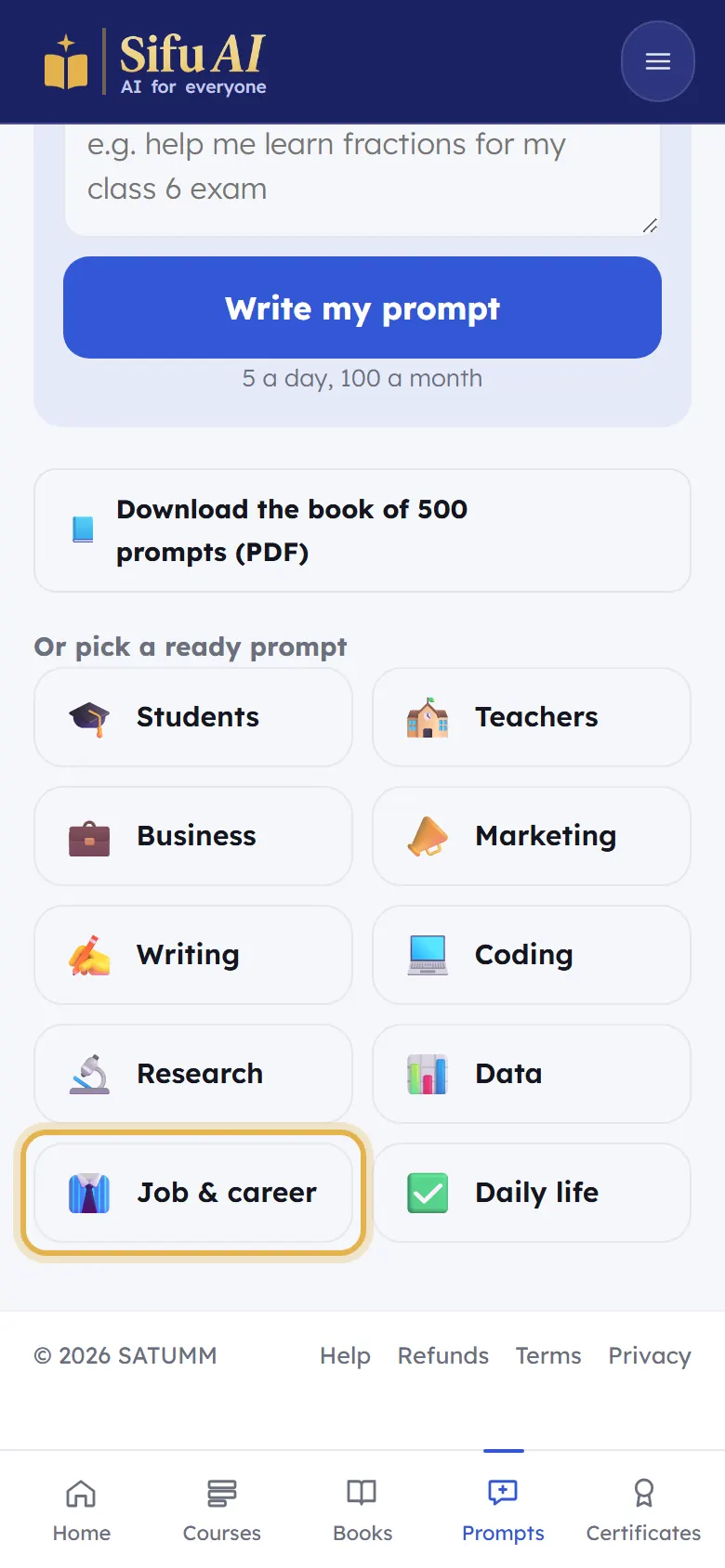
  2. Tell Sifu what you need: type it in your own words and tap Write my prompt.

    Step 2
  3. Or tap a group, such as Students or Job & career, pick a prompt, change any words, then tap Copy and paste it into ChatGPT.

    Step 3
  4. To see your own prompts, open Books and tap Your prompt book. You can print it or save it as a PDF.

    Step 4

My AI portfolio

What it is

One page with your certificates and your best work, such as your first and your last prompt for each tool. Print it or save it as a PDF to show an employer.

Where to find it

  1. Menu
  2. My account
  3. My AI portfolio

How to do it

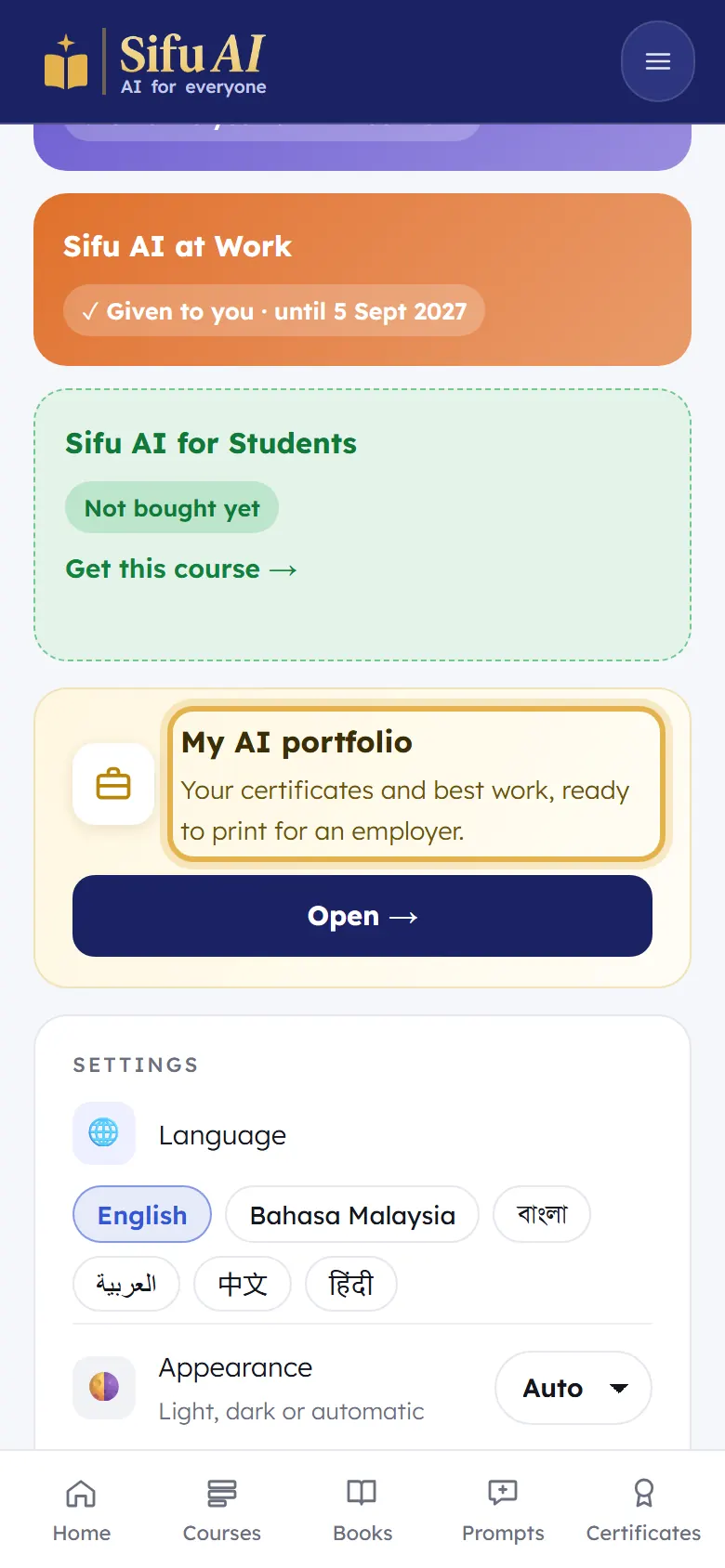
  1. Open My account from the menu. Tap Open on My AI portfolio.

    Step 1
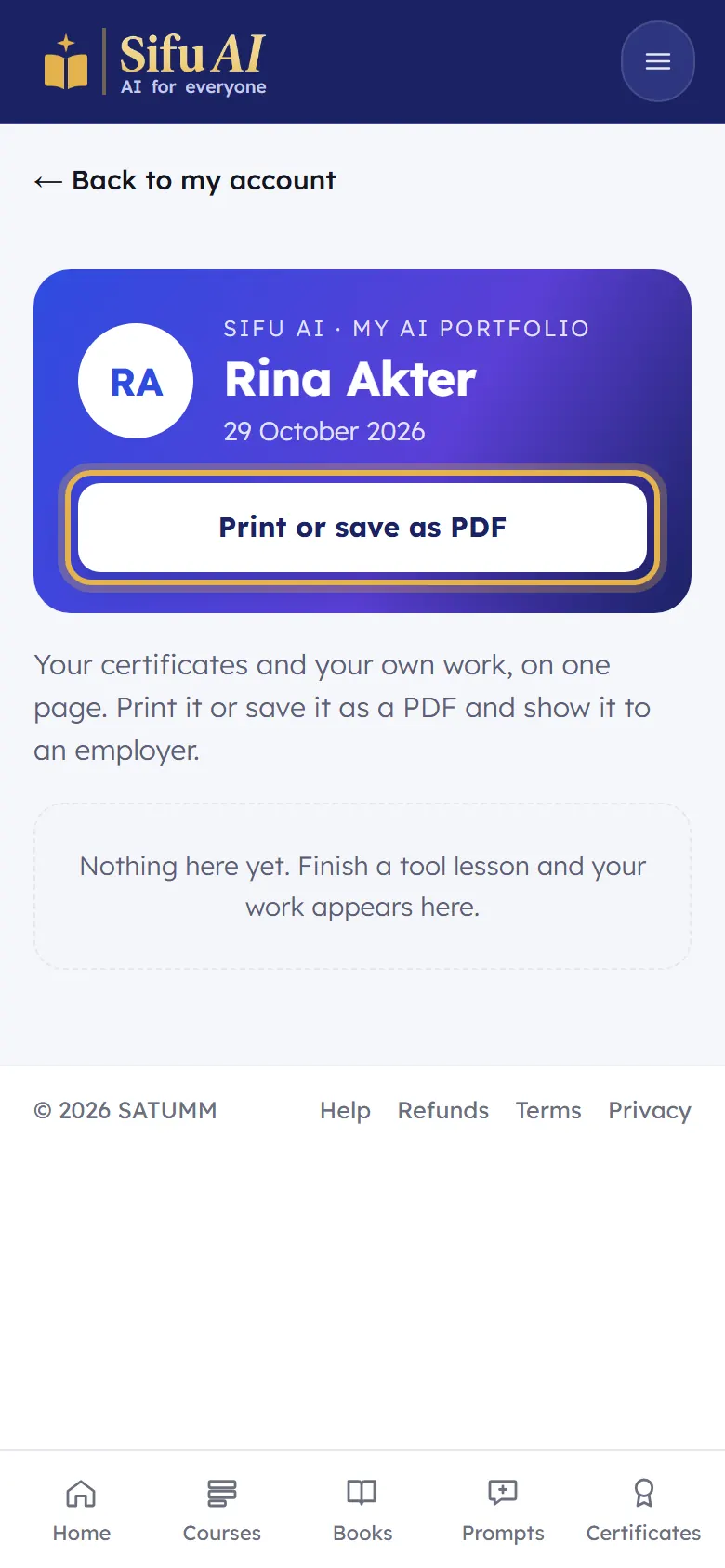
  2. Your work appears here as you finish tool lessons. Tap Print or save as PDF.

    Step 2

Get your certificate

What it is

Finish every topic of a course and pass its checks, and your certificate is made with your name on it. Each course has its own.

Where to find it

  1. Bottom bar
  2. Certificates

How to do it

  1. On your home screen, each course shows Certificate: 3 of 14 checks passed. That is how close you are.

    Step 1
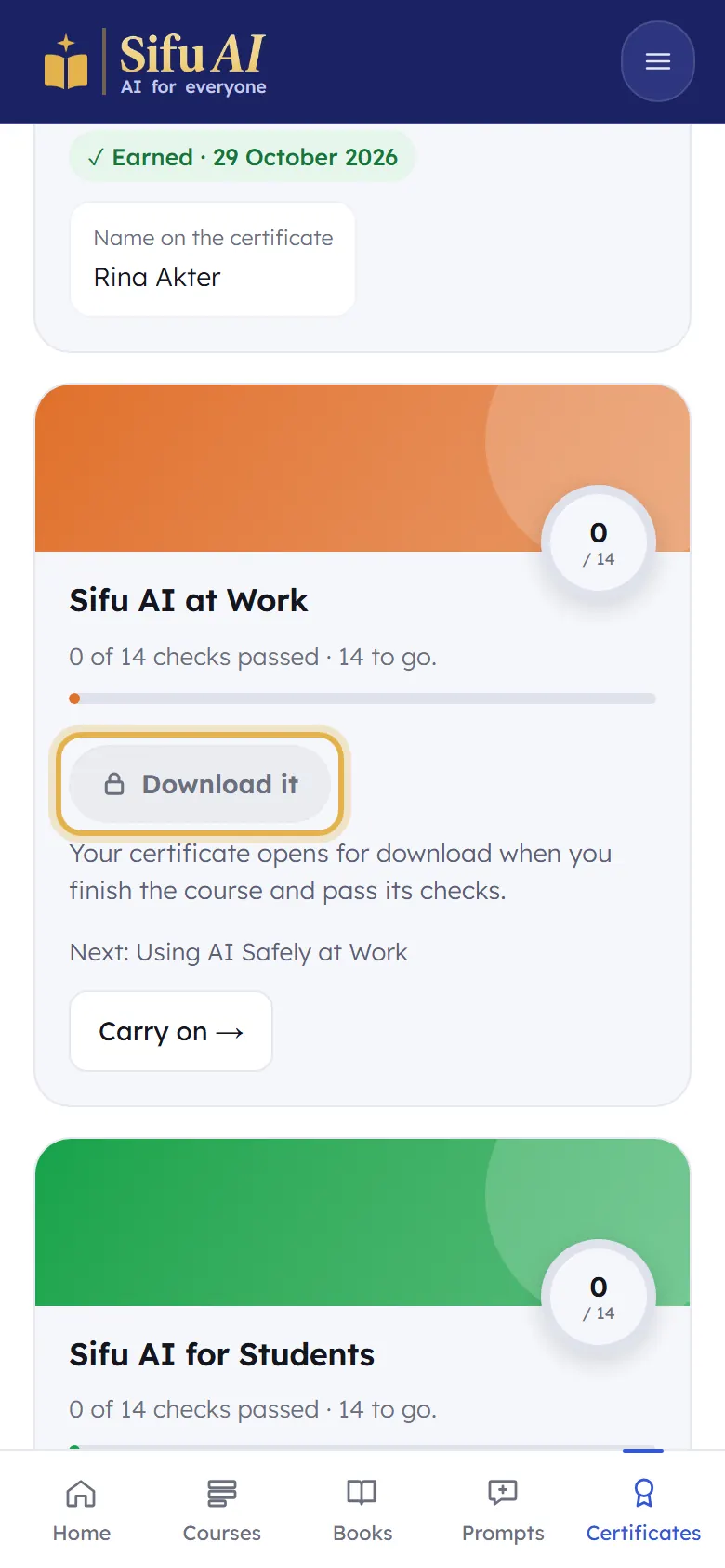
  2. Tap Certificates in the bar at the bottom.

    Step 2
  3. A finished course says Earned, with the Name on the certificate. Tap Download it to save it. (Until you finish, the button is locked.) To change the name, tap Edit name in My account.

    Step 3

If you are stuck

I finished but there is no certificate.
Look for a topic whose check is not passed yet (it says Check to pass). Pass that check and the certificate opens.

Share your certificate

What it is

Send your certificate's link to an employer, or put it on LinkedIn or Facebook. Anyone who opens the link sees it is real.

Where to find it

  1. Certificates
  2. Copy my link

How to do it

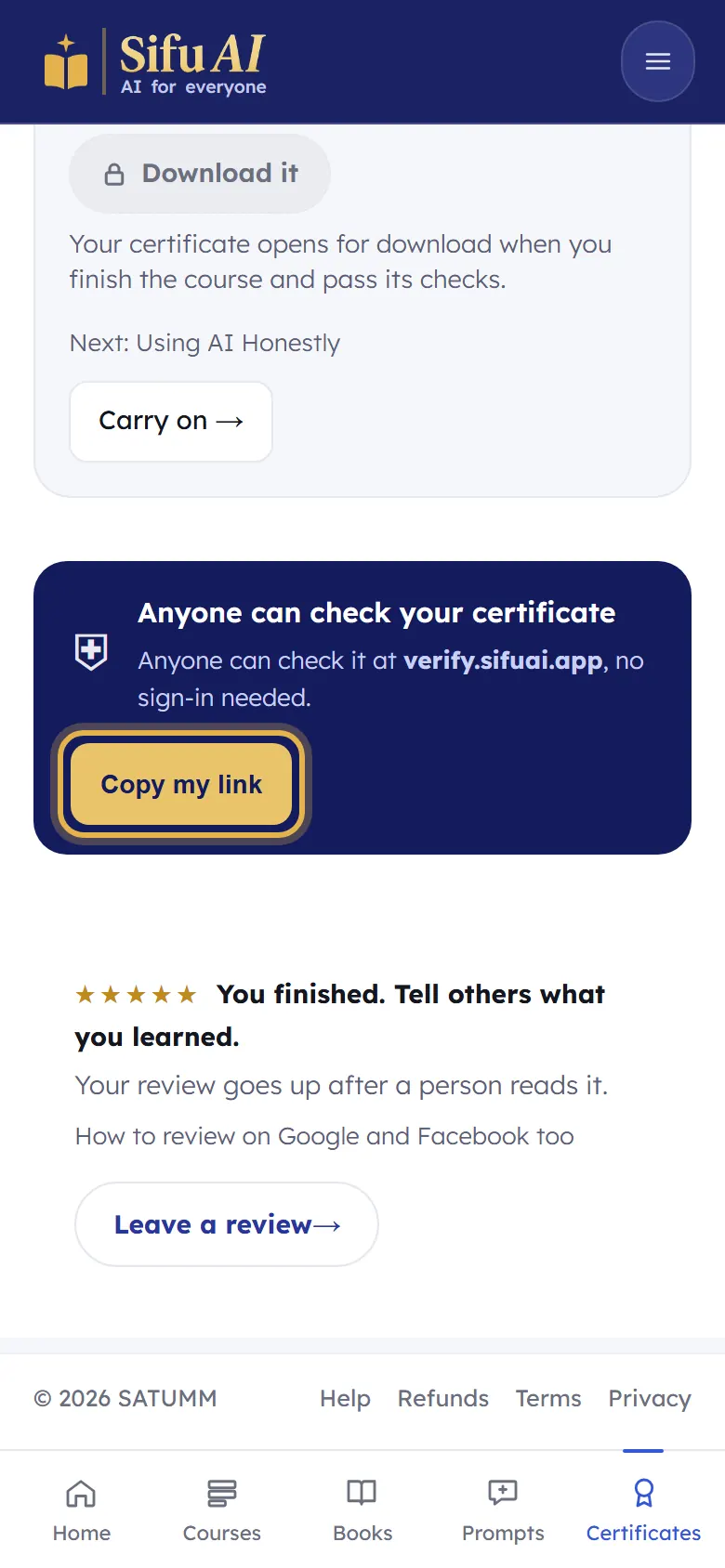
  1. Open Certificates. Under Anyone can check your certificate, tap Copy my link.

    Step 1
  2. Paste the link in WhatsApp, an email, LinkedIn or Facebook. Whoever opens it sees your certificate, checked by Sifu AI.

Check a certificate is real (for employers)

What it is

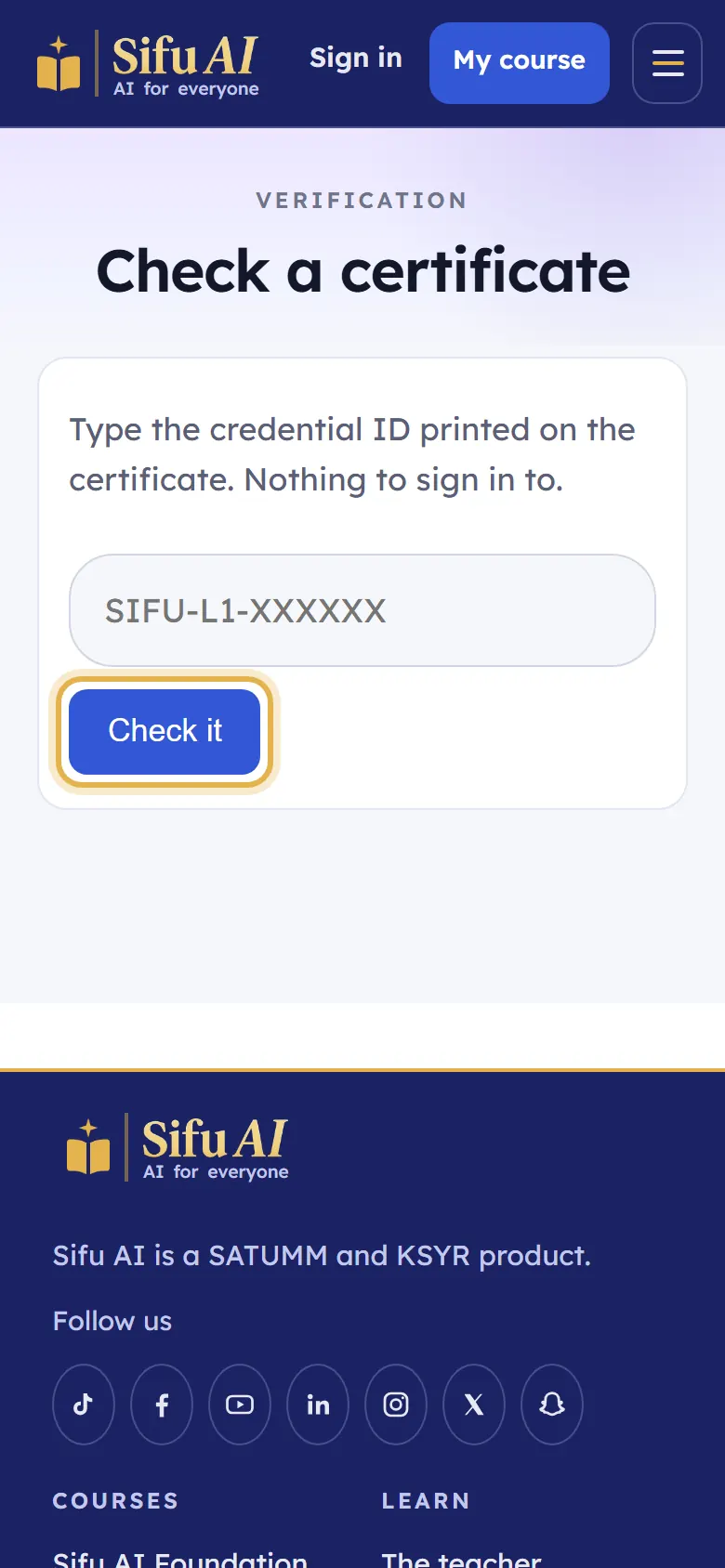
Every Sifu AI certificate has a code. Anyone can check it, with no account.

Where to find it

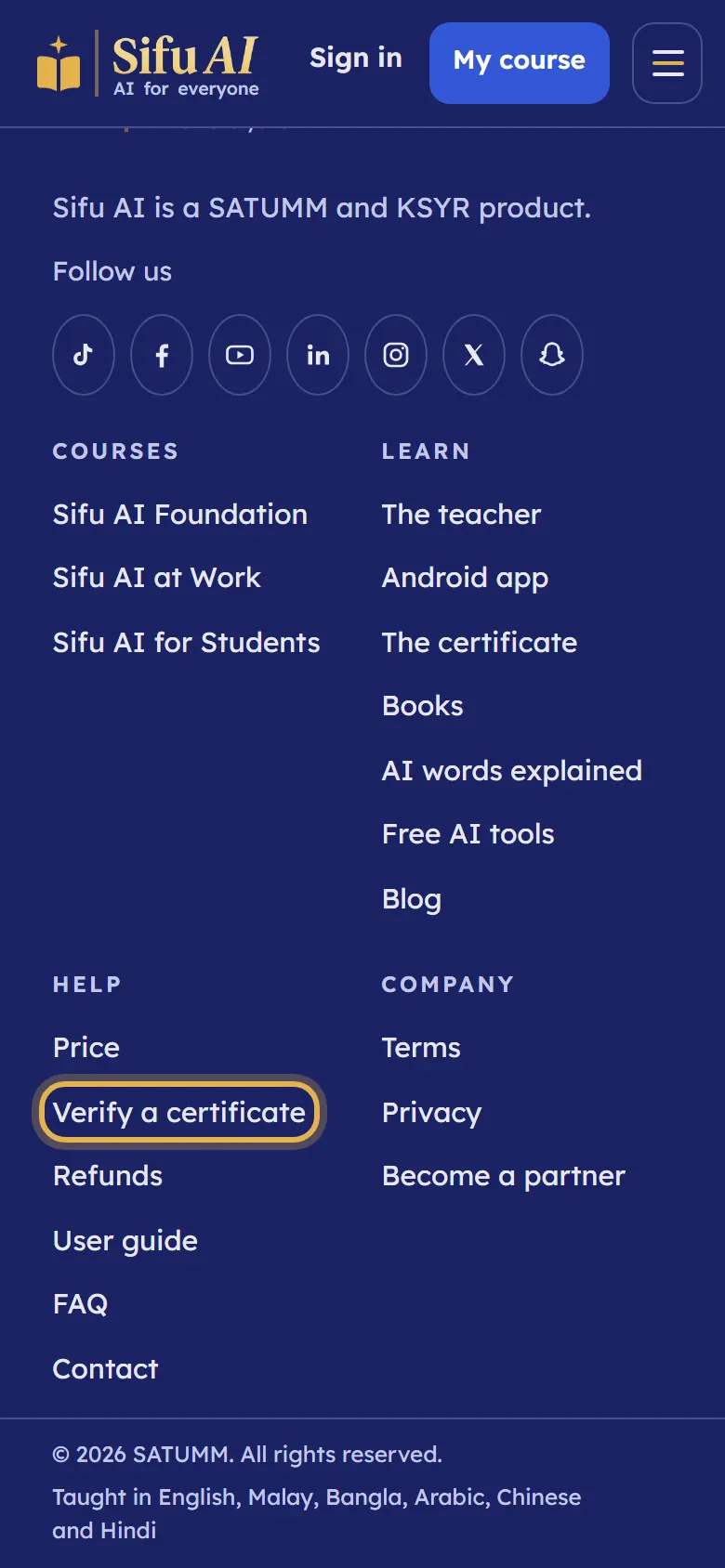
  1. Footer
  2. Verify a certificate

How to do it

  1. Scroll to the bottom of any page and tap Verify a certificate.

    Step 1
  2. Type the code printed on the certificate. You see the name, the course and the date, straight from Sifu AI.

    Step 2

Leave a review

What it is

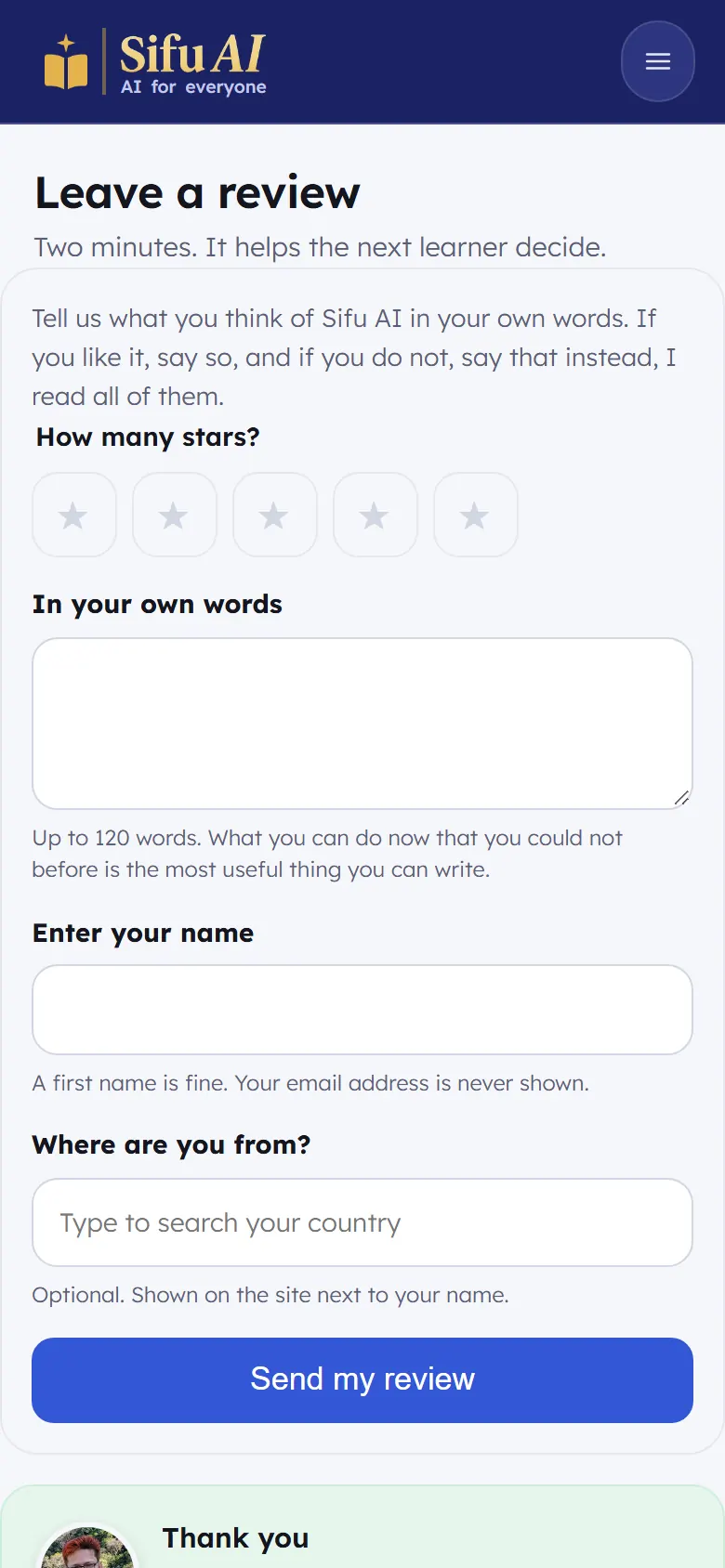
Tell other learners what you think. It helps them choose, and it helps us teach better.

Where to find it

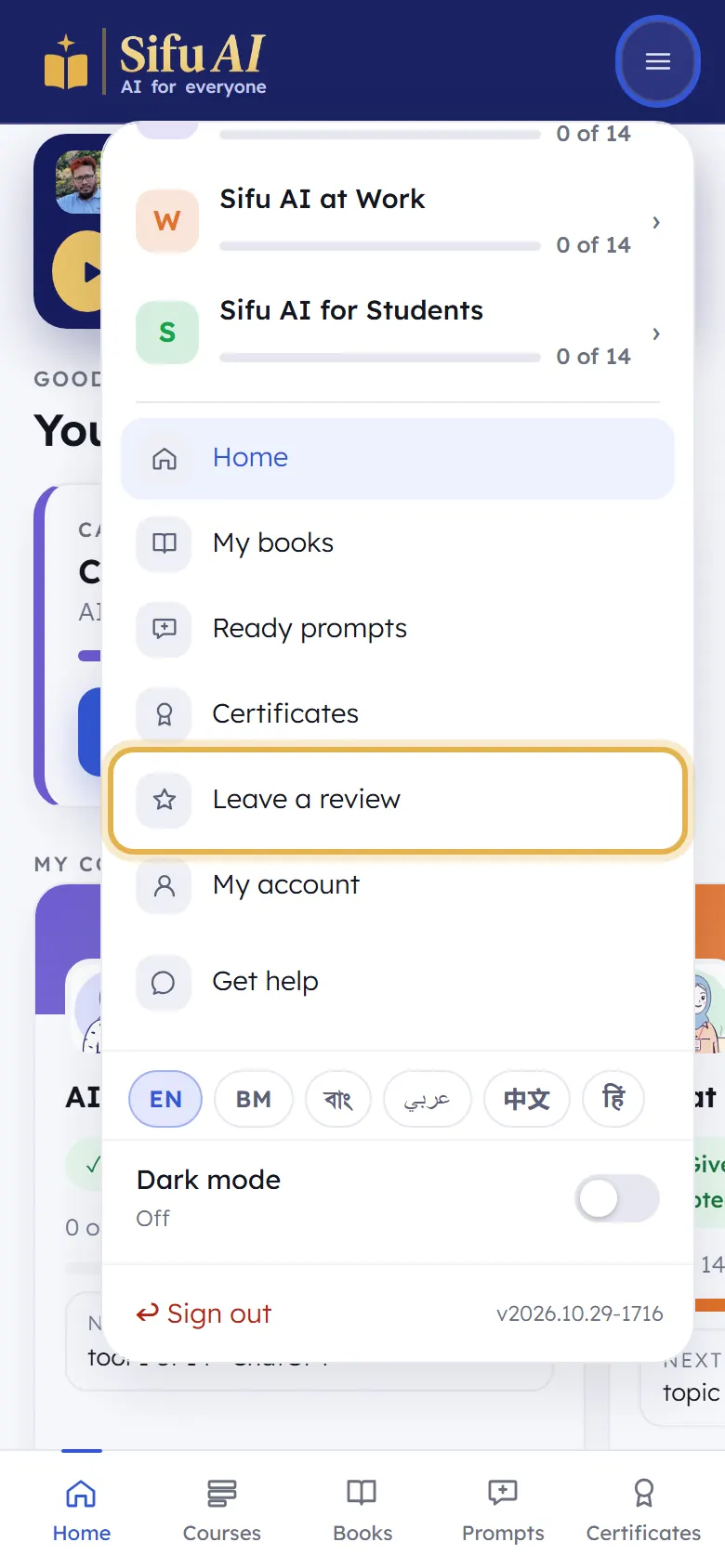
  1. Menu
  2. Leave a review

How to do it

  1. Open the menu and tap Leave a review.

    Step 1
  2. Choose your stars, write a few lines in your own words, then tap Send my review.

    Step 2

Invite a friend

What it is

Share your own link. Your friend gets money off their first course, and when they buy, you get money off your next one.

Where to find it

  1. Home
  2. Invite a friend

How to do it

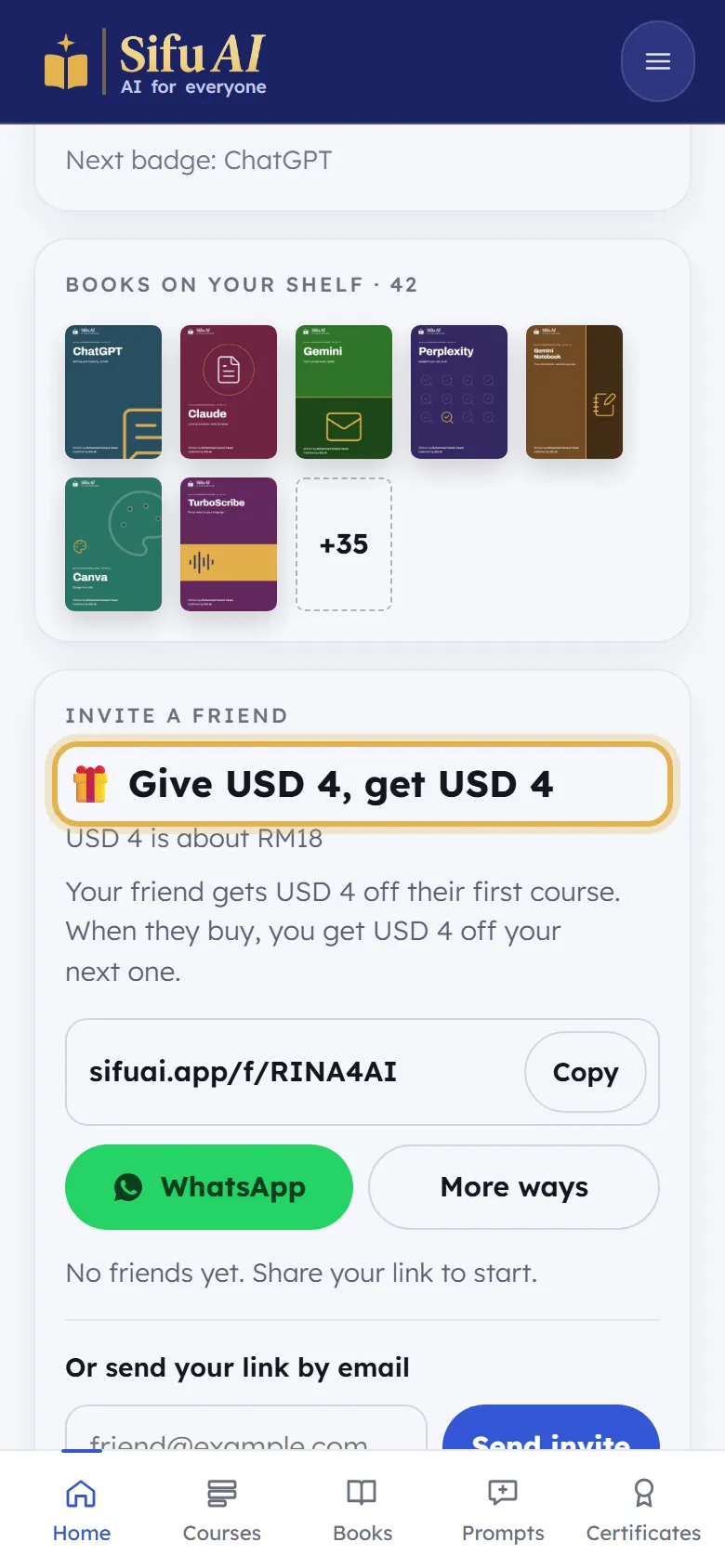
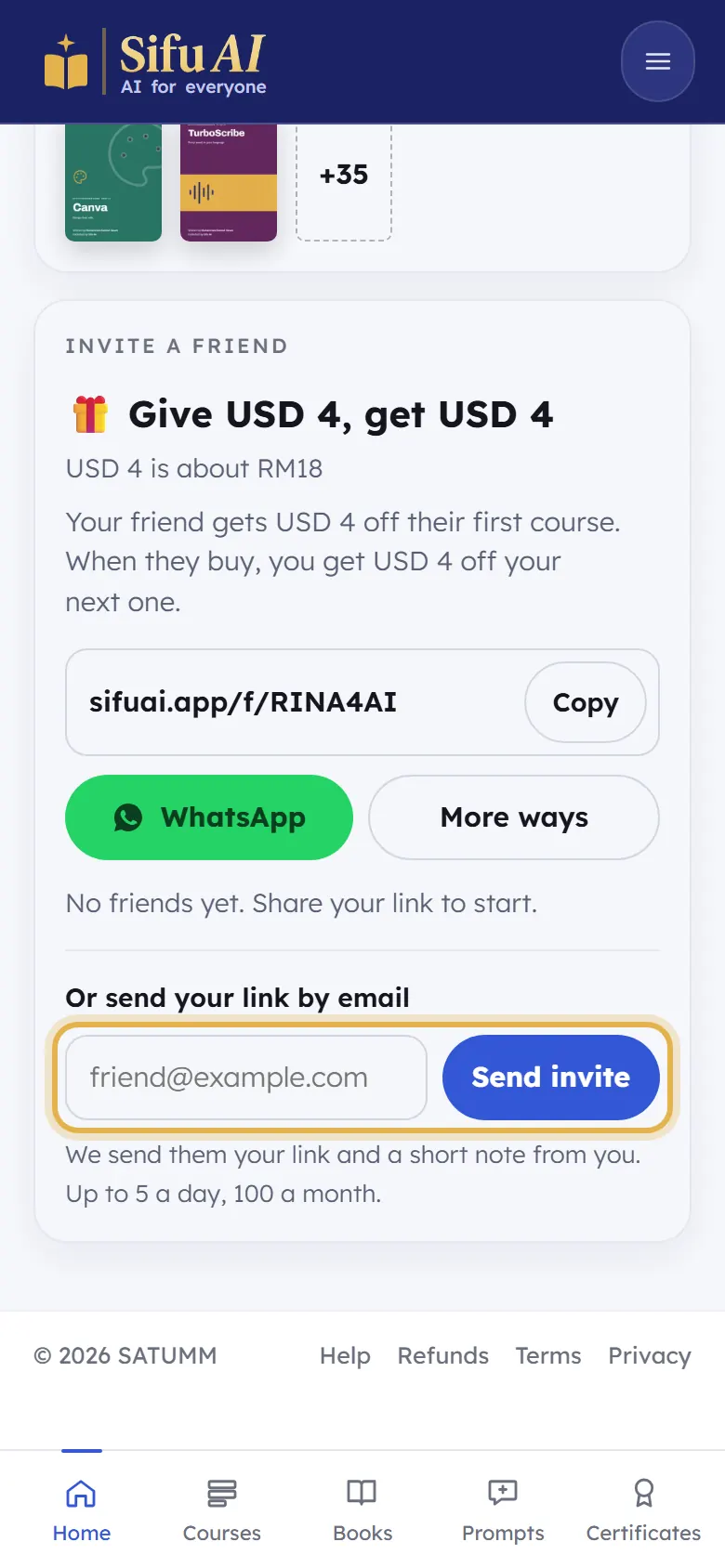
  1. On your home screen, scroll down to Invite a friend. Your own link is there.

    Step 1
  2. Tap WhatsApp to send it, or Copy and paste it anywhere. Or type your friend's email and tap Send invite.

    Step 2
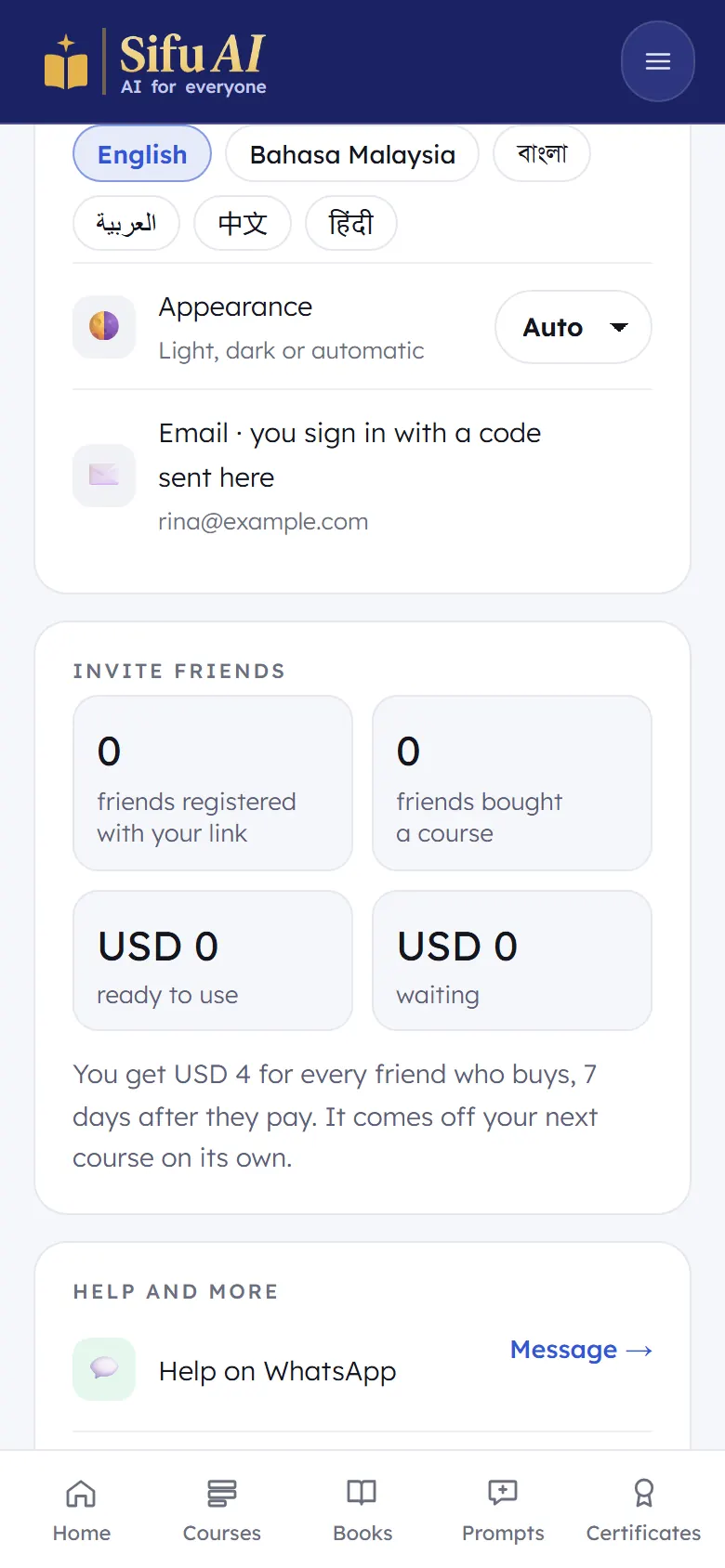
  3. See how many friends signed up and bought, and how much you have to use, in My account, under Invite friends.

    Step 3

Become a partner

What it is

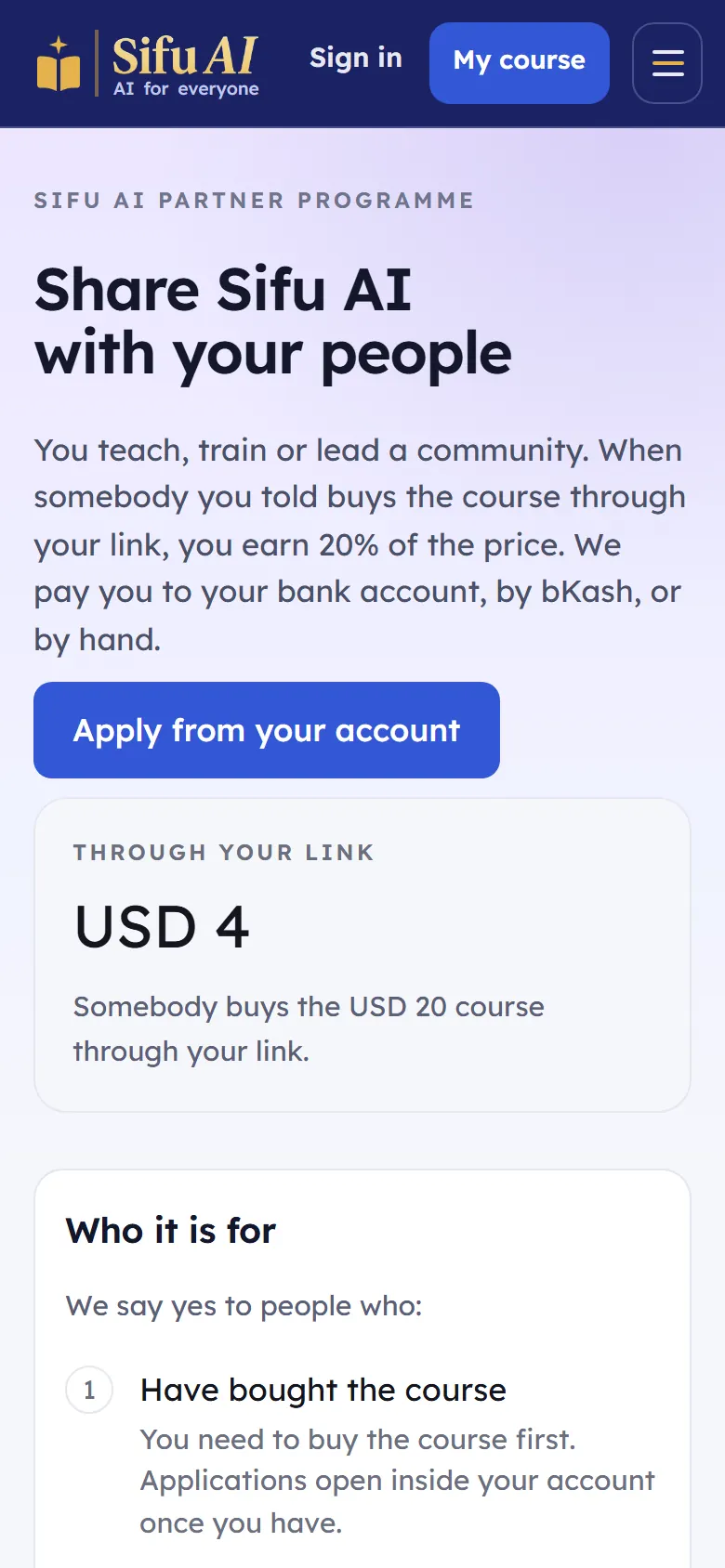
Partners earn money for every learner who buys through their link. It is for people who teach, train or lead a group. You need to have bought a course first.

Where to find it

  1. Footer
  2. Become a partner

How to do it

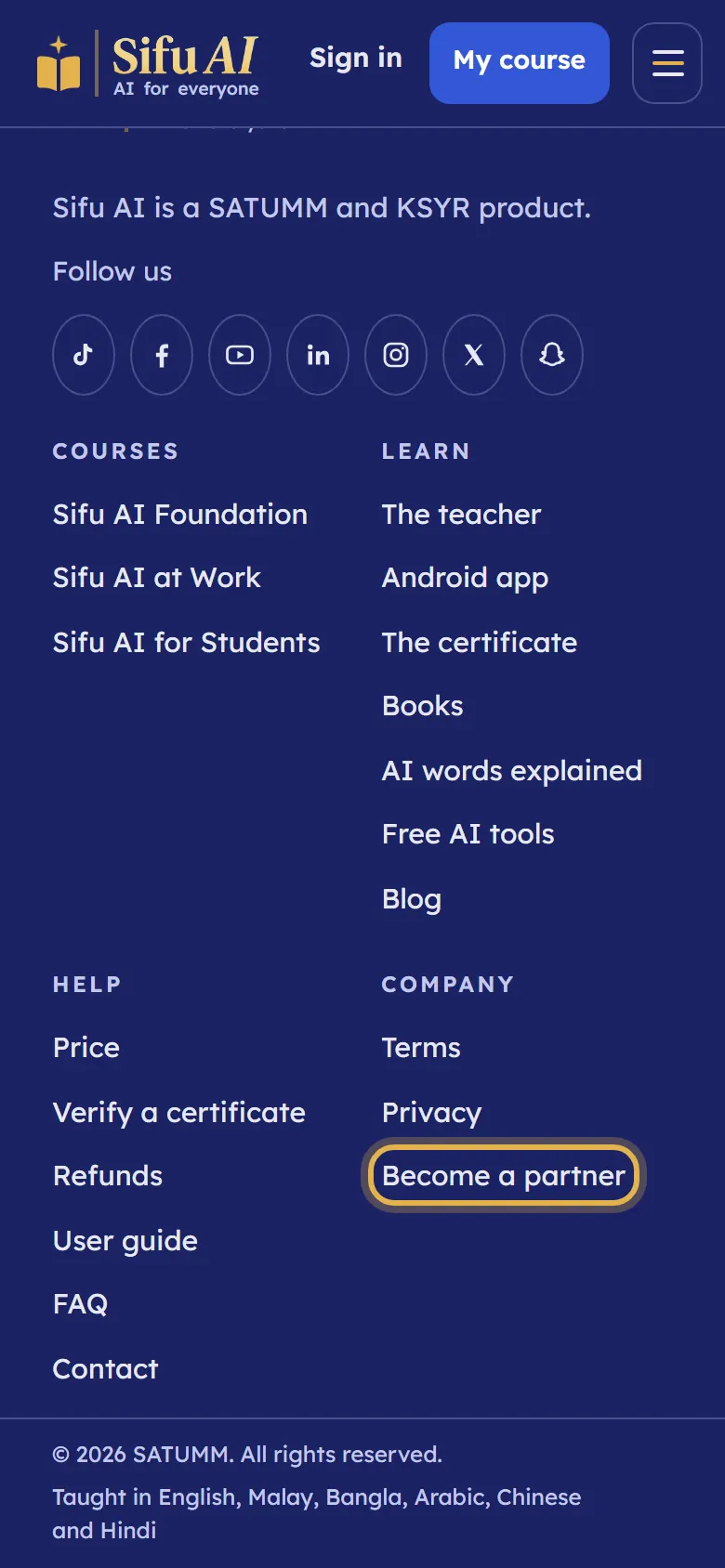
  1. Scroll to the bottom of any page and tap Become a partner.

    Step 1
  2. Read how it works. To apply, open My account, find Become a partner and tap Open. We reply by email.

    Step 2
  3. Once you are a partner, see the guides for agents and for group leaders.

Free AI tools

What it is

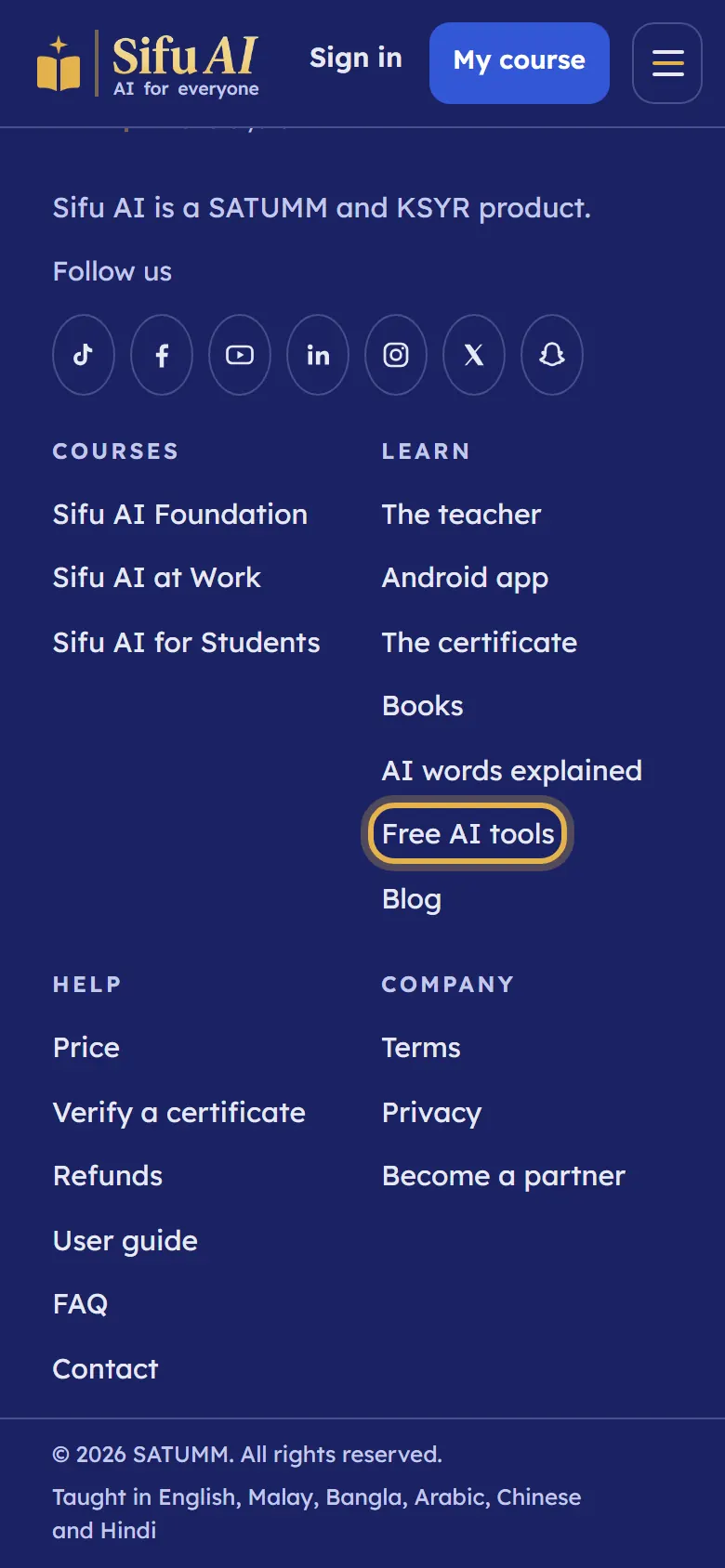
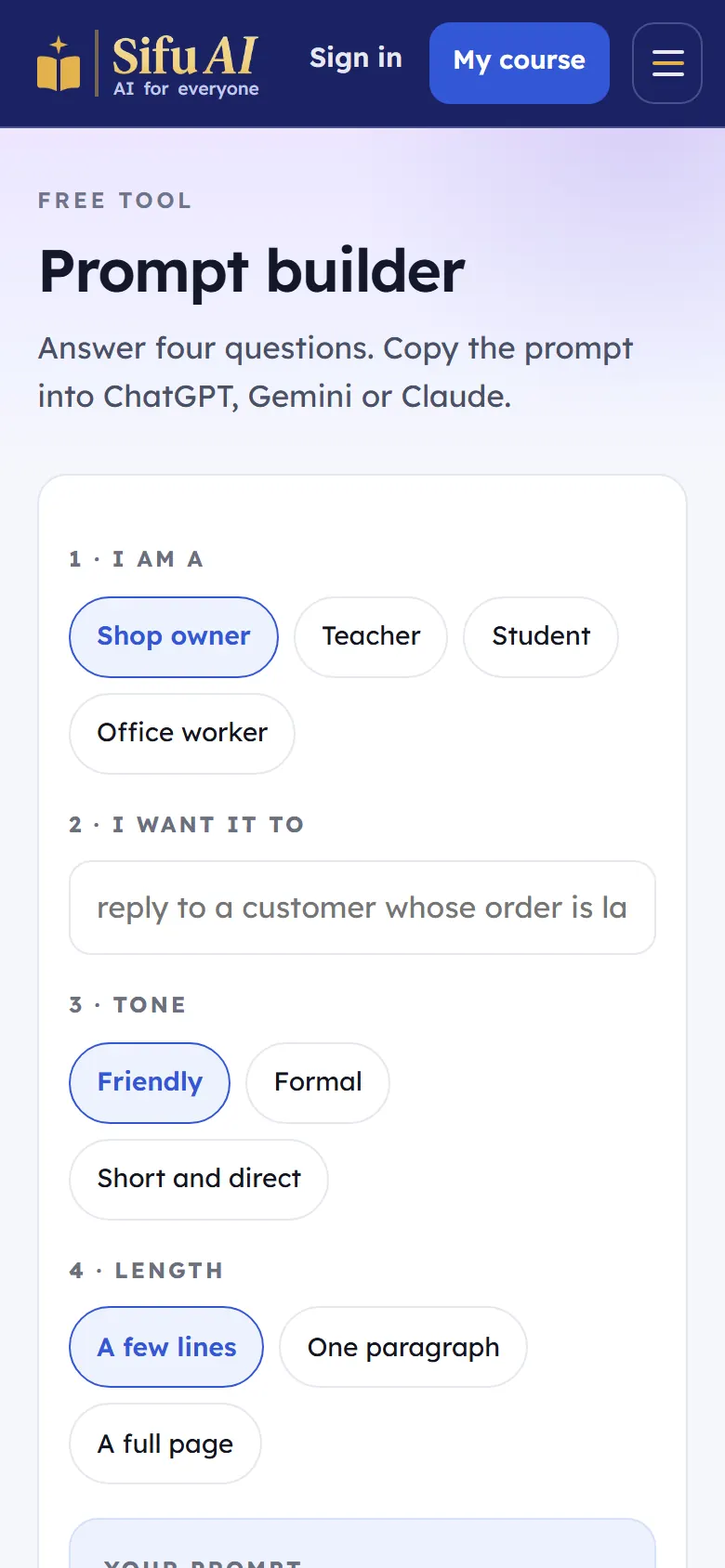
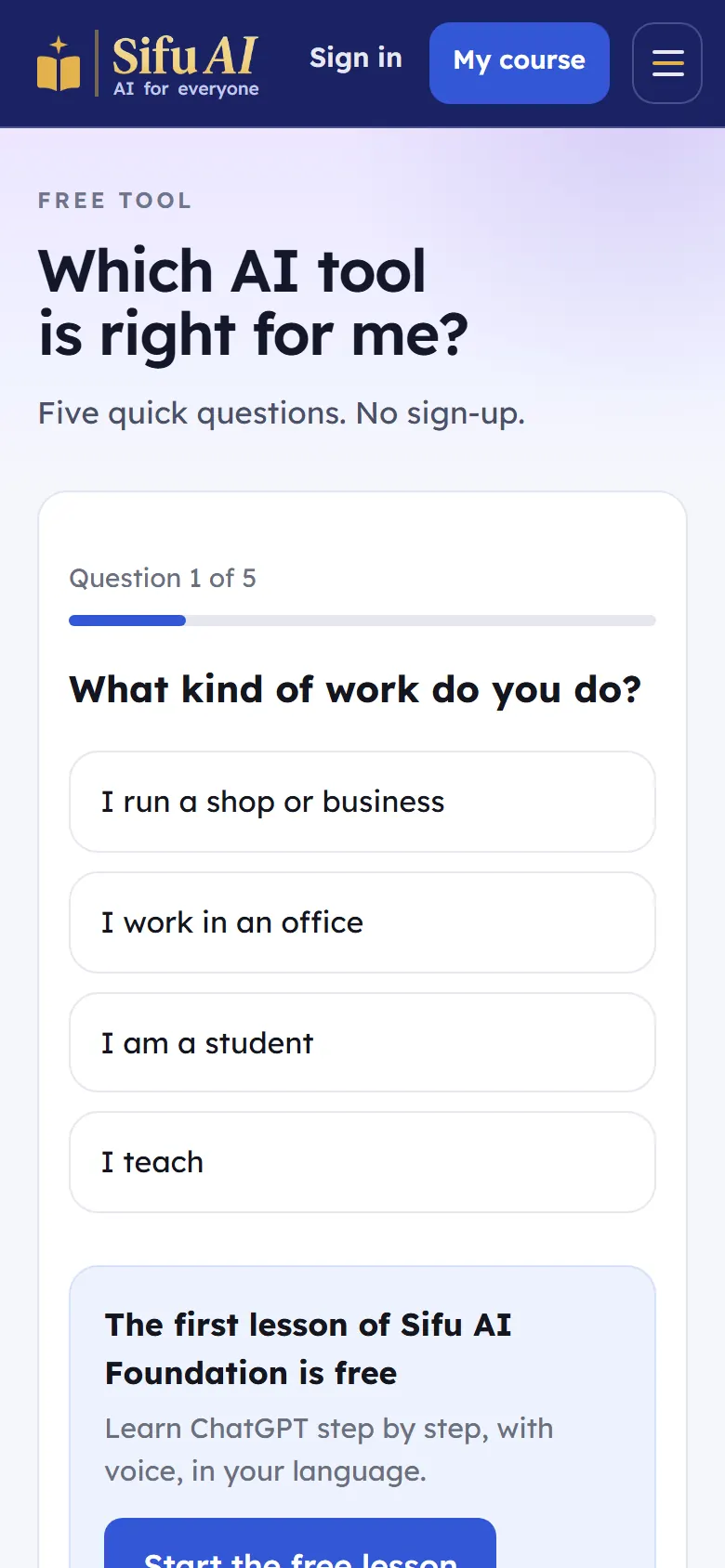
Three free helpers, no account needed: a prompt builder, ready prompts, and a quiz that tells you which AI tool to use.

Where to find it

  1. Footer
  2. Free AI tools

How to do it

  1. Scroll to the bottom of any page and tap Free AI tools.

    Step 1
  2. Prompt builder: answer a few boxes and it writes a good prompt for you to copy.

    Step 2
  3. Which AI tool? Say what you want to do, and it tells you which tool fits.

    Step 3

AI words explained, and the blog

What it is

Short, plain answers to AI words you hear every day, and articles about using AI well.

Where to find it

  1. Footer
  2. AI words explained or Blog

How to do it

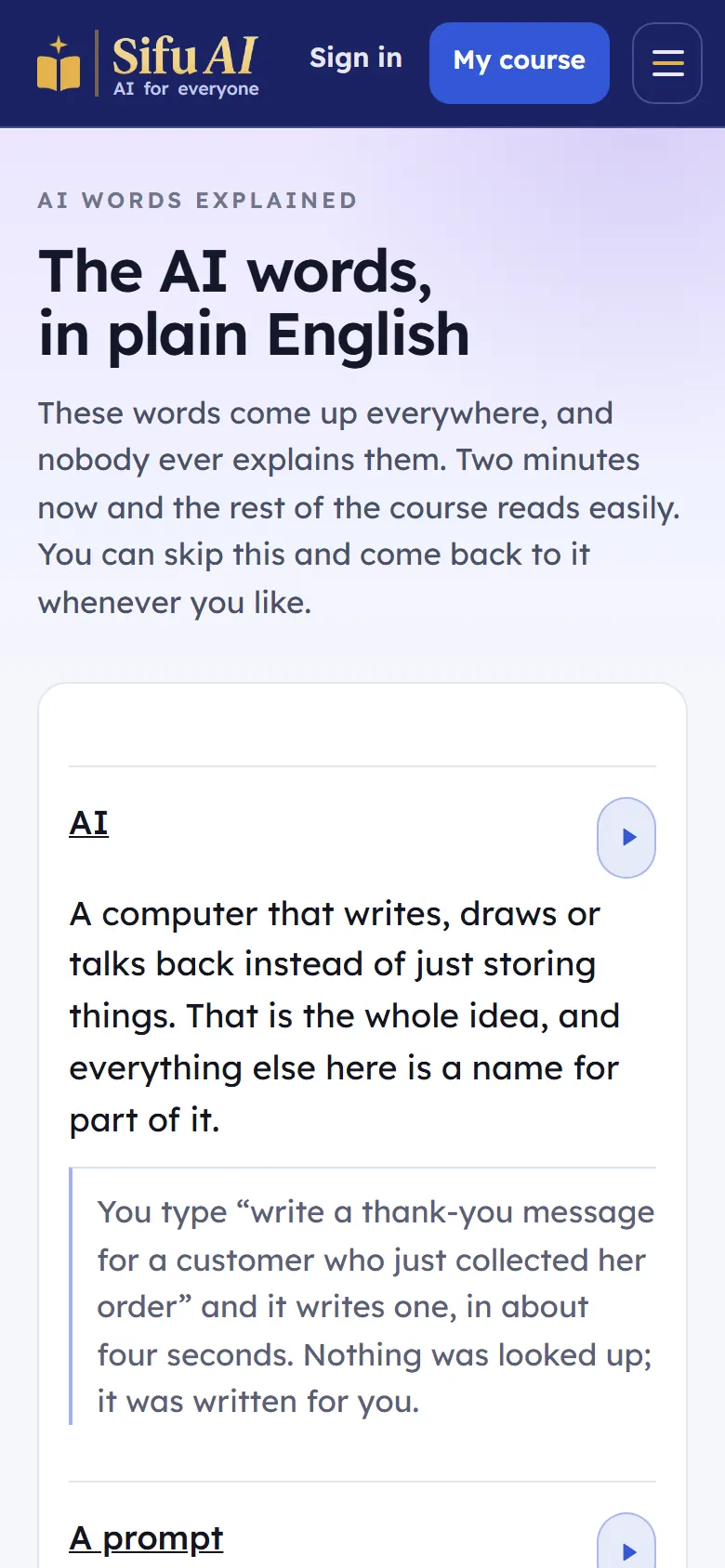
  1. Scroll to the bottom of any page and tap AI words explained. Tap any word to read about it.

    Step 1
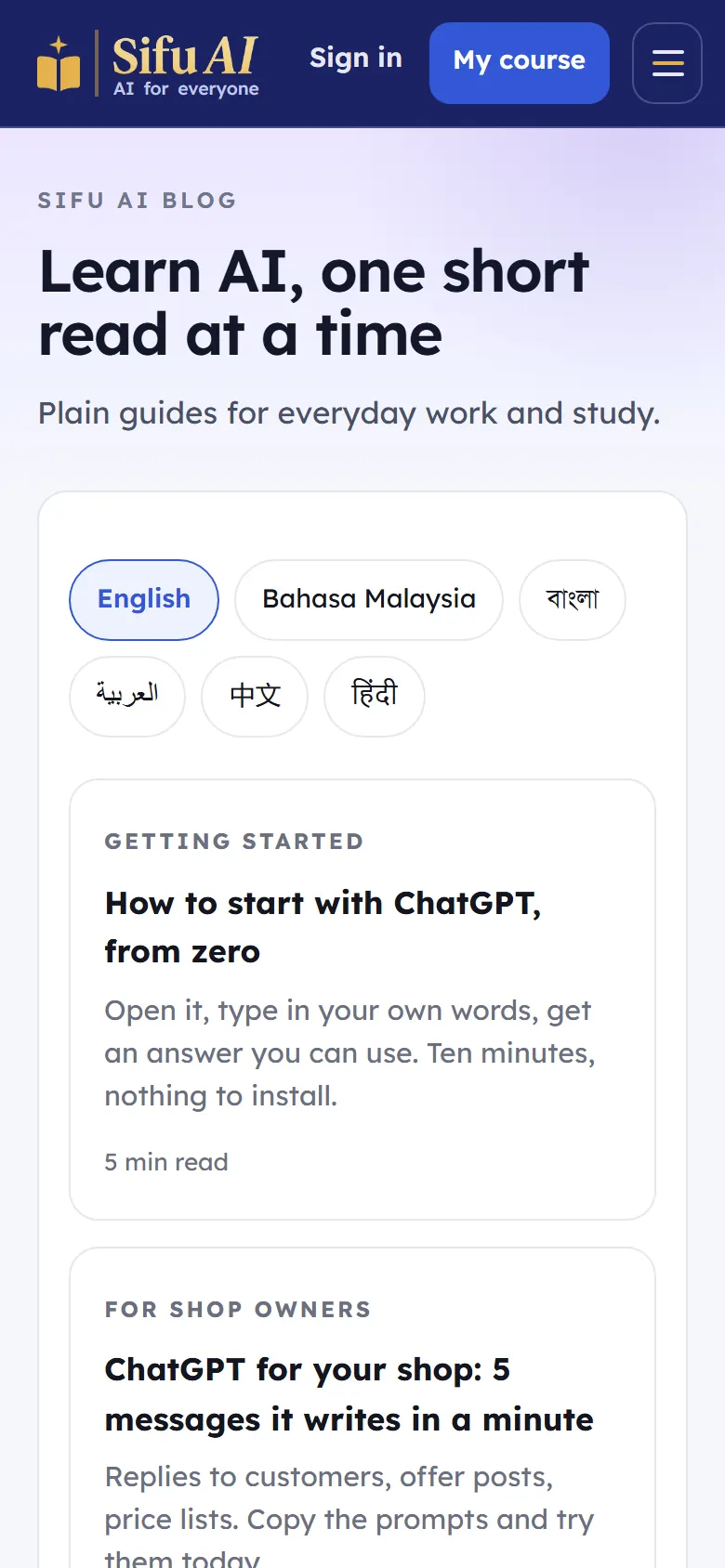
  2. Tap Blog for longer articles.

    Step 2

Get help

What it is

Ask us anything. The Sifu AI Assistant answers on WhatsApp day and night, and a person reads every email.

Where to find it

  1. Menu
  2. Get help

How to do it

  1. This guide first: find your problem in the list on the guide's front page.

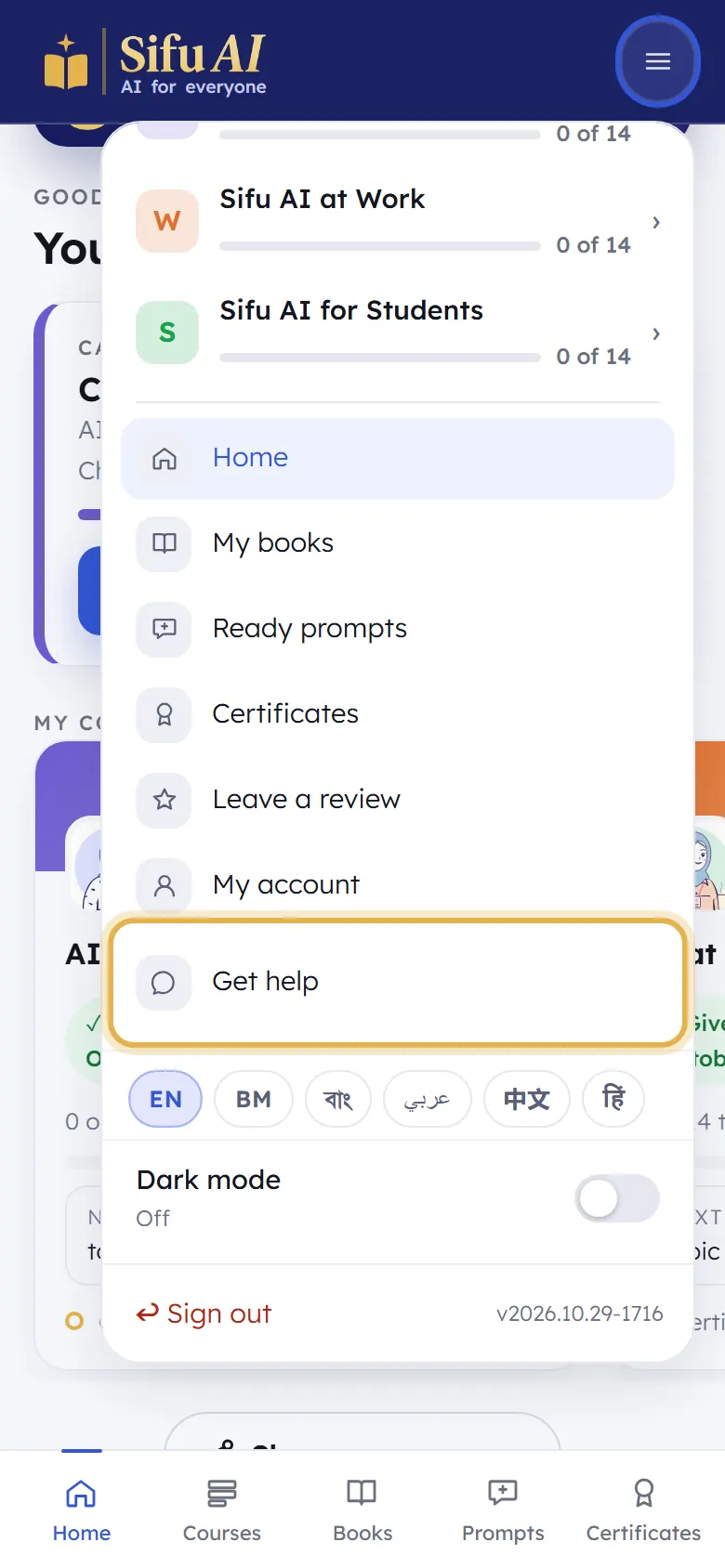
  2. Signed in? Tap the menu button at the top right, then Get help. Write your question and send it.

    Step 2
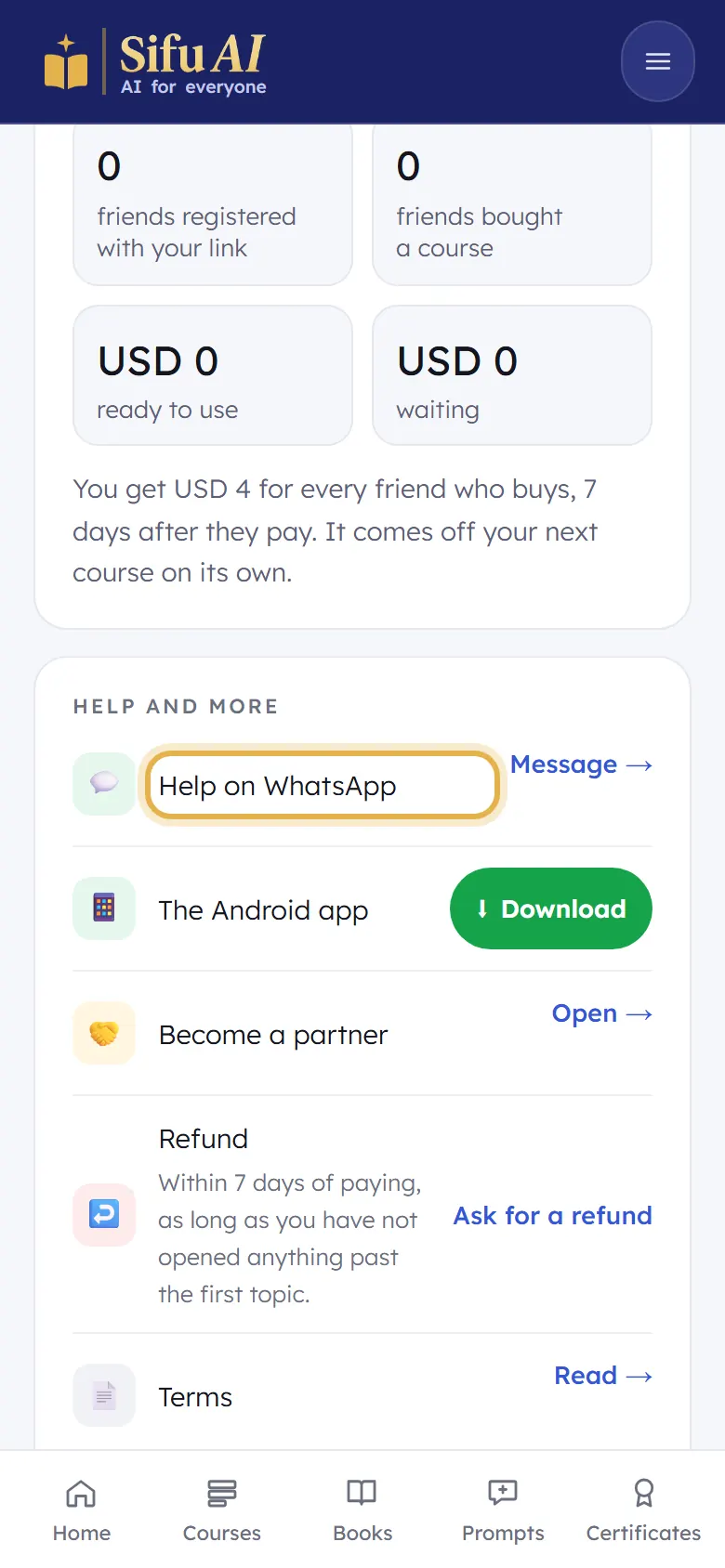
  3. Or open My account and tap Message beside Help on WhatsApp.

    Step 3
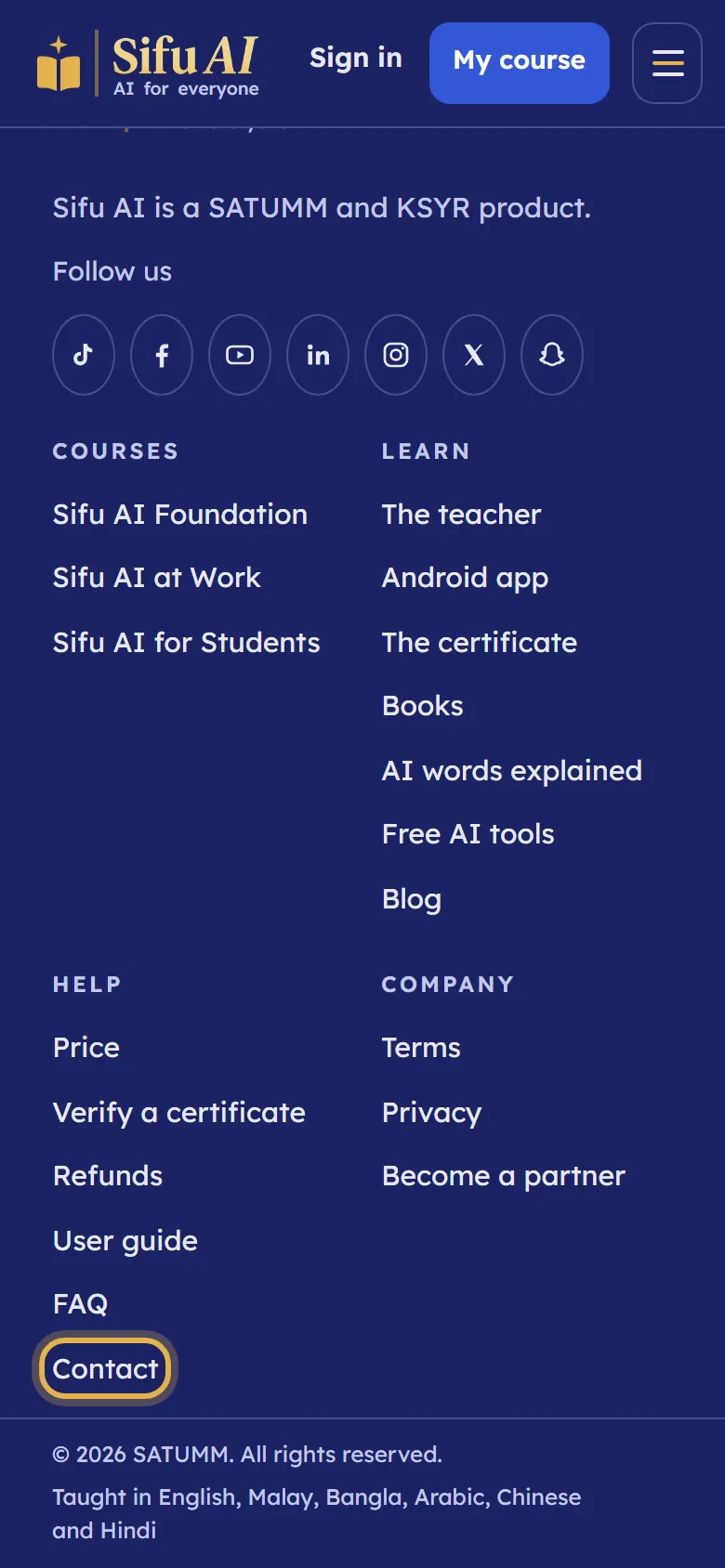
  4. Not signed in? Scroll to the bottom of any page and tap Contact.

    Step 4

Ask for a refund

What it is

Changed your mind? Ask from your account. You do not have to give a reason. The refund policy says when a refund can be given.

Where to find it

  1. Menu
  2. My account
  3. Refund

How to do it

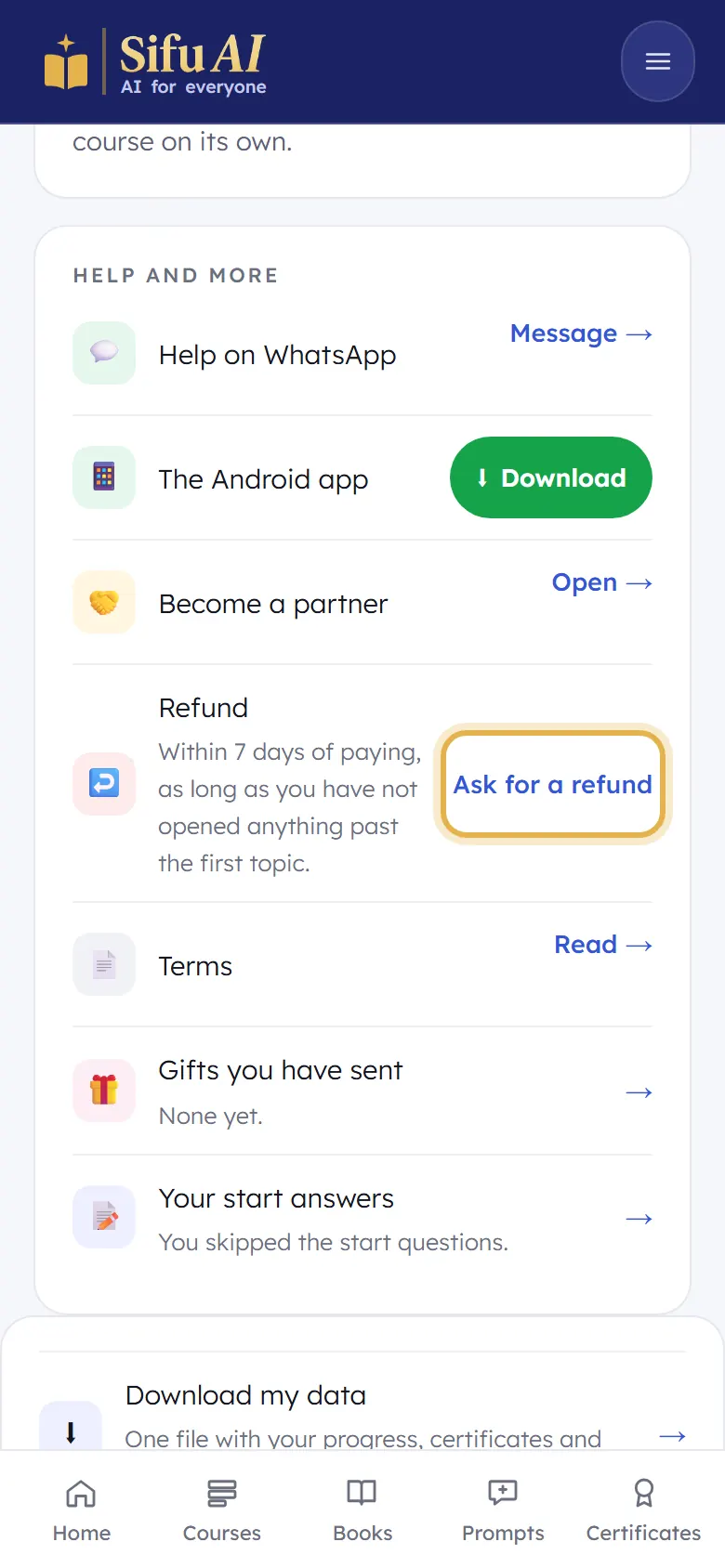
  1. Open My account from the menu. Under Help and more, find Refund and tap Ask for a refund.

    Step 1
  2. Choose the course, and send the form. We reply by email.

    Step 2
  3. You can also ask on WhatsApp or by email. The prompts you saved stay yours either way.

Your account and settings

What it is

Your name, your courses, your language, light or dark screen, your data, and signing out.

Where to find it

  1. Menu
  2. My account

How to do it

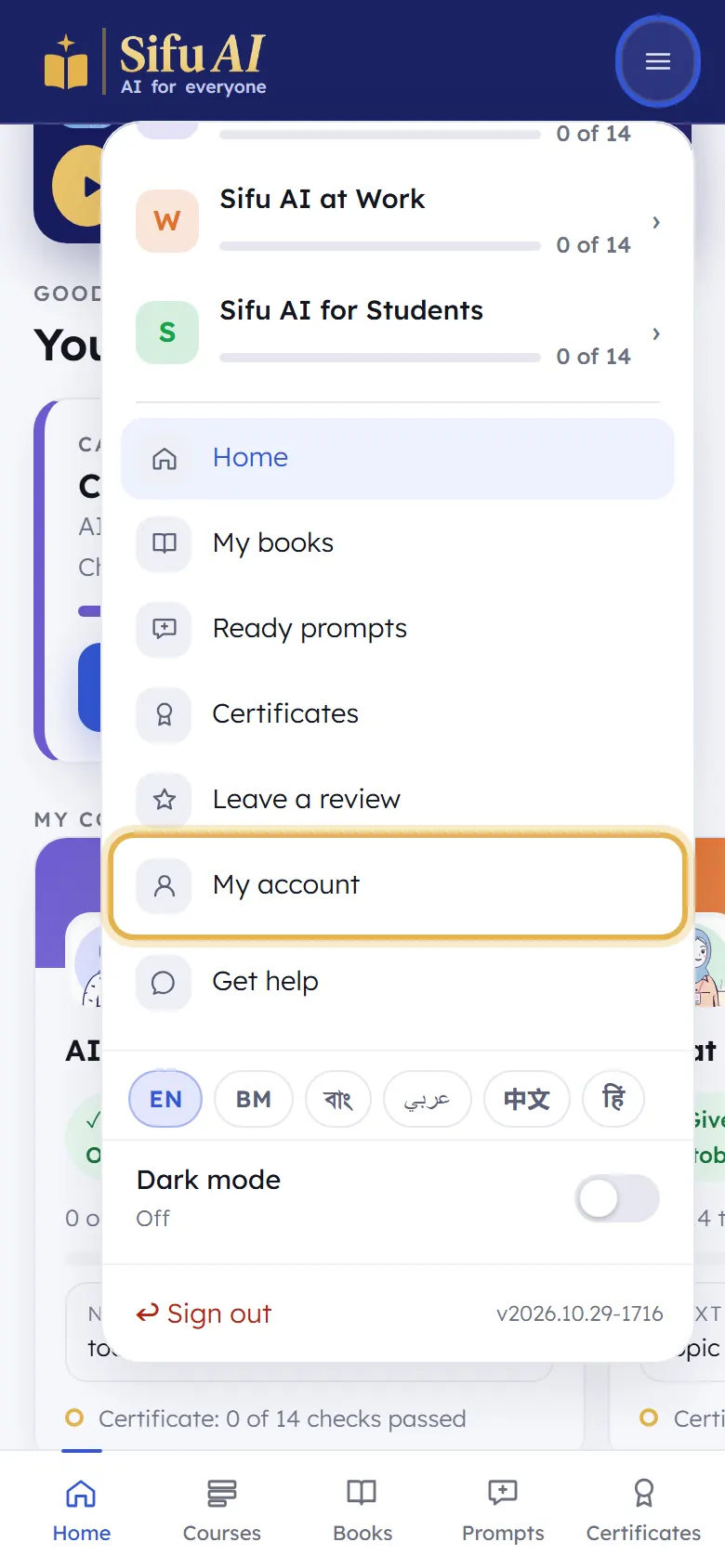
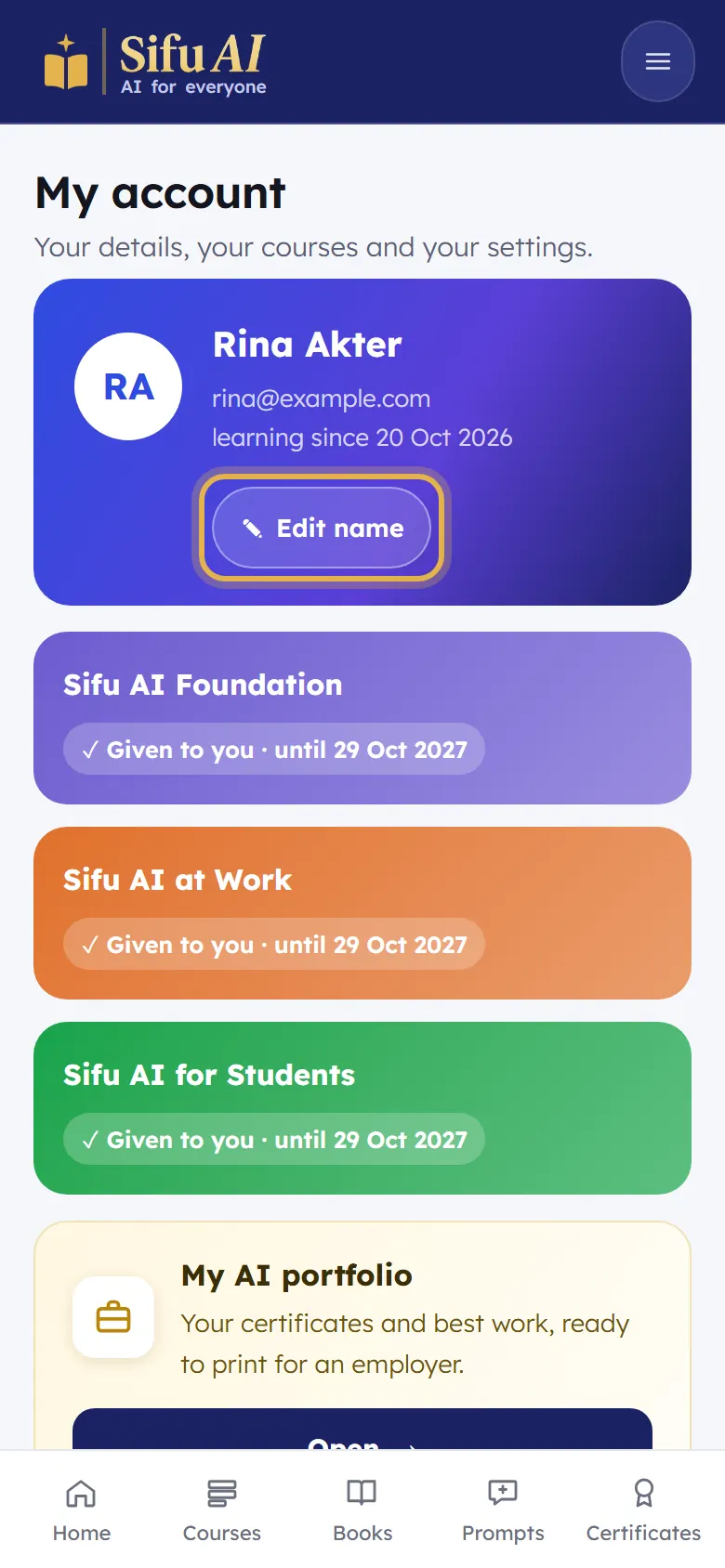
  1. Tap the menu button at the top right, then My account.

    Step 1
  2. Edit name changes the name on your certificates. Below it you see each course and until when it is open.

    Step 2
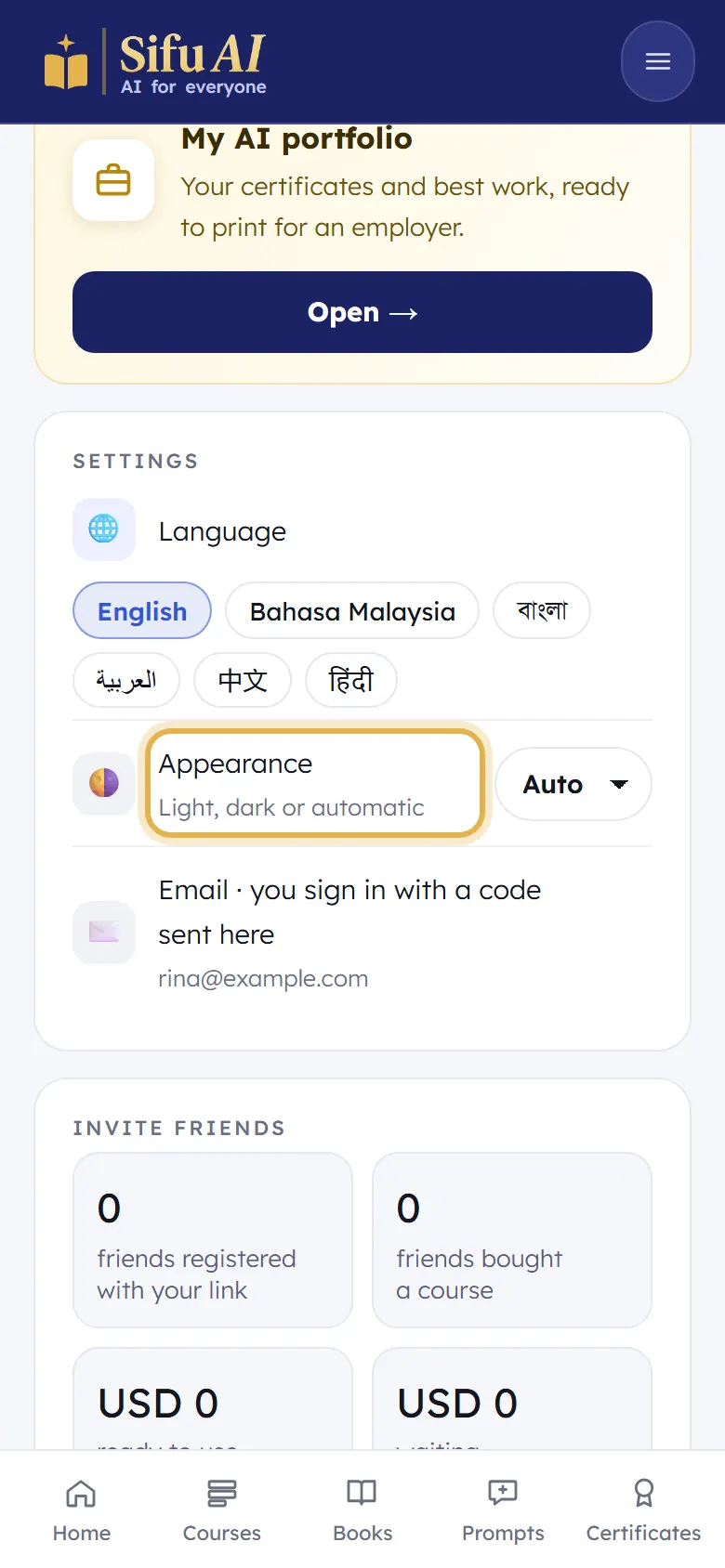
  3. Under Settings: your Language, and Appearance (light, dark, or automatic).

    Step 3
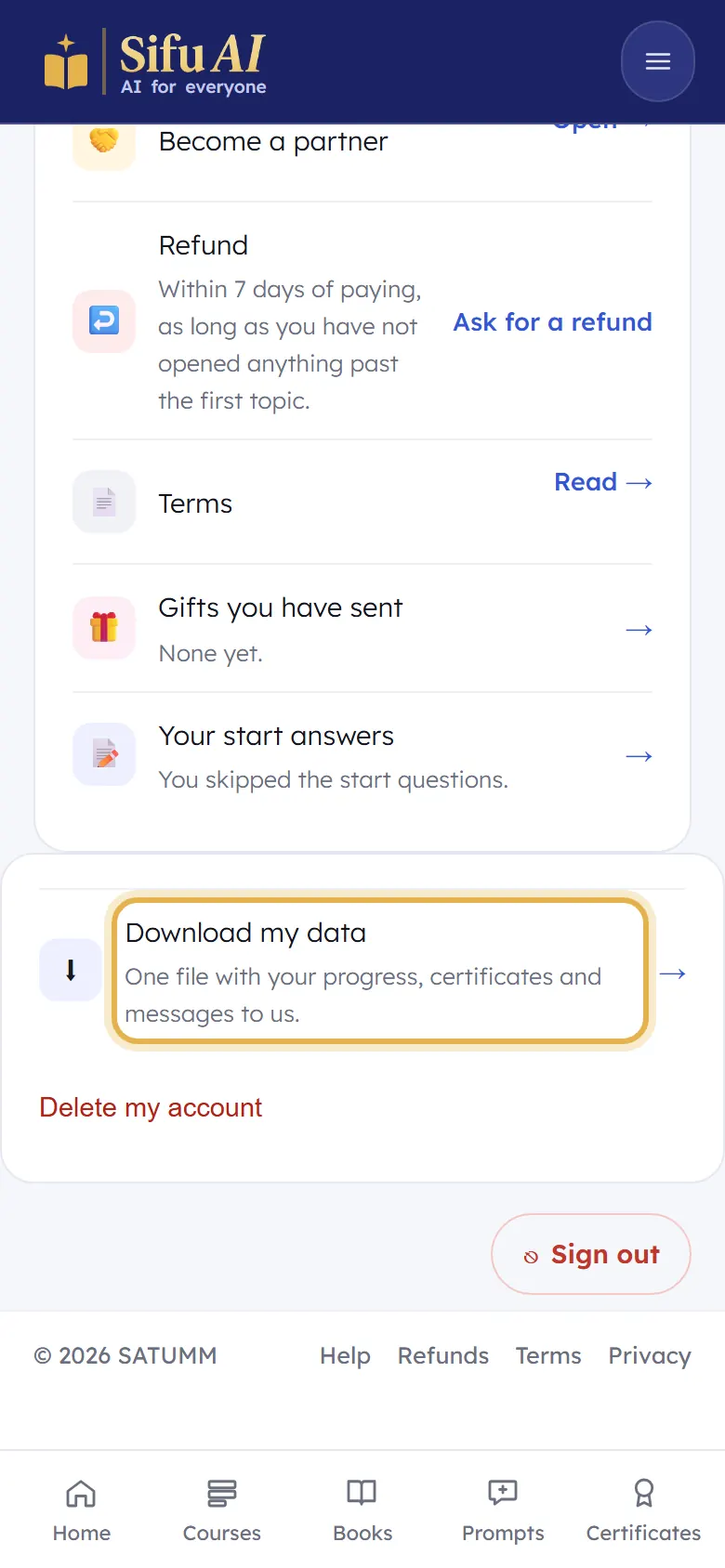
  4. At the bottom: Download my data gives you one file with everything. Delete my account removes it for good. Sign out signs you out of this phone.

    Step 4

If you are stuck

Can I change my email?
Not by yourself, because your email is how you sign in. Message us and we will help.